Single-line tab > Frames and sheets group >  Handle sheets menu > Compare document versions Handle sheets menu > Compare document versions |
| Distribution Board tab > Frames and sheets group > Handle sheets menu > Compare document versions |
| Schematics tab > Frames and sheets group > Handle sheets menu > Compare document versions |
| Cabinet Layout tab > Frames and sheets group > Handle sheets menu > Compare document versions |
With this function, you can compare the versions of a drawing (DRW, DWG, DXF) or Electrical's Excel report (XLSX) and show the changes in a PDF file.
Do the following:
-
Start the function in one of the following ways:
-
Select Compare document versions.
-
In the Documents tree, right-click the desired document and select Compare document versions.
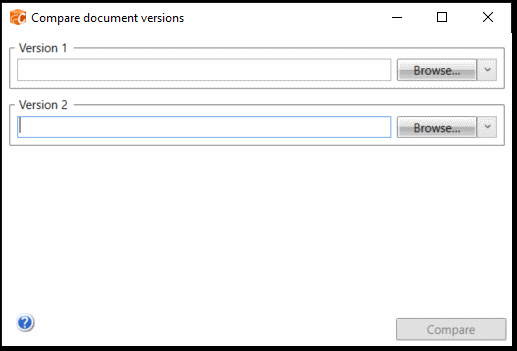
The Compare document versions dialog opens.
-
-
Select the document versions you want to compare.
-
Click Compare.
After the comparison is finished, the result is printed in an PDF file where you can compare the results.
-
The elements that exist only in version 1 are presented in red.
-
The elements that exist only in version 2 are presented in green.
-
The differences between versions are highlighted with yellow.
-