
|
Single-line tab > Wiring and markings group > Draw cable |
Schematics tab > Wiring and markings group >  Draw wiring menu > Draw cable Draw wiring menu > Draw cable |
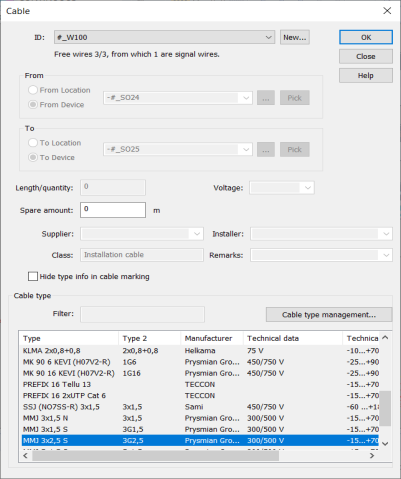
With this function, you can draw a cable to the drawing. The From and To information is determined by the start and end point locations of the cable.
Do the following:
-
In the ID field, enter the cable ID or select an existing cable from the drop-down-menu.
-
Insert additional information if needed.
-
Click OK.
-
Indicate the cable start and end points.
-
End the cable by right-clicking or with Enter. The Wiring reference dialog opens, unless you end the line on a device or location boundary line.
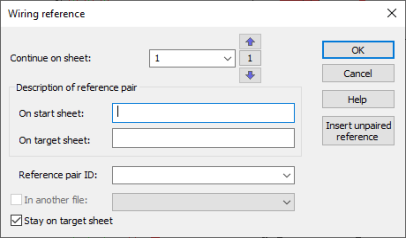
The Continue on sheet field shows the current sheet. The start sheet is shown between the arrow buttons.
-
Define the sheet where to continue the cable.
-
You can move to the next sheet with the
 button or the PageUp key.
 -
You can move to the previous sheet with the
 button or the PageDown key.
 -
You can select the desired sheet from the drop-down menu.
The sheet changes in the background according to your selection.
Alternatively, continue the cable in another open drawing by selecting In another file and then the desired drawing from the drop-down menu. The function then marks wiring references to both drawings. The reference contains the number of the drawing where the cable continues. If no drawing number is defined or it cannot be read from the drawing label, the reference will include the name of the drawing file.
You can also create an unpaired reference with the Insert unpaired reference button.
-
-
Enter free-form descriptions for the reference pair to specify where the cable comes from and where it is going to.
In addition, you can do the following:
-
You can select the wiring reference pair ID from the Reference pair ID drop-down menu.
-
If you select Stay on target sheet, you will stay on the target sheet after the cable has been drawn. Otherwise you will return to the sheet you started from.
-
-
Click OK.
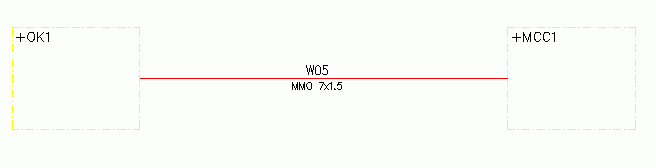
The cable's From and To information are determined by the start and end point locations, e.g. +OK1 and +MCC1.
Redraw cable
You can redraw an existing cable with existing cable data. In some cases this is easier than editing a complex cable.
Right-click the cable, and select Redraw cable.
Draw the cable in the same way as a normal cable.