
|
Holes tab > Hole functions group > Dimension |
With this function, you can set the hole dimensions.
The function sets the dimensions for the holes using an active dimension style. You can change the settings in the Hole dimension dialog.
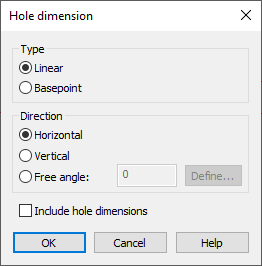
Do the following:
-
Select the type of the dimension.
-
Select the direction of the dimension.
-
Select whether you want to include hole dimensions in the marking.
-
Click OK.
-
Select the basepoints of the dimension on the drawing.
Basepoints are all points that are marked on the dimension line along with the dimensions of the hole(s).
-
Press Enter or right-click when you have selected all the basepoints.
-
Select the hole(s) whose dimensions you want in the marking.
-
Press Enter or right-click to accept the hole(s).
-
Select the location of the dimension line.
You have now drawn a dimension line that includes all the basepoints you selected and either the center point or the corner points of the hole(s).