DB tool > Management tab > Imports group >  Import menu > Import definition management
In import definitions, you link columns in the source (e.g. Excel file) to the columns in the target table.
For example, if you import I/Os to the project, you can define from which source file column the device to be created gets the channel number. The I/O card information needs to be linked in the I/O table but more specific I/O card information needs to be linked in the I/O Cards table. Furthermore, in the Devices table, you need to link the location but more specific location information (e.g. description) needs to be linked in the Locations table. The same logic is applied to the following:
-
Device + circuit
-
Device + plate
-
Device + hierarchy
-
Cable + plate
-
I/O + circuit
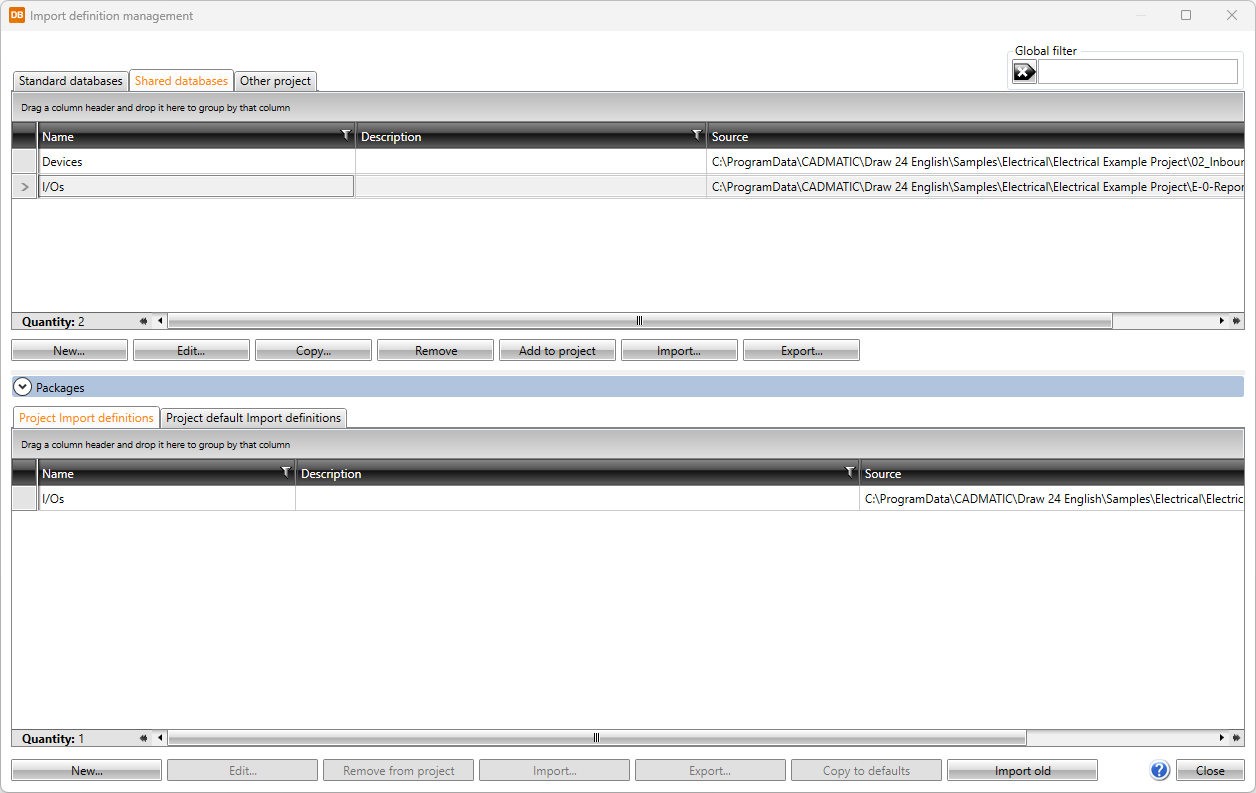
The items in different databases and functions related to them are divided on tabs:
- The Standard databases tab shows the read-only product database (EDBCommon.sqlite) provided with the application. It will be overwritten whenever the application is updated. You can copy product information from this database to your own shared databases.
-
Open – Open the selected item for viewing.
-
Copy – Create a copy of the selected item to Shared databases.
-
Add to project – Add the selected items to the project. Alternatively, add an item by double-clicking it.
-
Import
-
Export
 Show/hide functions
-
The Shared databases tab shows databases that can be shared and edited. If another user edits the data simultaneously, you can update the grid to show the changes by clicking the
 button. In the Product database drop-down menu, User
products from 1 to 9 are empty product databases for your own product information.Show/hide functions
button. In the Product database drop-down menu, User
products from 1 to 9 are empty product databases for your own product information.Show/hide functions
-
New – Add a new item.
-
Edit – Open the selected item for editing.
-
Copy – Create a copy of the selected item to Shared databases.
-
Remove – Remove the selected item.
-
Add to project – Add the selected item(s) to the project. Alternatively, add an item by double-clicking it.
-
Import
-
Export
-
-
The Other project tab enables importing information from another project database (EDBProject.sqlite or EDBProject.mdb). You can also move the selected rows to the shared databases by right-clicking and selecting Add to shared database.
Show/hide functions
-
Copy – Create a copy of the selected item. The copy will be saved to Shared databases.
-
Add to project – Add the selected item(s) to the project. Alternatively, add an item by double-clicking it.
-
Select other project – Select another project database (EDBProject.sqlite or EDBProject.mdb) to use as data source.
-
Import
-
Export
-
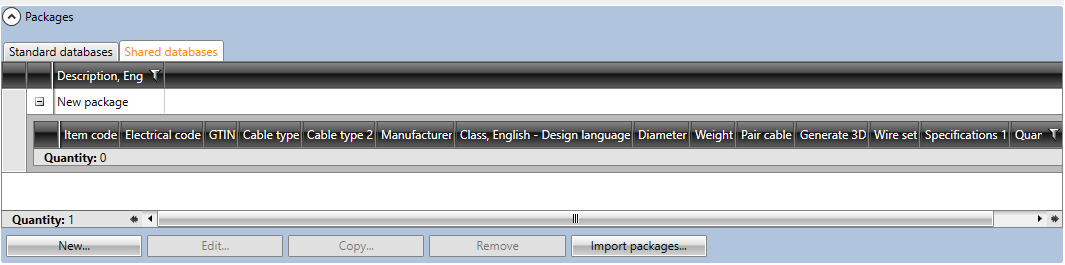
The Packages section is located below the database grids. With packages, you can bundle multiple items together and then easily add them to the project at once.
You can add a package with all the items to the project by double-clicking it.
Show/hide details
-
New – Add a new package. You can then add items into the packages by dragging them from the database grids.
-
Edit – Edit an existing package. You can remove rows from packages by right-clicking the row and selecting Remove package row.
-
Copy – Create a copy of the selected package. All the items in the package will also be copied.
-
Remove – Delete the selected package.
-
Import packages – Import data from other projects.
The bottom part of the Import definition management dialog shows project information (EDBProject.sqlite or EDBProject.mdb) and default project information (EDBUser.sqlite or EDBUser.mdb).
Project import definitions
-
New – Add a new item to the project database. You can also add an item by selecting an existing item, clicking Edit and then in the dialog clicking the
 button.
 -
Edit – Edit an existing item. The changes will only be saved to the item in the project.
-
Remove from project – Remove an item not used in the project.
-
Import – Import project data according to the import definition.
-
Export
-
Copy to defaults – Add the selected items to the default database (EDBUser.sqlite or EDBUser.mdb). When a new project is created, items will automatically be added to that project.
-
Import old – Import definitions from the 18 version (or older) to the current version.
Default project import definitions
-
New – Add a new item to the default database. You can also add an item by selecting an existing item, clicking Edit and then in the dialog clicking the
button. -
Edit – Edit an existing item. The changes will only be saved to the item in the project.
-
Remove from project – Remove an item not used in the project.
-
Import – Import project data according to the import definition.
-
Export
-
Add to project – Add the selected items to the project.
Create import definitions
Do the following:
-
Start the function. The Import definition management dialog opens.
-
Click New. The New import definition dialog opens.
-
Browse to the source file by clicking the
 button. The source file type can be one of the following:
-
.xsl, .xslx, .xlsm, .xlsb, .xlt, .xltx, .xltm
-
.sqlite
-
.mdb, .accdb
-
.xml
You can select a file type missing from the drop-down menu with the *.* option.
Note: The path added to the Source field is absolute, and you can edit it. If you define the path as Input data\IO_import.xlsx, for example, the file is looked for in the sub-directory Input data. Sub-directories are useful, if the project is moved to a different computer or server – the import definitions are then looked for in the sub-directory instead of the project directory.
The file name is automatically added into the Name field.
-
-
If necessary, edit the name. The name has to be unique; two definitions cannot have the same name.
-
If you want, add a description in the Description field.
-
With the
 button, you can select more tables.
 -
By right-clicking on the header row and selecting Show columns, you can select the columns you want shown in the table.
-
By right-clicking the column header and selecting Additional information, you can select the desired additional columns to the table.
-
By right-clicking the column header and selecting Hide column, you can hide an individual column from the table.
-
After you have selected the desired columns you can copy them to the clipboard by right-clicking and selecting Copy column header/s to the clipboard. After that you can select whether to copy the selected column or all columns.
Tip: You can easily paste the column headers from the clipboard to the Excel file, to have the same column headers in both the source file and the import definition.
-
Link the source to the target by dragging the desired column from the source table to the target table. For example, if you are creating an import definition for I/Os, drag and drop the desired column (e.g. I/O tag) from the Source table to the corresponding column (e.g. Tag name) in the target table.
The link created means that the I/O created in the import will get its tag name from the column I/O TAG.
Note: The option Column headers on row is on by default and the link text is based on the first row. If you remove the check mark, the link is based on the column letter (e.g. $A$).
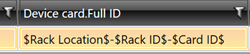
You can drag several source columns to one column in the target table. After that, you can edit the link by adding standard characters. In the next image, three columns have been dragged from the source and separated with hyphens:
-
If you want to link data from different columns or sheets in an Excel file, create more rows in the target table and drag the columns as described.
-
Save the changes by clicking the button. Alternatively, start the import by clicking Import. The program then asks whether you want to save the definitions.
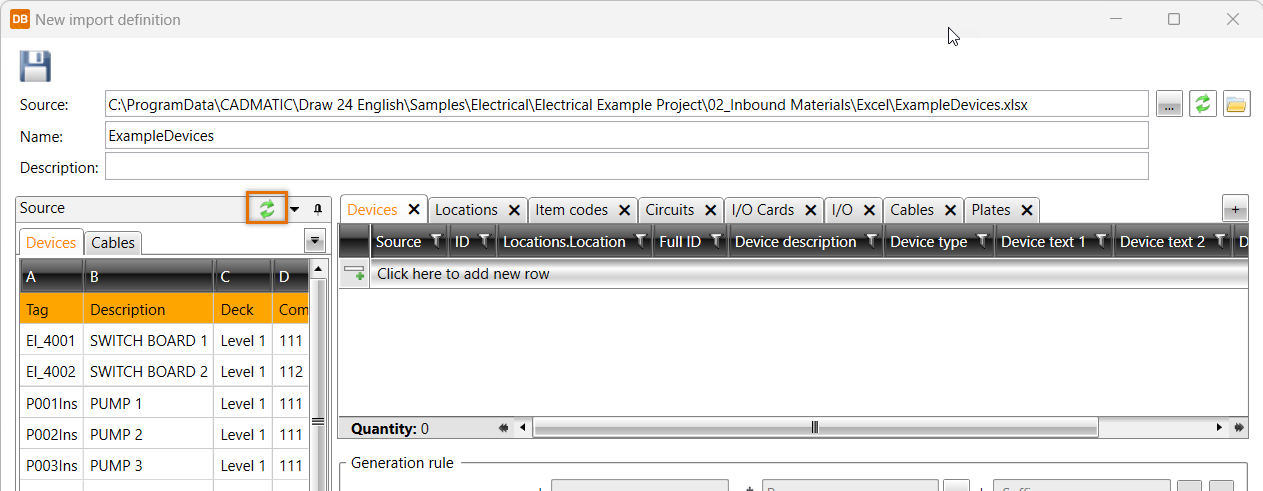
The data from the file you selected is shown in the Source table. The project database tables and the columns to which the source columns are linked are shown in the table next to the Source table.
You can use the  button to refresh the data from the source, in case the file has been modified during the creation/modification of the import definition.
Selecting columns and tables
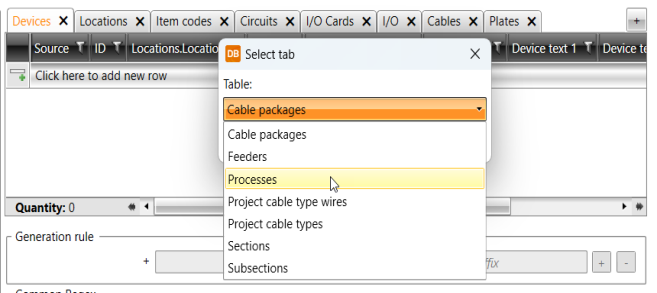
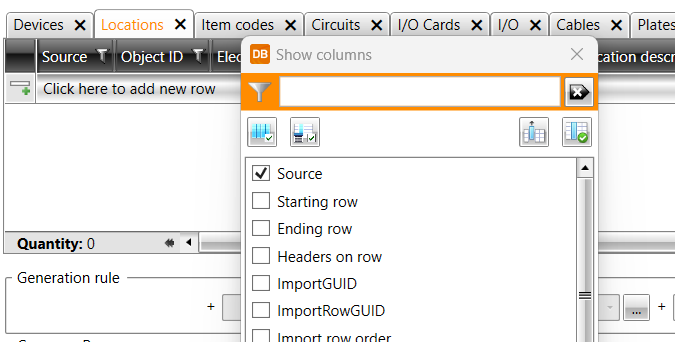
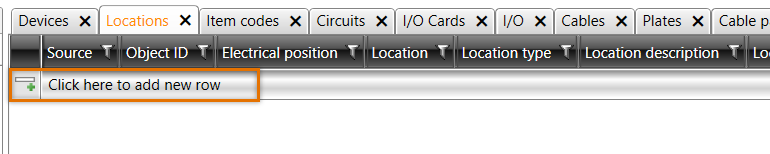
Note: If you rename sheets in the Excel file, you need to manually change them in the Source column in the target table.
The source table colors show how columns are linked:
-
Yellow – linking has been made to the active target table.
-
Green – linking has been made to another target table.
-
White – the column has not been linked.
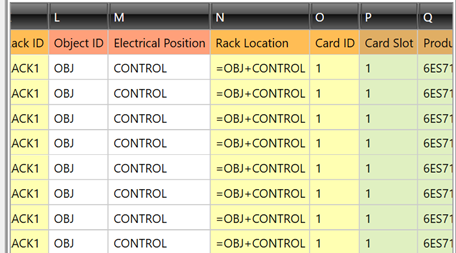
If a column linked in the import definition is removed from the source Excel file, the link is highlighted with red in the target table.
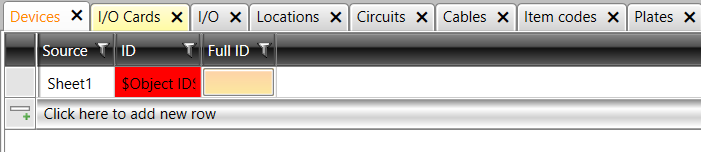
Remove an unnecessary link by clearing the cell marked with red. Alternatively, add the column to the Excel file again.