Create and edit your own drawing frames/labels

|
Electrical tab > Frames and labels group > Management |
You can create your own drawing frame/label by selecting an existing drawing frame or label symbol from a directory or by creating a new symbol based on the elements in the drawing.
When creating your own label symbol, you can take advantage of the symbols delivered with the application. For example, you can easily import all the required attributes into your own drawing frame by exploding SPOH3V.
Learn more:
Create drawing frame/label symbols based on existing ones
Do the following:
-
Open drawing frame/label and logo management.
-
From the Group drop-down menu, select User frames.
-
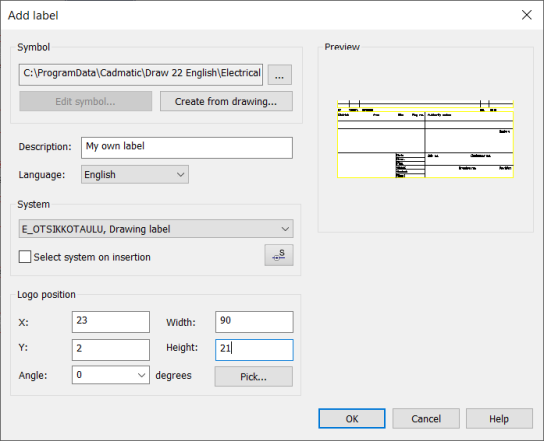
Click Add. Depending on the drawing type, the Add drawing frame or Add label dialog opens.
-
In the Symbol section, click the
 button.
 - Browse to select a drawing frame symbol (.drw).
-
Insert a description for the drawing frame.
-
Select drawing frame language. The selection determines the language below which the drawing frame will be when adding a drawing frame or label symbol into a drawing.
-
Define the logo position, size and angle in the drawing frame. You can also point the logo area by clicking Pick.
-
Accept by clicking OK.
Create drawing frame/label symbol from elements in drawing
Do the following:
-
Open drawing frame/label and logo management.
-
From the Group drop-down menu, select User frames.
-
Click Add. Depending on the drawing type, the Add drawing frame or Add label dialog opens.
-
Click Create from drawing.
-
Select elements to include into the symbol. You can select an individual symbol or separate elements.
-
Indicate symbol's insertion point. Usually, the insertion point is at the bottom left corner for drawing frames and bottom right corner for drawing labels.
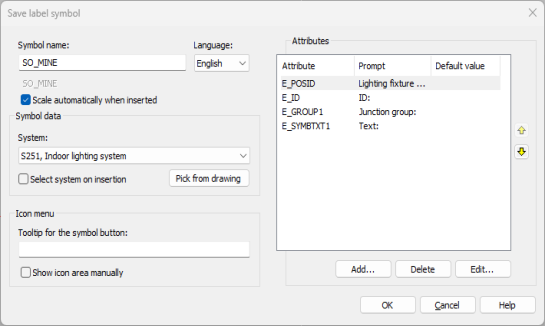
The Save label symbol dialog opens.
-
Set symbol name. It is recommend to use the prefix SO or something similar to separate your own symbols from the default Electrical ones.
-
Select drawing frame language. The selection determines the language below which the drawing frame will be when adding a drawing frame or label symbol into a drawing.
-
If you want the symbol to be automatically scaled when inserted, select Scale automatically when inserted.
- Select the system to which the label will be added by default (e.g. SA112_, drawing label). You can also select the system on insertion by selecting Select system on insertion. This option is available only for drawing labels.
-
Insert a tooltip for the drawing frame/label to be displayed in the menu. If you want to later indicate the frame/label part shown in the icon menu, select Show icon area manually. By default, the whole frame/label is scaled to fit the icon.
-
Add, delete and edit frame attributes if necessary.
- Add – Every symbol needs at least the E_ID attribute (ID). Select the desired attribute and insert default value if needed. Click OK and indicate the insertion point.
-
Delete – Remove an attribute.
-
Edit – Edit attribute properties. You can edit the order of attributes in the symbol with the arrow buttons.
 Show/hide details
-
Pin – Define the running number for pin attributes.
-
Part number – Compiled symbols require a part number. If different symbols are used for different device occurrences and the symbols have the same attributes while they mean different things, you have to define a part number, which separates the pins from each other.
An example of a compiled contactor symbol
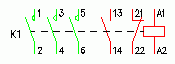
E_PINA001[112], Value: 1, Part number: 112
E_PINB001[112], Value: 2, Part number: 112
E_PINA001[114], Value: 3, Part number: 114
E_PINB001[114], Value: 4, Part number: 114
E_PINA001[116], Value: 5, Part number: 116
E_PINB001[116], Value: 6, Part number: 116
E_PINA001[202], Value: 13, Part number: 202
E_PINB001[202], Value: 14, Part number: 202
E_PINA001[201], Value: 21, Part number: 201
E_PINB001[201], Value: 22, Part number: 201
E_PINA001[101], Value: A1, Part number: 101
E_PINB001[101], Value: A2, Part number: 101
-
Attribute name – The name is generated from the attribute, pin number and part number.
-
Prompt – Define the prompt/description shown when using the symbol.
-
Default value – Define a default value for the attribute. Alternatively, you can leave this blank and select to define the attribute value on symbol insertion.
-
Ask attribute value on symbol insertion – Select this if you want the application to ask for the attribute value when you insert the symbol. If you defined the default value, that will be used.
-
Attribute visible – Select this if you want the attribute to be shown in the drawing.
-
Reposition attribute (available when editing) – Select this if you want to reposition the attribute you are editing.
-
Alignment and Vertical alignment – Define the horizontal and vertical alignment for the attribute.
-
Appearance – Define the size, angle (in degrees) and color of the attribute. The angle is typically 0, for vertically readable attributes 90 or 270. Other free angles are also supported.
-
-
Accept creation of a new drawing frame symbol by clicking OK.
-
Define the logo position, size and angle in the drawing frame. You can also point the logo area by clicking Define.
-
Accept by clicking OK.
Edit your own drawing frame/label symbols
Do the following:
-
Open drawing frame/label and logo management.
-
From the Group drop-down menu, select User frames.
-
Select the frame you want to edit.
-
Click Edit. Depending on the drawing type, the Edit drawing frame or Edit drawing label dialog opens.
-
Edit the information as necessary.
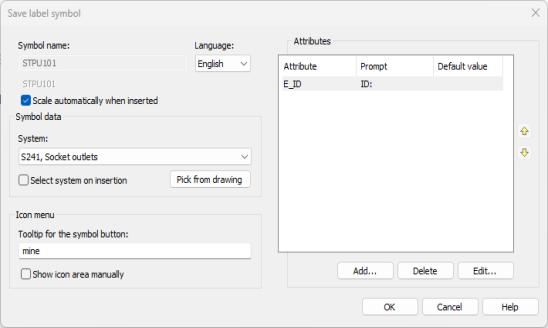
If you want to edit the symbol, click Edit symbol. The Save label symbol dialog opens, and you can edit the information:
-
Click OK.