Layout tab > Wiring group >  Draw menu > Insert symbols in series with wiring
You can also start the function via the Symbols window by clicking the  (Insert symbols in series with wiring) button.
With this function, you can insert symbols in series and draw wiring between light fixtures.
Do the following:
-
Select a symbol in the Symbols window. Alternatively, indicate the symbol in the drawing by first pressing Enter.
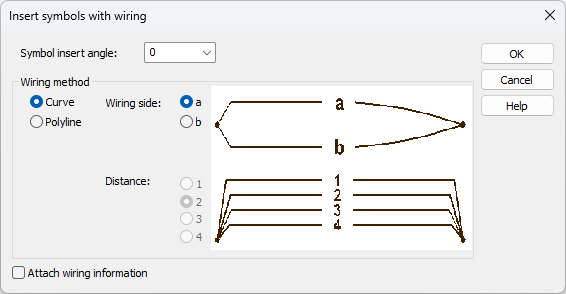
The Insert symbols with wiring dialog opens.
-
Define the symbol angle.
-
Select the wiring method, curve or polyline.
-
Select whether to attach wiring data to the wiring.
-
Click OK.
-
If you selected Attach wire information, define the wire data.
-
Insert the symbols in the drawing.