You can create projects without CAD documents either with default values or by using an existing project as your starting point. Furthermore, you can create a project based on an existing or a new drawing.
Learn more:
Create a new project with defaults
You can create a new project without a CAD document by using the default values.
When using the default project database as a template, the target project database format can be SQLite or SQL Server (if in use).
Do the following:
-
Select Electrical tab > Projects group > New or File > New project in DB tool. The Create a project dialog opens.
-
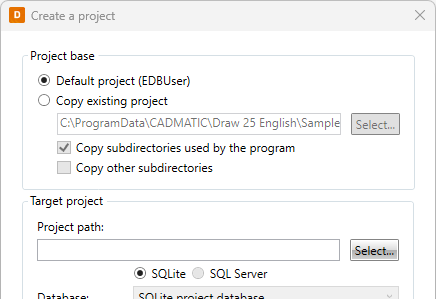
In Project base, select Default project (EDBUser). The default project database will then be used as a template, and the new project will use default values.
-
Select the target project path by clicking Select.
-
Select the database:
-
SQLite – The project is created in the EDBProject.sqlite project database.
-
SQL Server – The project is created in the existing SQL Server database. Select the desired database from the Database drop-down menu.
-
-
Click OK. The project settings open, and you can continue by defining them.
Copy an existing project
You can create a new project without a CAD document by using an old project as the starting point.
When creating a new project by copying an existing one, the target project database format can be SQLite, SQL Server (if in use), or MDB – however, we recommend creating new projects as SQLite instead of MDB. Compared to MDB, SQLite is faster and smoother as unexpected third-party updates will not interrupt usage.
Do the following:
-
Select Electrical tab > Projects group > New or File > New project in DB tool. The Create a project dialog opens.
-
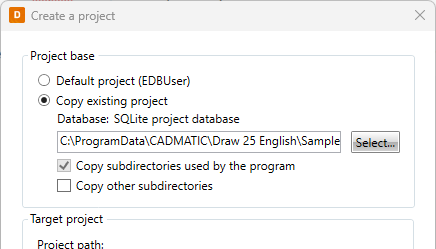
In Project base, select Copy existing project.
-
Select the existing project you want to use as a template by clicking Select.
-
If you do not want to copy the subdirectories used by the program, clear the check box for Copy subdirectories used by the program.
-
If you want to copy other subdirectories, select Copy other subdirectories.
-
Select the database:
-
SQLite – The project is created in the EDBProject.sqlite project database. If you selected to copy an existing MDB project, you can convert the project to SQLite by selecting this option.
-
SQL Server – The project is created in the existing SQL Server database. Select the desired database from the Database drop-down menu.
-
Access (MDB) – If you selected to copy an existing MDB project, you also have this option available. If you select this, the project is created in the EDBProject.mdb project database. However, it is recommended to create projects as SQLite.
-
-
Click OK. The project settings open, and you can continue by defining them.
Create a new project based on an existing or a new drawing
You can create a new project based on an existing or a new drawing.
You do not need to set the default project settings and cable types for every project separately but it is important to do it properly once. New projects will get the default project settings and default cable types.
Do the following:
 1. Open an existing drawing or create a new
one
1. Open an existing drawing or create a new
one
You can create a new drawing by selecting Electrical tab > Documents group > New. For more information, see Create new drawings.
When the drawing is added to a project, the drawing directory will become the project directory. All the project drawings must be in the same directory but you do not need to add all the drawings to the project. Sub-directories are separate projects.
Open the project directory with Ctrl + E or by right-clicking the drawing tab and selecting Open drawing directory:
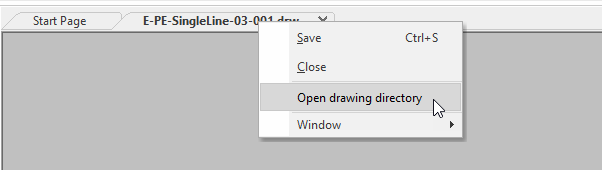
The project database EDBProject.sqlite/EDBProject.mdb will be created when the drawing is first added to the project. EDBProject.ldb is an Access lock file.
2. Set default project settings
Define the default project settings by selecting Electrical tab > Settings group > Electrical and then on the General tab clicking Default project settings.
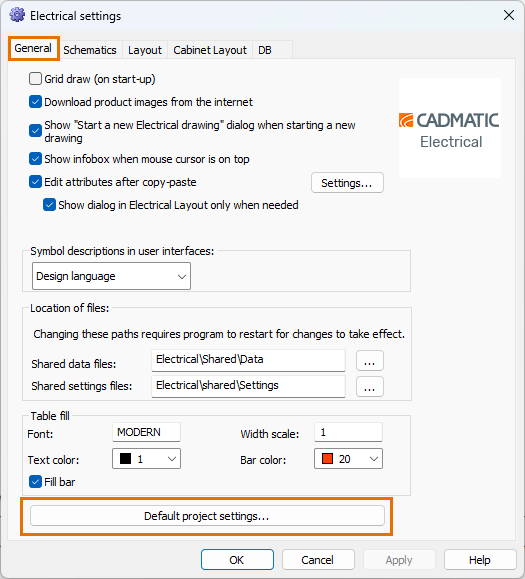
Default project settings will be set to new projects. Edit settings so that the new projects will get them by default. See Default project settings.
Note: Default project settings need to be set only once.
3. Add cable types to default project settings
Open Cable type management. Select the desired cable types and add them to the project by clicking Add to project.
4. Add document to project
The drawing name is shown
in the project tree when the drawing has not been added to a project. Click the  (Add document to project) button to add it.
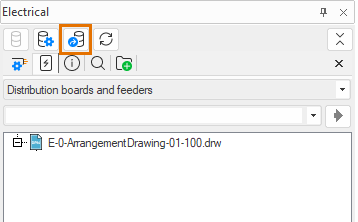
When the document has been added to the project, the  icon and the project name are shown
instead of the document file name.
icon and the project name are shown
instead of the document file name.
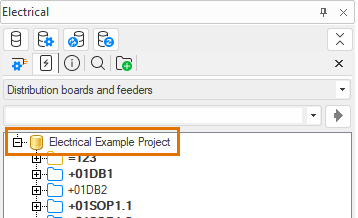
5. Define project settings
Project settings (such as the project name, target data 1–3, job number) should be set properly as soon as the project is created. For more information, see Project settings.
6. Edit project
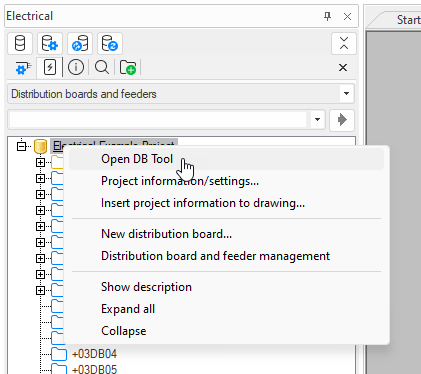
You can edit the project in DB Tool. Open the tool, for example, by right-clicking the icon representing the project and selecting Open
DB Tool.