You can have multiple documents open simultaneously. The number of documents you can open is limited only by the amount of memory on your computer. If you have several very large drawings open at the same time, your computer might become slower.
Each open drawing file is shown on its own tab, by default between the ribbon and the drawing area.
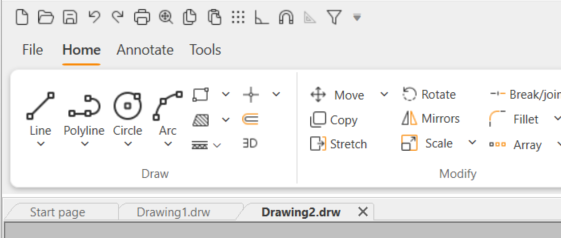
However, you can move the tabs to any side of the drawing area as desired.
Only one of the open documents can be active at a time. The active document name is in bold, and it has a closing button on the right side. To see the file path of a document, hover over the tab.
You can toggle between the documents by clicking the desired tab, with the key combination Ctrl + Tab.
Note: You can change the active document only when there are no commands running.
With the WINDOWS command, you can arrange the document windows on the display or switch from the active document to the next or the previous document:
-
Previous – Select the previous document window.
-
Next – Select the next document window.
-
Cascade – Cascade all document windows.
-
Vertically – Arrange the document windows vertically.
-
Horizontally – Arrange the document windows horizontally.
-
Arrange icons – Arrange the document window icons.
Change the location of the document tabs
You can change the location of the document tabs.
Do the following:
-
Select File > Settings > User interface tab.
-
From the Document tabs drop-down menu, select the location of the tabs. You can also hide them.
The program changes the location of the tabs.