
|
DB tool > Management tab > Related information group > Product information |
Product information means information about properties of a device in the database. In the Product information management dialog, you can manage the contents of the product information databases and product information packages.
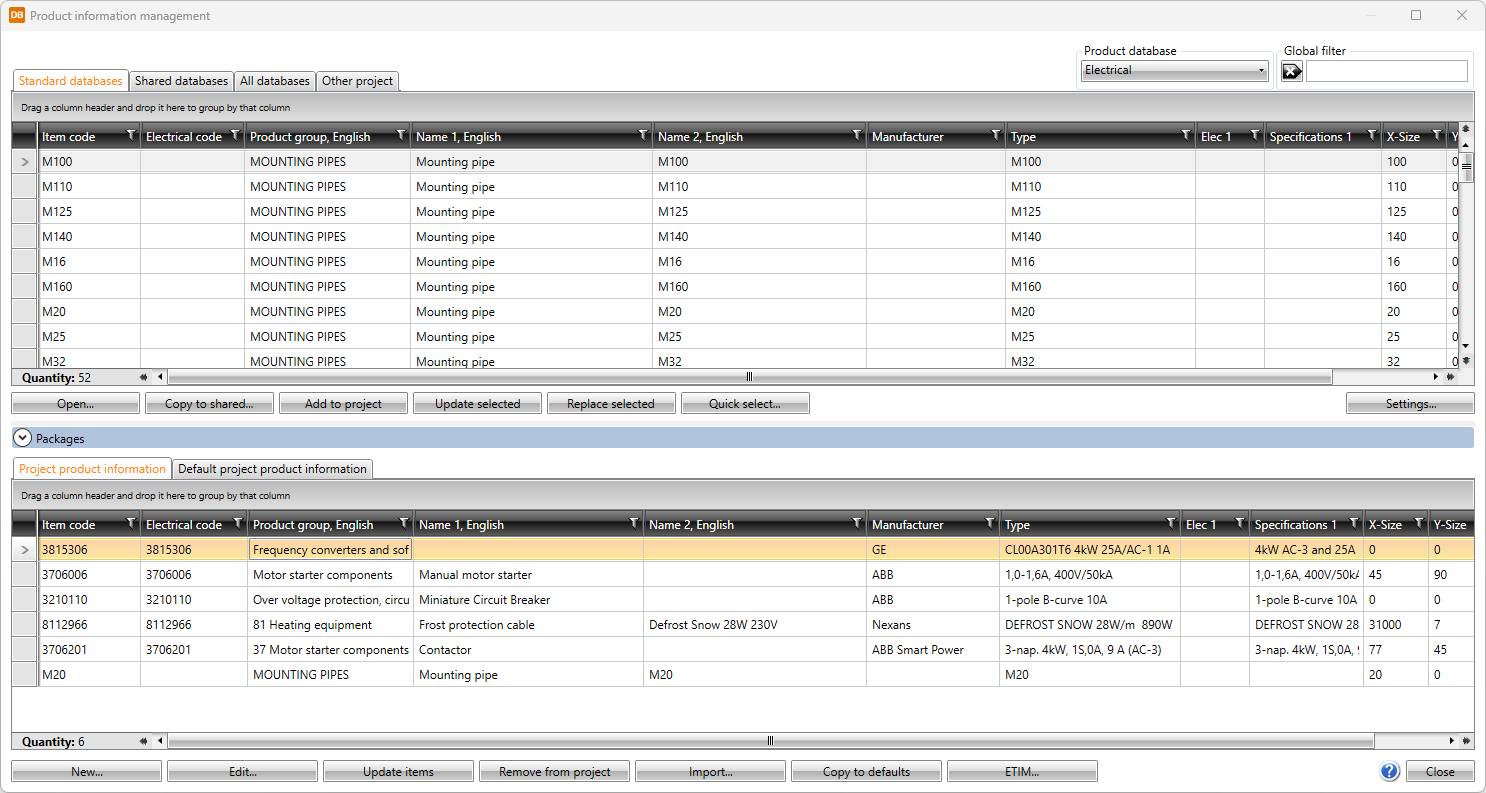
The global filter makes it possible to search for information using freely defined criteria, without taking wildcard characters * or ? into account. Furthermore, you can group and filter the information.
The items in different databases and functions related to them are divided on tabs:
- The Standard databases tab shows the read-only product database (EDBCommon.sqlite) provided with the application. It will be overwritten whenever the application is updated. You can copy product information from this database to your own shared databases.
-
Open – Open the selected item for viewing.
-
Copy to shared – Create a copy of the selected item to Shared databases.
-
Add to project – Add the selected items to the project. Alternatively, add an item by double-clicking it.
-
Update selected – Update modifications made in the database to the items in the project.
-
Replace selected – Replace product information from another product information database. The function replaces product information with the same item code regardless of the database reference. It also replaces the references, and removes excess information when several pieces of product information with the same item code is found.
-
Quick select
-
Settings – Define product database settings. See Manage product database settings.
 Show/hide functions
-
The Shared databases tab shows databases that can be shared and edited. If another user edits the data simultaneously, you can update the grid to show the changes by clicking the
 button. In the Product database drop-down menu, User
products from 1 to 9 are empty product databases for your own product information.Show/hide functions
button. In the Product database drop-down menu, User
products from 1 to 9 are empty product databases for your own product information.Show/hide functions
-
New – Add a new item.
-
Edit – Open the selected item for editing.
-
Copy to shared – Create a copy of the selected item to Shared databases.
-
Remove – Remove the selected item.
-
Add to project – Add the selected item(s) to the project. Alternatively, add an item by double-clicking it.
-
Update selected – Update modifications made in the database to the items in the project.
-
Replace selected – Replace product information from another product information database. The function replaces product information with the same item code regardless of the database reference. It also replaces the references, and removes excess information when several pieces of product information with the same item code is found.
-
Import – Import items from other databases (Excel, Textfile, Access, or SQLite) to Shared databases. See Import product databases.
-
ETIM – Import ETIM information. See Select ETIM information.
-
Quick select
-
Settings – Define product database settings. See Manage product database settings.
-
-
The All databases tab shows all product database items simultaneously, and they can be filtered with Global filter. The filter uses a separate index file that will be created automatically if it does not exist.
Note: Next to the Update index file button, it is shown how many products match the filter and how many rows are loaded. Results will only be shown if the number of matches is less than 1,000. If there are over 1,000 results, you need to refine the filter.
Show/hide functions
-
Copy to shared – Create a copy of the selected item to Shared databases.
-
Add to project – Add the selected items to the project. Alternatively, add an item by double-clicking it.
- Update selected – Update modifications made in the database to the items in the project.
-
Replace selected – Replace product information from another product information database. The function replaces product information with the same item code regardless of the database reference. It also replaces the references, and removes excess information when several pieces of product information with the same item code is found.
-
Quick select
-
Settings – Define product database settings. See Manage product database settings.
-
Update index file –Update the index file manually.
-
-
The Other project tab enables importing information from another project database (EDBProject.sqlite or EDBProject.mdb). You can also move the selected rows to the shared databases by right-clicking and selecting Add to shared database.
Show/hide functions
-
Copy to shared – Create a copy of the selected item. The copy will be saved to Shared databases.
-
Add to project – Add the selected item(s) to the project. Alternatively, add an item by double-clicking it.
- Update selected – Update modifications made in the database to the items in the project.
-
Replace selected – Replace product information from another product information database. The function replaces product information with the same item code regardless of the database reference. It also replaces the references, and removes excess information when several pieces of product information with the same item code is found.
-
Select other project – Select another project database (EDBProject.sqlite or EDBProject.mdb) to use as data source.
-
Quick select
-
Settings – Define product database settings. See Manage product database settings.
-
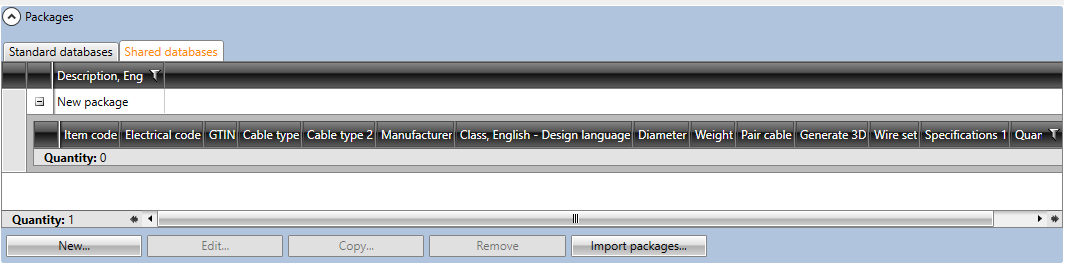
The Packages section is located below the database grids. With packages, you can bundle multiple items together and then easily add them to the project at once.
You can add a package with all the items to the project by double-clicking it.
Show/hide details
-
New – Add a new package. You can then add items into the packages by dragging them from the database grids.
-
Edit – Edit an existing package. You can remove rows from packages by right-clicking the row and selecting Remove package row.
-
Copy – Create a copy of the selected package. All the items in the package will also be copied.
-
Remove – Delete the selected package.
-
Import packages – Import data from other projects.
The bottom part of the Product information management dialog shows project information (EDBProject.sqlite or EDBProject.mdb) and default project information (EDBUser.sqlite or EDBUser.mdb):
Project product information
-
New – Add a new item to the project database. You can also add an item by selecting an existing item, clicking Edit and then in the dialog clicking the
 button.
 -
Edit – Edit an existing item. The changes will only be saved to the item in the project.
-
Update items – Update information from the selected items to project occurrences.
-
Remove from project – Remove an item not used in the project.
-
Import – Import items from another project. See Import product databases.
-
Copy to defaults – Add the selected items to the default database (EDBUser.sqlite or EDBUser.mdb). When a new project is created, items will automatically be added to that project.
-
ETIM – Import ETIM information. See Select ETIM information.
Default project product information
-
New – Add a new item to the default database. You can also add an item by selecting an existing item, clicking Edit and then in the dialog clicking the
button. -
Edit – Edit an existing item. The changes will only be saved to the item in the project.
-
Remove from project – Remove an item not used in the project.
-
Import – Items can be imported from another project. See Import product databases.
-
Add to project – Add the selected items to the project.
-
ETIM – Import ETIM information. See Select ETIM information.