Accessing the 3D model from a map
You can navigate to the correct location in the map and then open the 3D view.
In the map view, the Camera location icon  indicates the camera location in the 3D model. The camera pointer indicates the direction of the camera.
Do the following:
- Navigate to the desired location in the map.
- Double-click the location, or right-click and select Go to Model. The location opens in the Model view.
- Return to the Map view by selecting Map from the menu.
- If you have moved in the Model view, eShare updates the camera location accordingly.
Setting the view direction in the model view
The view direction for the model view can be set in the map.
Do the following:
-
If the camera is not on the map, select Move Camera to Map button
 and then the desired location in the map.
 -
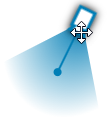
Set the cursor on top of the camera and when the move cursor is visible, the camera can be moved to the desired location.
-
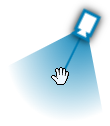
To change the direction of the camera, move cursor on top of the camera pointer and when a hand cursor is visible, the view direction can be changed.
-
Double-click the map to move to the model or right-click and select Go to Model.