Scans tab
When revamping an existing building or ship so that some existing structures are removed and new ones are added, it is useful to be able to see how the old and the new structures will fit together. Point clouds allow you to do exactly that. If the existing structures have been scanned with a 3D scanner and the data is available as point cloud files, you can open the point clouds and the 3D models of the newly designed structures at the same time to see how they match.
Note: Point clouds are always defined in project coordinates.
When eShare administrator has added point clouds and textured meshes to the eShare server as described in Point clouds and textured meshes, in eShare you can see them in the Scans tab. eShare automatically loads the synchronized point clouds and textured meshes when you move in the model. You do not have to select the next point cloud or textured mesh from the list when you want to enter it.
It is possible to show a hierarchy for the point clouds or the textured meshes. The hierarchy is defined by eShare administrator. The subnodes are alphabetically sorted.
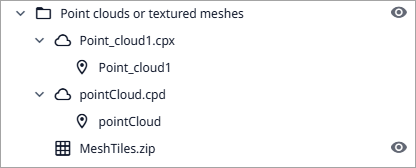
Click the eye icon  to hide textured meshes, and click the closed eye
  to show them again.
Point clouds
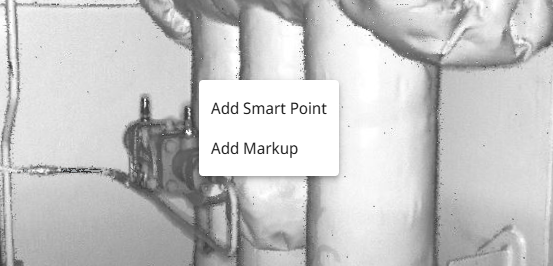
The point cloud files must contain scanner position information to be listed here. You can take snapshots and measurements, but measurements might not be exact. Right-click a bubble view to add a Smart Point or markup to it.
Bubble view
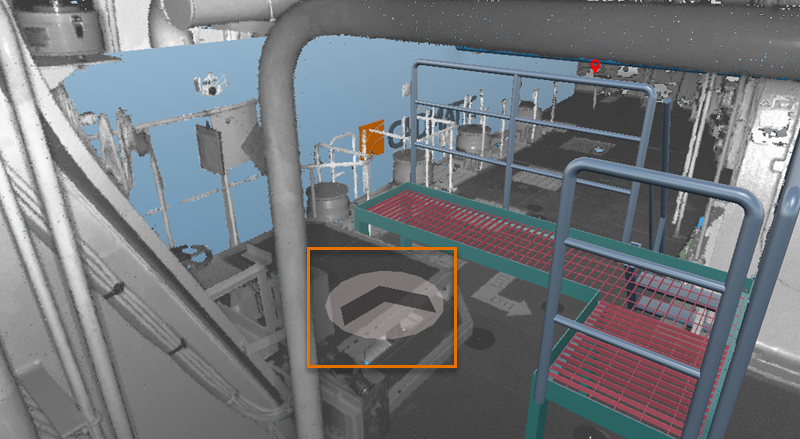
Entering the bubble view mode moves the camera to the scanner position. You can rotate the view around this position, and you can zoom in or out with the mouse wheel. In panoramic view, you can move the camera by clicking the arrow marker, or focus the camera by clicking the rectangle.
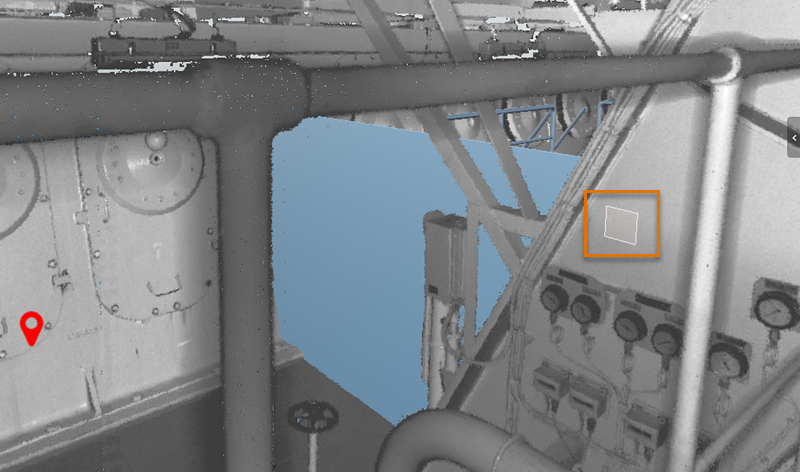
There are two ways to open a bubble view:
-
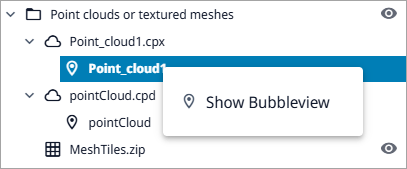
You can open the bubble view of a specific point cloud by right-clicking the point cloud in the model tree and selecting Show Bubbleview.
-
You can click a scanner position marker in the 3D view. You can do this also when a bubble view is already open, to move the viewpoint to another scanner position. By default the scanner position markers are visible in the 3D view, but they can be hidden in Visualization control menu by disabling Show point cloud scanner points. See Point clouds.
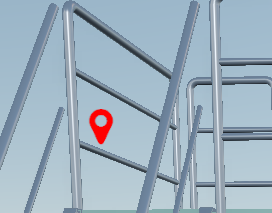
In bubble view mode, the toolbar displays the name of the point cloud and the main toolbar buttons which are available in bubble view mode: take a snapshot, show coordinates under cursor, navigation menu, flip the model, measure, visualization control, visual styles, and settings. See Main toolbar. Closing the bubble view using  in the toolbar sets the viewing angle to where it was before entering the bubble view.
Textured meshes
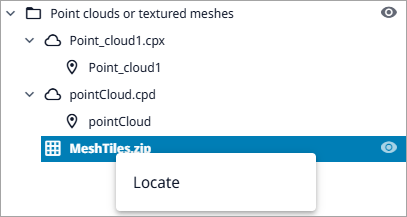
To view textured mesh, right-click the point cloud in the model tree and select Locate.
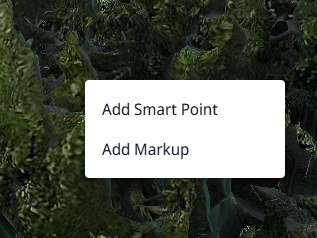
Right-click the textured mesh to add a Smart Point or markup to it.
E57 file format feature support
CADMATIC supports reading the E57 feature categories XYZ, RAE, RGB, INT and MUL.
 Show/hide details
Support for E57 features
|
Feature Name |
Abbreviation |
Read |
Write |
|---|---|---|---|
|
Cartesian points |
XYZ |
Yes |
— |
|
Cylindrical imagery |
CYL |
— |
— |
|
Geodetic information |
GEO |
— |
— |
|
Multiple images |
MIM |
— |
— |
|
Multiple returns |
RET |
— |
— |
|
Multiple scans |
MUL |
Yes |
— |
|
Pinhole imagery |
PIN |
— |
— |
|
Point color |
RGB |
Yes |
— |
|
Point groups |
GRP |
— |
— |
|
Point intensity |
INT |
Yes |
— |
|
Spherical imagery |
SPH |
— |
— |
|
Spherical points |
RAE |
Yes |
— |
|
Structured point sets |
STR |
— |
— |
|
Time stamps |
TIM |
— |
— |
|
Visual reference imagery |
REF |
— |
— |
Support for E57 extensions
|
Extension Name |
Read |
Write |
|---|---|---|
|
ASPRS LAS format information |
— |
— |
|
Point normals |
— |
— |
For more information on E57 features, see http://www.libe57.org/features.html.