Rules for extracting attribute fragments used in conjunction with combined attributes and attributes based on existence of other attributes
This tutorial shows in detail how to proceed, if you have more than one pattern in which an item is stored, e.g. CHK-223, BAL778, or GLO_989, and you want to make them uniform.
See also Attribute settings.
Creating a rule for extracting attribute fragments
-
Navigate to the project to edit, and then click Project Admin in the main menu. The project administration view opens.
-
Click Model Configuration. The model configuration view opens.
-
Click Attribute Settings.
-
Click Split.
-
In the Rules for Extracting Attribute Fragments section, click Add New.
-
In Source Attribute field, select "Hierachy Level 10".
-
In Pattern field, enter the following regex to extract values that matches the first pattern from the attribute, e.g. "Hierarchy Level 10" and stores it in an attribute called "val1".
(?<val1>[A-Z]{3}-\d{3}[A-Z]?)
-
Click Test to to display the first matching values.
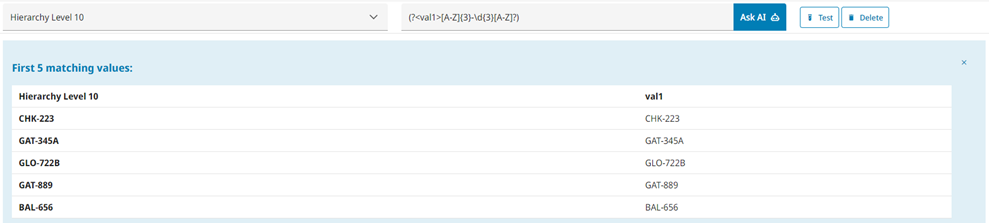
-
In the Rules for Extracting Attribute Fragments section, create another rule by selecting Add New.
-
In Source Attribute field, select "Hierarchy Level 10".
-
In Pattern Field, enter another regex to extract values that matches the second pattern from the same attribute, but splits them in two subparts and stores it in an attribute called "val2a" and "val2b".
(?<val2a>[A-Z]{3})(?<val2b>\d{3}[A-Z]?)
-
Click the Test button to display the first matching values.

-
In the Rules for Extracting Attribute Fragments section, create another rule by selecting Add New.
-
In Source Attribute field, select "Hierarchy Level 10".
-
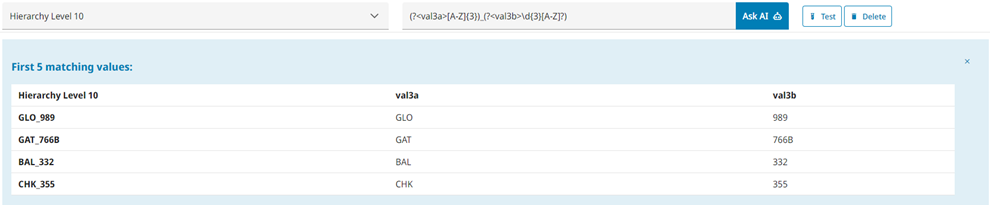
In Pattern Field, enter another regex to extract values that match the third pattern from the same attribute, but splits them in two subparts and stores it in an attribute called "val3a" and "val3b".
(?<val3a>[A-Z]{3})_(?<val3b>\d{3}[A-Z]?)
-
Click the Test button to display the first matching values.
Creating combined attributes
In the following, pieces from "val2a" and "val2b" are combined in a single attribute "val2". The same is done for "val3a" and "val3b", which are combined in "val3".
-
Navigate to the project to edit, and then click Project Admin in the main menu. The project administration view opens.
-
Click Model Configuration. The model configuration view opens.
-
Click Attribute Settings.
-
Click Combine.
-
In the Combined Attributes section, select Add New.
-
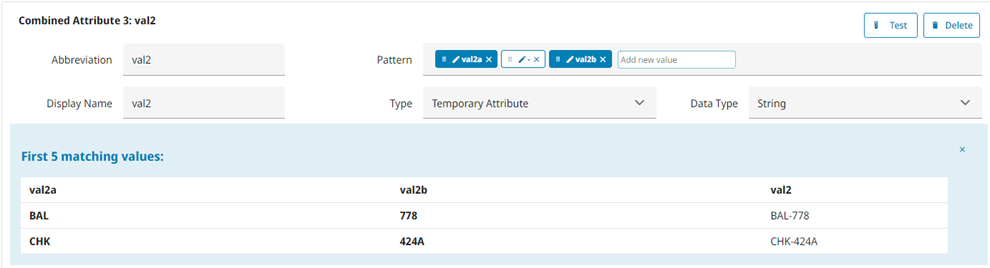
In the Abbreviation field, enter "val2". In the Display Name field, enter "val2".
-
In the Pattern field, enter the correct pattern, including a hyphen ("-").
-
Select Type as Temporary Attribute and Data Type as String.
-
Click the Test button to display the first matching values.
-
In the Combined Attributes section, select Add New.
-
In the Abbreviation field, enter "val3". In the Display Name field, enter "val3".
-
In the Pattern field, enter the correct pattern, including a hyphen ("-").
-
Select Type as Temporary Attribute and Data Type as String.
-
Click the Test button to display the first matching values.
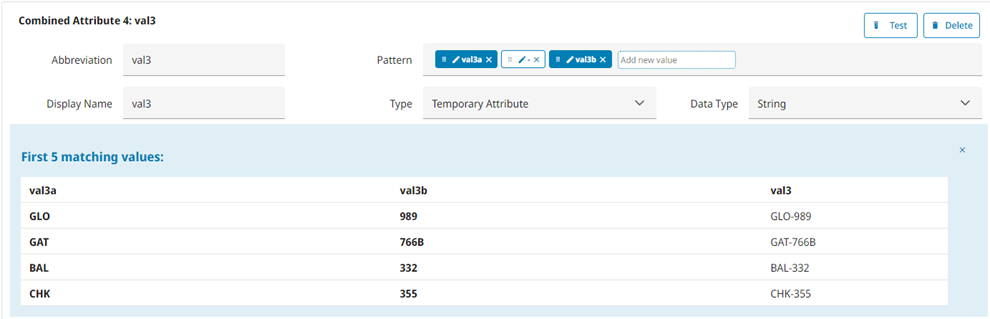
Now the pattern in "val2" and "val3" will be the same as in "val1".
Creating attributes based on existence of other attributes
In the following, a single attribute "val" is created and it stores uniform patterns from "val1", "val2", and "val3" attributes.
-
Navigate to the project to edit, and then click Project Admin in the main menu. The project administration view opens.
-
Click Model Configuration. The model configuration view opens.
-
Click Attribute Settings.
-
Click Derive.
-
In the Attributes Based on Existence of Other Attributes section, select Add New.
-
In the Abbreviation field, enter "val".
-
In the Display Name field, enter Valve Id.
-
Select Type as Key Attribute and Data Type as String.
-
In Assign attribute value in order of existence section, in Attribute field, enter "val1".
-
In Assign attribute value in order of existence section, select Add Attribute.
-
In Assign attribute value in order of existence section, in Attribute field, enter "val2".
-
In Assign attribute value in order of existence section, select Add Attribute.
-
In Assign attribute value in order of existence section, in Attribute field, enter "val3".
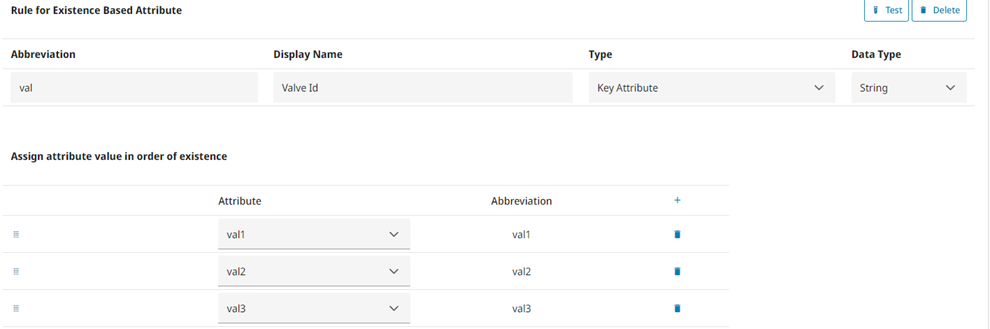
Now you have a single attribute "val", which stores uniform patterns.