Pillar To Profile
Construction > Items > Pillars > Modify > To Profile

Convert pillars to profiles or to pillar-profiles. When pillars are converted to profiles, they get connected to plates.
This function can be used to attach previously created pillars to decks that were created later on, for example. Both straight and bent pillars can be converted to profiles.
- Pillars are converted to profiles if they belong to the active block.
- If the pillars belong to a neighboring block, they are converted to pillar-profiles.
Note: There is a limitation in the conversion of bent pillars to bent profiles with some profile types: H-bars and I-bars are shifted half width when converted.
If no drawing is open when you start the Pillar to Profile function, the system prompts you to open one.
A plate in plan view or pillar in bulb view must be present in the drawing (in both directions; towards user and away from user). If not, the system displays a warning, and the function is ended.
You may first need to adjust the visibility settings of the active drawing to make all pillars and plates visible. To do this, select General > Properties, and click Visibility in the Drawing Properties dialog, and increase the visibility distances as necessary.

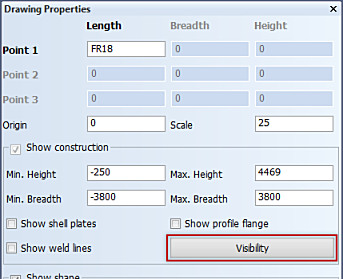
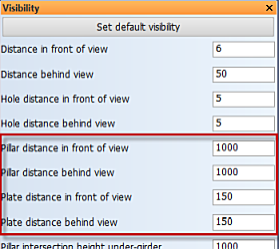
Converting pillars to profiles
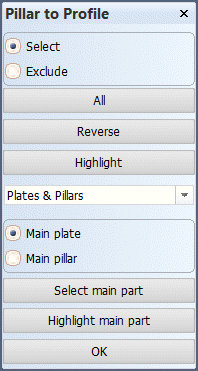
Select – Add items to selection. Indicate the items in the drawing to select them.
- Plates that are part of the active block can be selected. Plates in other blocks cannot be selected, even if they are presented with solid lines.
- The pillars can belong to any visible block, as long as they belong to blocks in which the user has write access.
Exclude – Remove items from selection.
All – Select all items.
Reverse – Reverse the selection.
Highlight – Highlight all selected parts.
Item selection list:
- Plates & Pillars – Select or exclude both plates and pillars.
- Plates – Select or excludes plates only.
- Pillars – Select or excludes pillars only.
Select the main part – Select Main plate or Main pillar, and then indicate the part in the drawing.
Highlight main part – Highlight the selected main part.
Click OK to perform the function. The drawing is updated if the conditions are met. The system recalculates the parts that are related to the selected plates and pillars.
- More than one plate or pillar and the main part must be selected. If not, a warning is displayed.
- The function stays active, and you can correct the selection(s) if necessary.
Examples
Example 1: A pillar is selected as the main part
The selected decks are first shifted to the base line of the main pillar. Then the selected pillars are moved to a plate that is positioned in the base line plane.
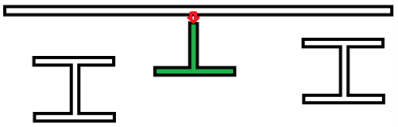
Deck is moved to T-profile
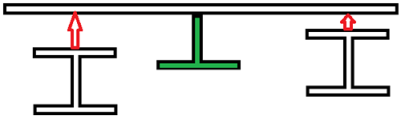
The rest of the pillars are moved to deck
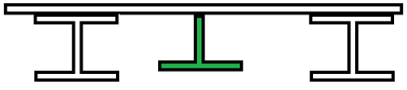
Final result
Example 2: A deck (plate) is selected as the main part
All the other selected plates are first shifted to the main deck plane (the molded sides of the plates are positioned in the same plane). Then all the selected pillars are shifted to the plates.
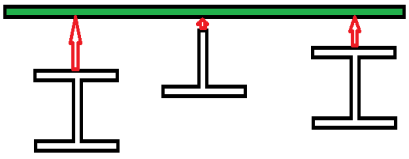
All pillars are moved to deck
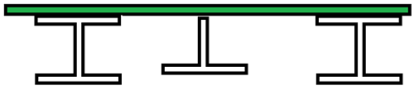
Final result
Note: It is possible that the pillars do not shift perpendicular to the plates. This can be the case when a pillar has a relation to the hull shape, for example. Recalculation of the related parts may further shift the pillar in this case.