Showing equipment in views
Showing equipment in new views
When creating a new view, select the option Show Outfitting to show outfitting parts in the view.
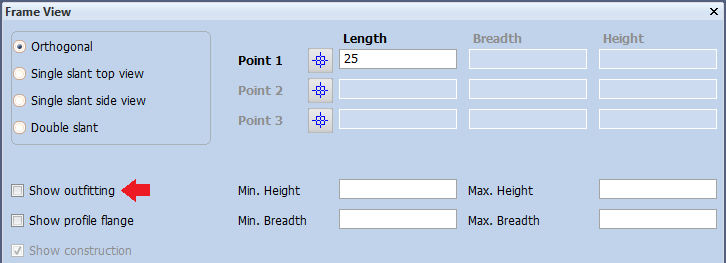
The query to select the Outfitting objects will be set to “Cadmatic_objects”, so that by default all objects are shown in the view. You can select a different query in Drawing Properties, as described in Customizing drawing properties of equipment in current view.
Showing or hiding equipment in views
The View tab of the ribbon contains a Show Outfitting / Hide Outfitting button.
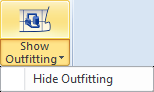
- Show Outfitting sets outfitting equipment to be shown in the current view.
If equipment are already shown, clicking Show Outfitting opens the Drawing Properties dialog where you can adjust the drawing area as described in Customizing drawing properties of equipment in current view. - Hide Outfitting sets outfitting equipment to be hidden in the current view, and saves the data in the Hull structure.
Customizing drawing properties of equipment in current view
In a Hull view, you can change the visibility settings of outfitting equipment in the current view by selecting Home > Properties, or by clicking Show Outfitting when outfitting equipment are already shown in the view. The Drawing Properties dialog opens, and you can select the Show Outfitting option to define the width and breadth of the area to use for showing outfitting equipment.
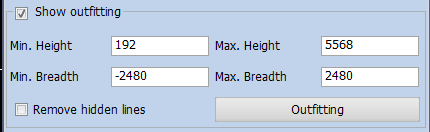
You can enter the height and breadth values to use. If the values are left empty, default limits will be used.
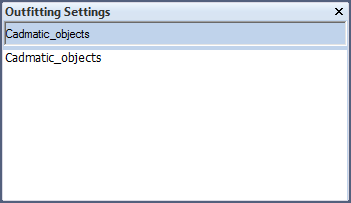
You can also change the query that is used for selecting outfitting objects by clicking Outfitting. The Outfitting Settings dialog opens, listing the queries that can be used. The top of the dialog shows the currently selected query; to select another query, click it in the list.
The depth of the view, however, is defined in the Show construction settings; click Visibility to define Equipment distance in front of view and Equipment distance behind view.
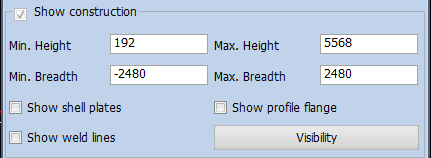
After clicking OK in Drawing Properties, the request is generated and handled by the Hull Agent. The maximum waiting time for the agent to respond is by default 40 seconds; this can be adjusted in System Management as described in Max. Waiting Time Agent. After the view has been successfully generated, the Outfitting model is presented in the current Hull view.
Customizing drawing properties of equipment in multiple views
You can perform the actions described in Customizing drawing properties of equipment in current view for multiple views at the same time by making the changes with the Drawing Management panel.
Do the following:
-
Select Tools > More Settings > Drawing Management.
-
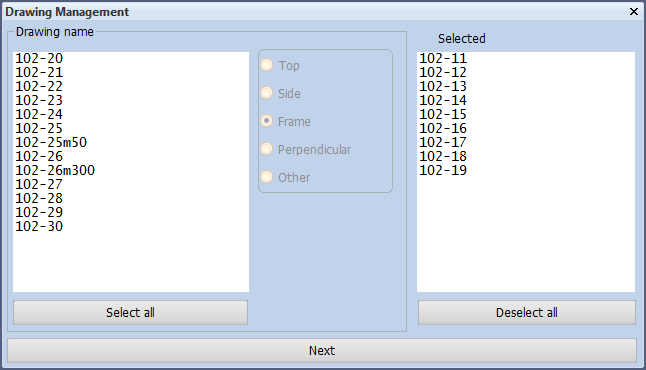
In the Drawing Management dialog, add all the views that you want to change to the Selected list, and click Next.
-
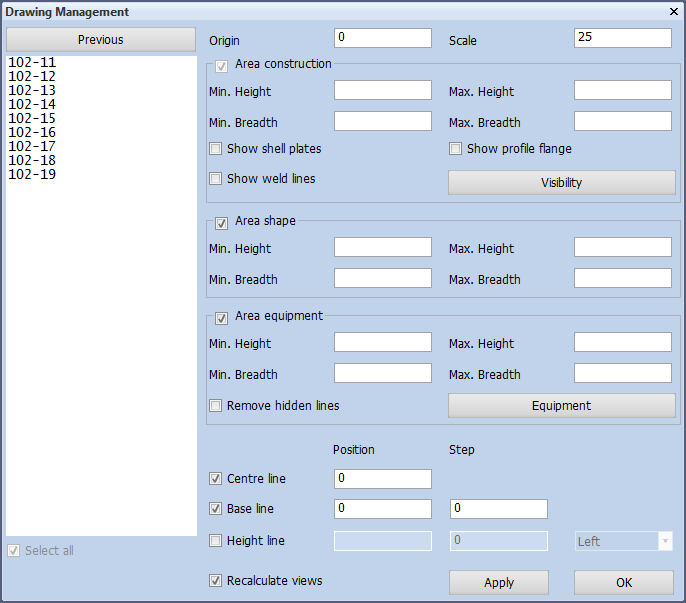
In the Drawing Management settings panel, edit the required settings, and then click OK.
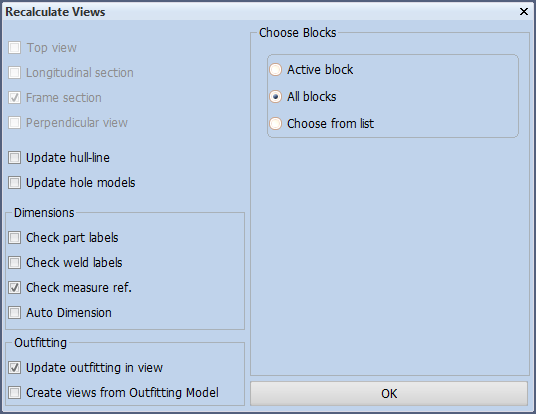
- In the Recalculate Views dialog, select the Outfitting options Update outfitting in view and Create views from Outfitting Model, and click OK.
Note: The Create views from Outfitting Model option creates the views in batch mode, so you can continue working while it runs.
The specified views are updated.