Measuring
The measuring function measures the distance between two 3D points on the surfaces of the displayed objects.
Do the following:
Select the start and end points for the measurement: Move the mouse pointer to the desired position, and press s for the start point and e for the end point. The 3D point is determined by drawing a perpendicular line from the mouse pointer in the view direction. The first found intersection with an object is the 3D point.
-
Pressing Shift+s or Shift+e snaps to the point on the edge of the object that is nearest to the mouse pointer.
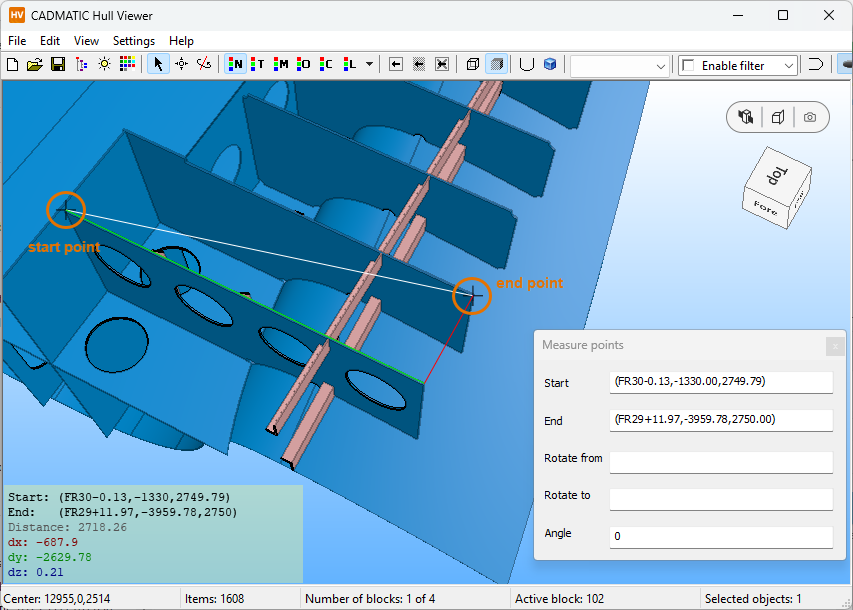
When both the start and the end point have been selected, a box appears at the lower left part of the graphical window showing the position of the start and end points, and the distance between the points. The three components of the vector between the points are shown in red (x axis), green (y axis), and blue (z axis) in the box and the graphical window (colours may wary depending on the background of the vector).
You can select View > Measure points to open a dialog that shows the start and end point values. You can do this either before you start measuring or after you have selected a start and/or end point. You can edit the start and end positions in the Measure points dialog by entering new values. Press Enter to apply the changes in the graphical window and the box showing the values.
Note: Using a width grid whose direction is towards the port side is not reflected in the presentation of the breadth (width) values here. The presentation of breadth is always according to the default grid direction, which is towards the starboard. Therefore the port side always has negative breadth values, and the starboard side has positive values.
To select another start or end point, press s or e again at a different position. The values in the box at the lower left part of the graphical window are updated according to the new start and end point selections.
Press Esc to clear the measuring points from the graphical window.
You can close the Measure points dialog by clicking the cross icon at the upper right corner.