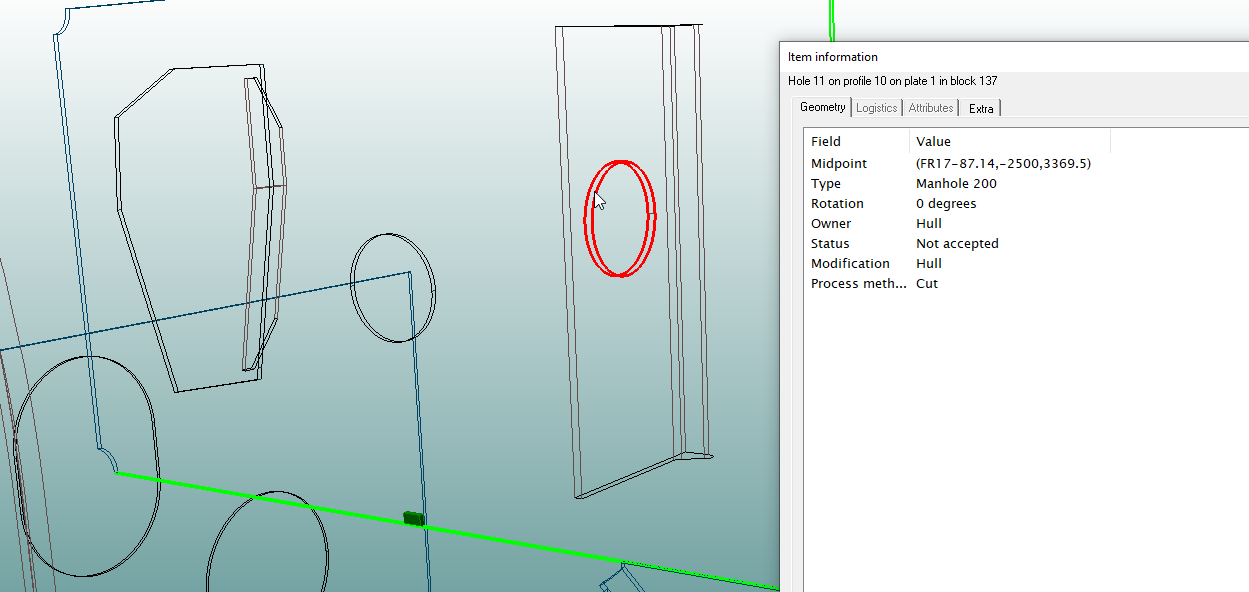
Selection of holes
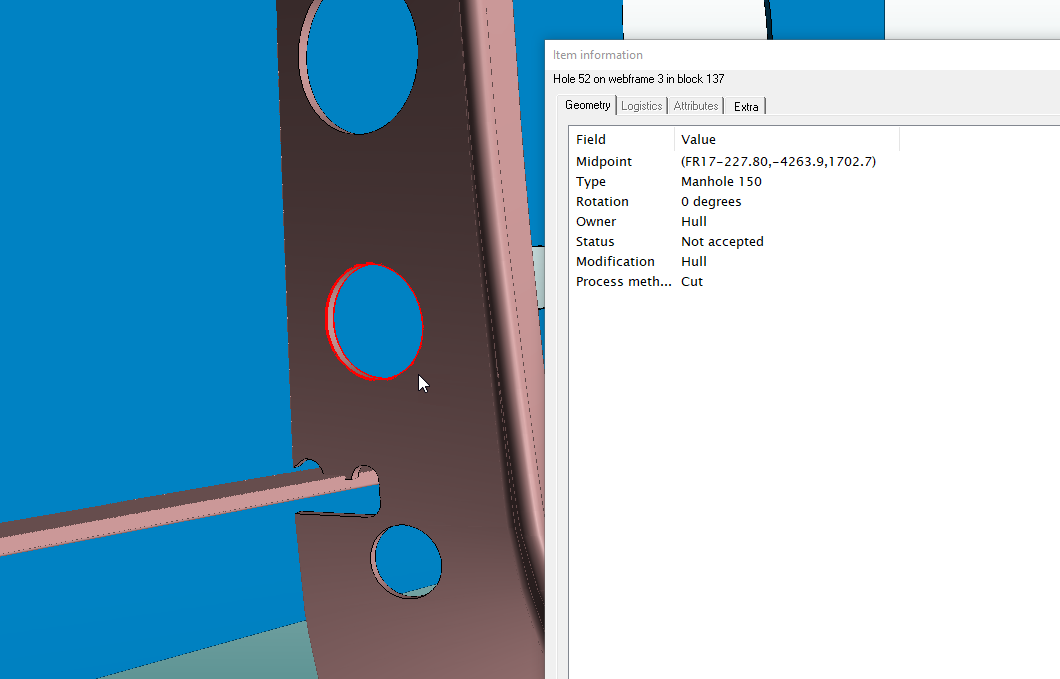
When a hole is selected, its contour is slightly thicker in order to make it stand out better. The selected hole is highlighted based on its contour, in a 3D manner, to include both the moulded side and the thickness side of an object. Both the standard and arbitrary holes are selectable.
Holes in Hull Viewer have a "selection ring" around the hole perimeter to make them selectable by clicking near the ring of the hole. The selection ring functionality also enables you to click an object through the hole of a plate, and then that other plate behind is actually selected, not the parent plate.
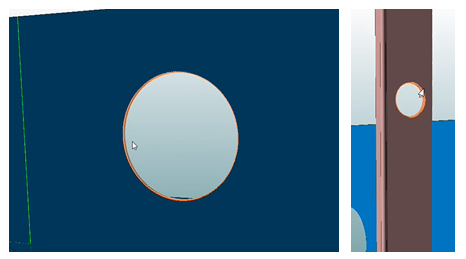
In order to make the selection contour visible, a different selection color is used, which is dark orange by default. This pen colour is called Attribute Selection and in Hull Viewer it is defined in Settings > Preferences > Colours tab. The reason for a separate color than the standard selection color (white by default) is to make a clear distinction between the selection and the plate, if both are selected. Right clicking a hole, however, will still use the original Highlight pen color option (yellow by default).
By right-clicking on a hole, item information can be viewed. There are also Previous/Next arrow buttons for changing between item information when several items have been selected. There is also the Highlight function.
Note: If the selection feature does not work, the Hull Viewer models (.hvm files) must be recreated. This can be done in the 3D-Contek application for all the parts in the active block by selecting General > Recalculate > All Construction Parts. The option Update also not geometrically changed 3D models has to be selected before starting the recalculation.
Note: Holes in lugs are not selectable, because they are defined in the lug type file and are, therefore, not modifiable. Also, no item information can be retrieved for them.
The figures below show different selected holes in different objects.
 Selection of an arbitrary hole with face plate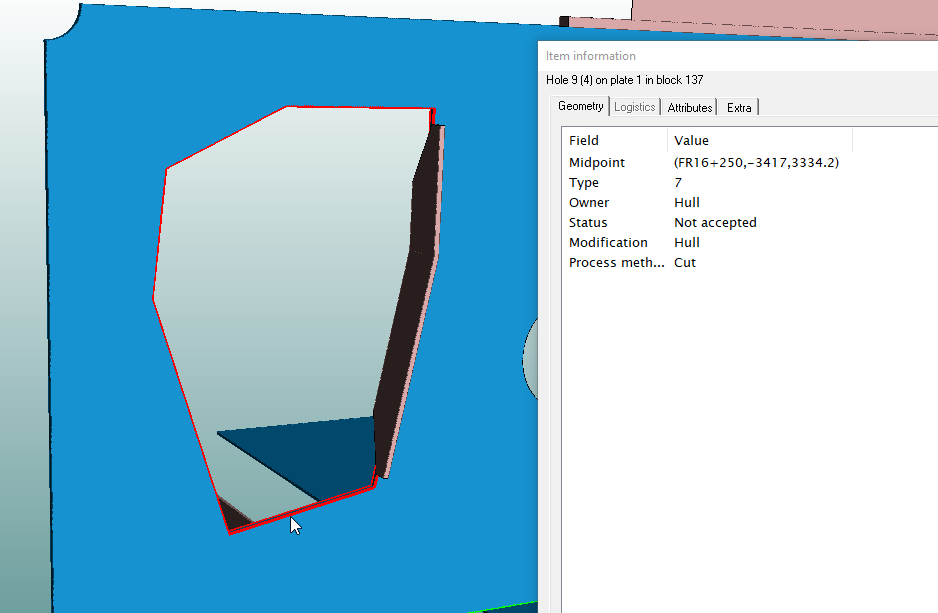
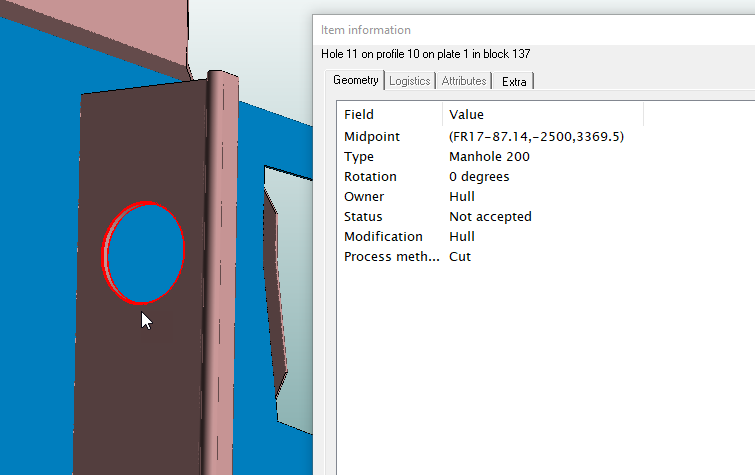
A major difference from bevels is that holes can also be selected in wireframe mode with left click. Right clicking is also possible, then the holes are displayed in the Highlight colour (yellow by default, which is the same for bevels). See an example of a hole selection in wireframe mode below.