License Information
In License Management Console, on the License Information tab you can select the license server to manage, view license availability and usage, and release reserved licenses.
Selecting the license server to manage
On the License Information tab, in the Server pane you can specify the host name and port of the license server to connect to. This allows you to manage any license server in your network.

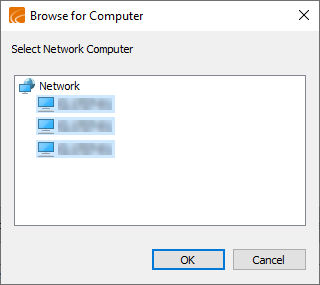
Clicking the browse button  next to the Host field opens a dialog where you can select a license server computer from your network.
Selecting the license server query mechanism
Starting from 2023T1, the license server processes license requests faster than in previous software versions. If the license server is older than that, License Management Console must be set to use the older, slower mechanism by selecting Query from older license server.

Showing available licenses
On the License Information tab, you can see what licenses exist in the license server and how many instances of each license are in use by clicking Available Licenses.
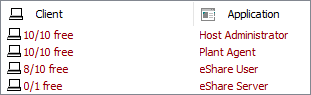
License availability can also be viewed using the web interface, as described in License server's web interface.
Showing used licenses
On the License Information tab, you can see which licenses are currently being used and by whom by clicking Used Licenses.
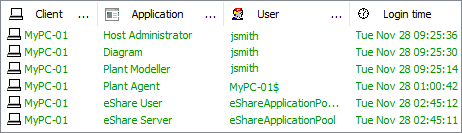
License usage can also be viewed using the web interface, as described in License server's web interface.
Releasing licenses
On the License Information tab, you can release licenses that are currently reserved.
You should only release a license if it is absolutely necessary. You might need to do it, for example, if an application has crashed and its license is not being automatically released.
Important: Before you release a license, make sure that users who might be affected by this can first save and close their sessions. Otherwise, some data might be lost.
-
Click Used Licenses to see the licenses that are being used.
-
Do one of the following:
- Select one or more used licenses and then click Release Licenses.
- Right-click a used license and then click Release: <license>.
-
Click Used Licenses again to verify that the licenses were released.