Replacing text fields
With the Presentation > Part Labels > Replace Text Fields function in the System Management application you can modify part label models by replacing the currently used text fields in the part label models with other available text fields and free text.
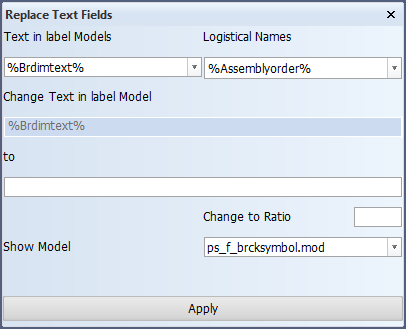
The Text in label Models list contains all text fields currently used in the models. When you select a text field from the list, it is shown in Change Text in label Model, and the system updates the Show Model list to contain (only) those models which contain the selected text field.
The Logistical Names list contains all the available text fields available in the logistical database layout, and these can be used for replacing the currently used text fields.
Plate part labels can also show the material type of the face plate attached to the plate in cases where the material is not the default material. The face plate material type can be shown in the plate part label by including the ProfileMaterial text field in the part label models.
Do the following:
-
Select the text field to be replaced from Text in label Models. The text field is shown in Change Text in label Model.
-
Select the part label model that you want to modify from the Show Model list. The model opens in the graphical window.
-
Select the replacing text field from Logistical Names. The text is shown in the to field. You can select several text fields one after another, and also enter free text before or after the text field(s).
-
Click Apply. The system applies the text field replacement on all the part label models in the Show Model list. The system also updates the Change Text in label Model field with the contents in the to field.

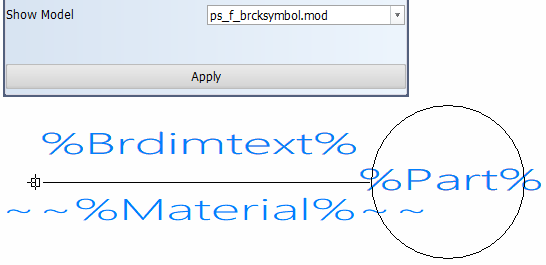
Tip: You can save the item currently in the graphical window as a part label model with a different name using the File > Save Model As function.