Browsing work requests
You can browse existing work requests and information attached to the requests.
Do the following:
-
In 2D-Contek, 3D-Contek or Shell, select Tools > Tools > More Tools > Work Request Manager. The Work Request Manager dialog opens.
-
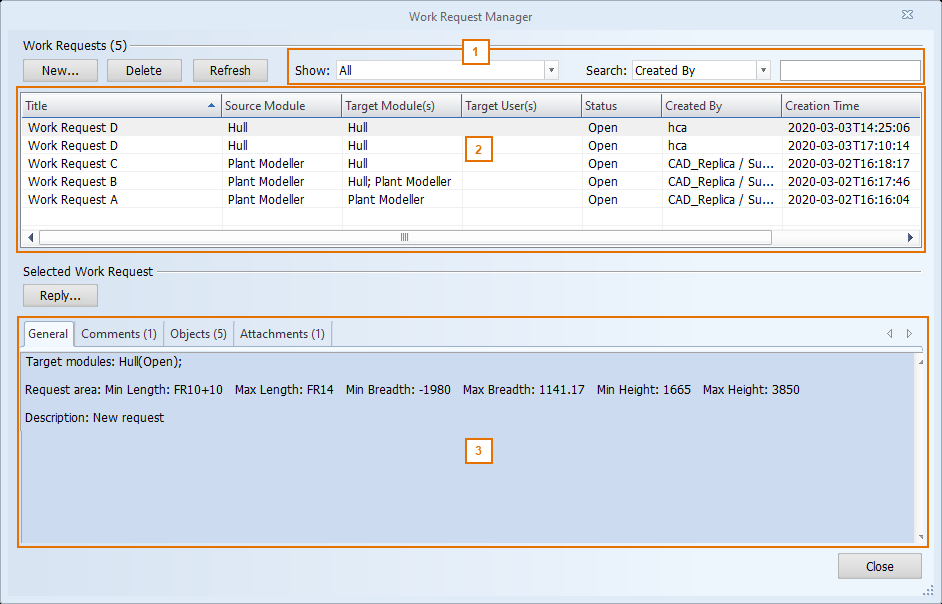
Use the filtering tools
You can filter the work request list using the following criteria:
-
All – Displays all work requests.
-
Request area intersecting my area – Displays work requests whose Request area intersects with the current user's work area.
-
Containing objects in my area – Displays work requests that include objects located in the current user's work area (but not necessarily in the Request area).
You can search for a specific work request by selecting the property (column) to filter by and typing in the empty search field.
-
-
Select a work request from the list
-
Use the tabs
The General tab displays the targeted modules and users and their statuses, coordinate system name, request area, and description.
The Comments tab displays the comments that users have added when replying. Above each comment, you can see who added it, when it was added, and which module was used.
The Objects tab displays information about the linked objects.
The Attachments tab lists the files attached to the work request and allows you to open them.
Note: To open an eBrowser model with markups, open the markup file instead of the model file.
-
To exit the Work Request Manager, click Close.