Creating enclosed shell plates
A shell plate can be created with the Construction > Insert > Shell Plate > Enclosed Shell Plate function in the Shell application by indicating a position in the active shell view. The shell plate is created at the indication point and it will be related to the hull lines surrounding the indication point. The hull line types that are accepted as relations are seams and butts. The system defines the relations automatically. Only hull lines (seams and butts) located in the same hull group can be used as relations. Shell plates are not accepted as relations.
Do the following:
-
Select Construction > Insert > Shell Plate > Enclosed Shell Plate. The Enclosed Shell Plate dialog opens.
-
Select the shell plate's material type in Type of material.
-
Enter or select the plate Thickness and define the plate's Thickness direction.
The Hull Administrator can set up restrictions for the plate and shell plate thickness for each material type by defining the permitted thicknesses in System Management > Construction > Plates > Thickness > Restrictions.
When thickness restrictions have been set for the selected material type, the thickness value is not entered into an input box. Instead, it is selected from a drop-down list consisting of pre-defined thicknesses.
-
Optionally you can define an Offset (distance between the molded line of the shell plate and the hull shape).
-
Optionally you can shift the reference plane of the plate by defining the Shift of working plane.
-
Indicate the centre point for the shell plate in the graphical window. The system places a thickness indication at the indication point.
The system searches for seams and butts around the indication point in counter-clockwise direction. A shell plate must be fully enclosed by hull lines without openings. The image below illustrates how the placement of the indication point affects the end result.
 Show/hide image
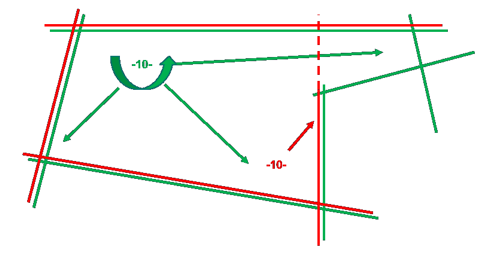
The green indication point results in the green relations. The red indication point will fail because a shell plate should be enclosed by hull lines, and no openings (red dashed line) are allowed.
-
To create the shell plate, click Insert. The system briefly highlights the found relations one by one. If the system fails to create the shell plate, an error message is shown.
The dialog stays open, and you can continue inserting shell plates one by one.
The view in the graphical window is not updated automatically. To update the view, click Update latest changes.
The thickness indications are only removed when the view is updated, or when the function stopped.
-
Once you have created all the desired shell plates, close the dialog and stop the function by clicking the cross symbol at the top right corner of the dialog.



Next time when the function is started, the previously used thickness, offset and material type information is prefilled/preselected.