Simple object browser queries
You can use a simple query to quickly filter the list of objects in the object browser. In a simple query you just select which object attributes to query and the attribute values to look for. Use more than one attribute to make the query more restrictive, if needed.
Start by selecting Query > Simple.
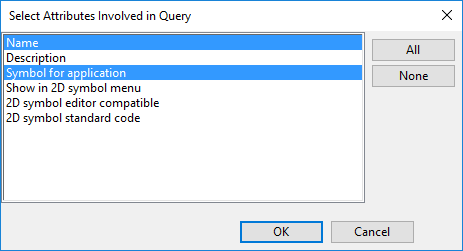
In the Select Attributes Involved in Query dialog you can select which attributes to use in the query. (Upon first use this dialog opens automatically; you can open it manually by clicking Select Attributes in the Ad Hoc Query dialog.) Then click OK.
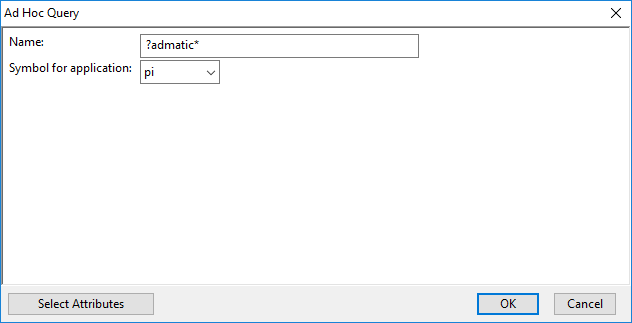
In the Ad Hoc Query dialog you define the values to look for in each attribute. In string type fields you can use the asterisk character * to represent any sequence of characters and the question mark ? to represent any single character. Then click OK; the object list is refreshed to show only objects that match the query.
Example
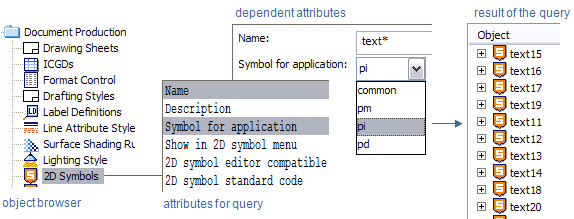
Simple query that lists piping 2D symbols whose name starts with "text":
- In the object browser, browse to the library view Document Production > 2D Symbols, and select the "pi" application hierarchy to list all objects in this hierarchy.
- Select Query > Simple.
- In the Select Attributes Involved in Query dialog, select to use the attributes "Name" and "Symbol for application", and click OK.
- In the Ad Hoc Query dialog, enter "text*" in the Name field, set Symbol for application to "pi", and click OK.
The object list displays all piping-related 2D symbols whose name starts with "text".
Note: The list of attributes that you can use in queries is specified by administrator, as described in Assigning attributes to object types.