Server installation
In a server installation, shared programs are installed on a dedicated server. If design applications are installed and the network path is shared, workstations can launch them directly from the server.
Install design applications
Select Design applications in the installer to install P&ID, Plant Modeller, and Piping Isometrics & Spools on the server computer.
Install license server
Select License server to install the license server service and required files. A valid license that matches the server version is required.
The license server must run in the same network as the applications requesting licenses. In a client–server environment, the license server is usually installed on the same computer as the design applications intended for network use.
For more information on licensing, see the CADMATIC License Server manual in docs.cadmatic.com.
Install or upgrade COS server
Select Install/upgrade COS Server to install, upgrade, or uninstall a COS (CADMATIC Object Storage) server.
Install Microsoft SQL Server
CADMATIC Plant/Outfitting projects that use the CADMATIC P&ID application for diagram design store the diagram object data in a project-specific database in Microsoft SQL Server.
Select MSSQL server to install Microsoft SQL Server Express for evaluation or testing. The setup installs the required components, creates a P&ID database instance, and checks system configuration.
Important: Ensure your organization regularly backs up the P&ID SQL databases.
Prepare Microsoft SQL Server
Use Microsoft SQL Server Management Studio to set up a server instance.
Authentication can be SQL Server authentication, Windows authentication, or mixed mode. A default CADMATIC installation with SQL Server Express uses mixed mode.
If P&ID is to use SQL Server authentication, the following accounts are required:
-
Login account for P&ID administrators (at least one). This account must be able to:
-
Create new databases.
-
Create, modify, and delete tables and their columns.
-
-
Login account for P&ID designers (at least one). This account must be able to:
-
Read, write, and delete data in the database.
-
Tip: For more information on authentication modes, see 'Choose an authentication mode' in learn.microsoft.com: https://learn.microsoft.com/en-us/sql/relational-databases/security/choose-an-authentication-mode.
After setup, the CADMATIC administrator can add P&ID project databases.
All P&ID users must have the Microsoft ODBC Driver for SQL Server installed. After installing Plant/Outfitting, the ODBC driver can be installed from msodbcsql.exe or msodbcsql.msi in the %PMS_ROOT_DIR%\Install folder, or from Microsoft.
Create P&ID database
The CADMATIC administrator can define the settings for Microsoft SQL Server either during Plant/Outfitting installation or later through the CADMATIC desktop command: Object > Manage Project > Settings And Actions > SQL Settings for P&ID.
-
Database name must not contain special characters.
-
Encrypted connection can be enabled if the SQL server is configured to use encryption.
-
Authentication must be set to a mode that is supported by the SQL Server.
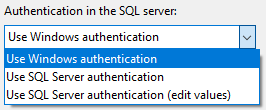
When the SQL settings are defined, clicking Create SQL database connects to the SQL Server and creates the database with the required schema and collation.
-
The default database schema is defined in COS, in [library] > Configuration > Diagram > SQL db Schema.
-
The database collation is set to 'SQL_Latin1_General_CP1_CS_AS' (code page 1252, case-sensitive, accent-sensitive) and must not be changed.
Tip: For details on collation, see 'SQL Server Collation Name (Transact-SQL)' in learn.microsoft.com: https://learn.microsoft.com/en-us/sql/t-sql/statements/sql-server-collation-name-transact-sql.
Alternatively, use the CADMATIC desktop command Object > Manage SQL Database for P&ID to open or create the database if it does not exist and permissions (access the SQL Server instance, create databases) allow.
Although SQL Server is the primary storage, P&ID data is also saved locally under each diagram and in COS for recovery, if for example a copy of the project is created.
Uninstall COS server
Select Install/upgrade COS Server in the CADMATIC installer, or use the COS Installer desktop shortcut, to open the Installed COS Servers dialog where you can uninstall specific COS servers.

Uninstalling the last COS server also removes the entire COS server program.