Working with NAPA
Before you can use the integration with NAPA®, you must install the interface and set up your environment. To ensure successful integration, verify the correct settings for the NAPA Steel program in its user manual.
Importing 3D spaces from NAPA
You can use the 3D-Import Manager tool to import compartments and assemblies of compartments from NAPA Steel, even without installing the NAPA interface.
For more details, see Settings for importing geometry as 3Dspaces.
Installing the NAPA interface
The Plant/Outfitting installation program includes an option for installing the NAPA interface.
If Plant/Outfitting is already installed without the NAPA interface, you can modify the installation from the Apps > Installed apps list in Microsoft Windows.
Creating a NAPA Agent area
The NAPA interface requires a special agent area that manages the integration.
Use the CADMATIC desktop to create an area of type 'NAPA Agent'.
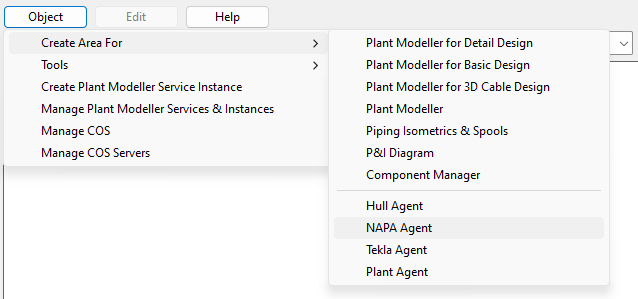
After creating the NAPA Agent, start it in Plant Modeller mode for first-time configuration, as described in Setting up the NAPA integration profile.
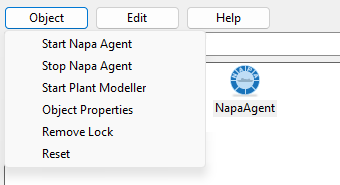
Later on, you can start or stop the agent by selecting the desktop icon and then choosing Object > Start Napa Agent or Object > Stop Napa Agent, respectively.
Setting up the NAPA integration profile
After creating the NAPA Agent, you must start it as Plant Modeller for the first time to set up the integration profile.
Select the desktop icon and choose Object > Start Plant Modeller. The following message appears.
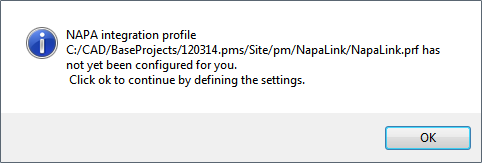
After clicking OK, you are prompted to define the integration settings.
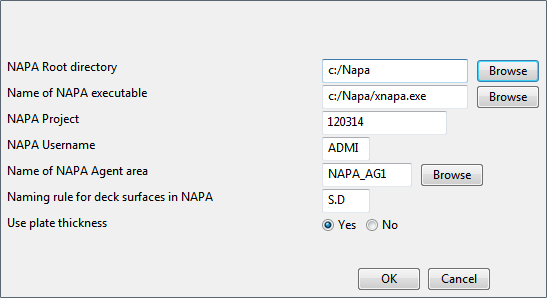
You can edit this profile later via the NAPA commands in Plant Modeller.
NAPA commands
When the NAPA integration has been installed, the Tools tab of Plant Modeller includes the related commands.
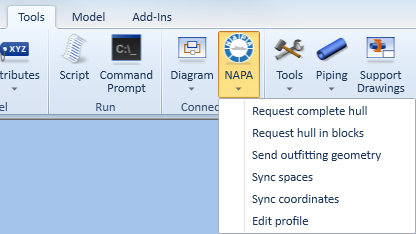
- Request complete hull
- Request hull in blocks
- Send outfitting geometry
- Sync spaces
- Sync coordinates – Allows the reference coordinates of the project to come from NAPA.
- Edit profile – Opens the NAPA integration profile for editing.
Systems in NAPA integration
After setting up the NAPA integration, starting the Plant Modeller will create the following systems. When objects are imported from NAPA, they are assigned to these systems.
If other systems are already using these IDs when the NAPA integration is activated, the imported objects will be assigned to those systems, even if they already contain other types of objects.
|
System ID |
System Name |
|---|---|
|
6100 |
NAPA Default |
|
6101 |
|
|
6102 |
NAPA Hull Stiffeners |
|
6103 |
NAPA Hull Frames |
|
6104 |
NAPA Hull Decks |
|
6105 |
NAPA Hull WT Bulkheads |
|
6106 |
NAPA Hull Bulkheads |
|
6107 |
NAPA Hull Brackets |
|
6108 |
NAPA Hull Double Bottom |
|
6109 |
NAPA HolesRequests |
|
6110 |
NAPA Insulations |
|
6193 |
NAPA Compartments |
|
6194 |
NAPA Fire zones |
|
6195 |
NAPA Flooded volumes |
|
6196 |
NAPA Outfit areas |
|
6197 |
NAPA Super blocks |
|
6198 |
NAPA Blocks |
|
6199 |
NAPA Sub blocks |
Hole requests in NAPA integration
Outfitting can send hole requests to NAPA Steel, where the NAPA designer can accept or reject them.
Once a hole request is sent to NAPA, it is locked and cannot be edited in Hole Manager until it receives one of the following NAPA statuses: APPROVED, STIFFENED, REJECTED, or APPROVED_STO.
|
Status in Outfitting |
Activity in Outfitting |
Status in NAPA |
Activity in NAPA |
Hole in steel model |
|---|---|---|---|---|
|
To be created |
Outfitting has created a new hole request, but did not send it to NAPA yet. |
— |
— |
No hole yet. |
|
To be modified |
Outfitting has modified a hole request previously sent to and accepted by NAPA, but did not send the modification to NAPA yet. |
NEW or INPROGRESS |
— |
The previously accepted hole is still visible. |
|
To be deleted |
Outfitting has deleted the new hole request before sending it to NAPA. In Hole Manager, this folder is always empty. |
— |
— |
Hole was never requested. |
|
Creation requested |
Outfitting has sent the request to create a new hole in NAPA. The hole cannot be edited in Outfitting. |
NEW or INPROGRESS |
The NAPA designer can see the hole and a new row is created for it. |
No hole yet. |
|
Change requested |
Outfitting has sent the request to modify an existing hole in NAPA. The hole cannot be edited in Outfitting. |
INPROGRESS |
The NAPA designer can see the hole and edit its row. |
The previously accepted hole remains visible until the NAPA designer approves the modification. |
|
Delete requested |
Outfitting has sent the request to delete an existing hole in NAPA. |
NEW |
The NAPA designer can see the hole with the text "deleted" displayed at its center. |
The hole remains visible until the NAPA designer approves the deletion (with the status APPROVED). |
|
Creation accepted |
Outfitting has received the new hole from NAPA. |
APPROVED |
— |
The new hole is visible. |
|
Change accepted |
Outfitting has received the modified hole from NAPA. |
APPROVED or STIFFENED |
— |
The modified hole is visible. |
|
Delete accepted |
In Hole Manager, this folder is always empty. |
— |
The NAPA designer has approved the deletion of the hole. |
The hole no longer exists. |