Panes


In the document editor, the visibility of objects located within drawing views—whether objects are opaque, transparent, or not displayed—can be specified using the following mechanisms:
-
Content rules – These are persistent, query-based rules that control which objects are visible or hidden.
-
Transparency rules – These are persistent, query-based rules that control which visible objects are transparent.
-
Ad-hoc sets – These are user-defined sets of objects whose visibility behavior is determined regardless of content and transparency rules. This mechanism is not as persistent as the rule-based ones: changes that require a full regeneration of the drawing view cause ad-hoc sets to be lost.
On the Drafting tab, the Panes group includes tools for modifying object visibility in drawing views, and showing or hiding objects based on their current visibility status.
Visualization and Changes

Select Drafting tab > Panes group > Visualization and changes to open or close the Visualization and change control pane.
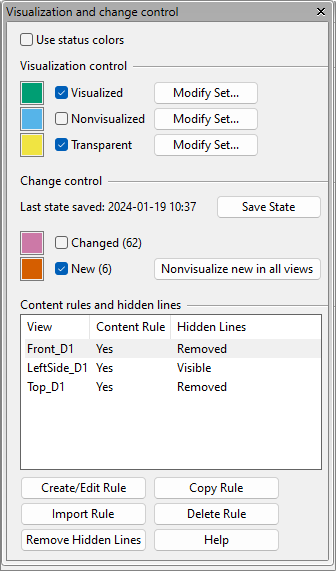
This pane includes two types of controls:
-
Visualization controls allow you to review and modify how model objects are displayed in published documents.
-
Change controls allow you to review which model objects are either new or recently modified.
Both types of controls indicate different kinds of statuses by applying colors to the objects in the drawing views. Based on this on-screen visual information, you can decide whether to modify the document by adding or removing model objects or annotations. After making the required changes, you can save the current state, so that the next time you open the same document, you can easily identify new changes.
The status colors do not appear in published documents, and they are automatically removed from drawing views when you switch to another tab in the document editor.
|
Control |
Description |
|---|---|
|
Select this option to temporarily color objects in drawing views based on the statuses enabled in the Visualization control and Change control sections. When this option is not selected, or when objects do not match any enabled statuses, objects are colored according to the Color Style settings of the drawing views. |
|
|
Use these controls to review and modify which model objects appear in published documents. When Use status colors for visualization and change control is enabled, selecting a visualization control status applies the corresponding status color to objects in drawing views. |
|
|
Select this option to show objects that are drawn as opaque in published documents. When status colors are enabled, these objects are shown in green. You can define opaque objects with content rules or ad-hoc sets:
Starting to add objects to a rule or ad-hoc set opens the Select Target Views dialog. |
|
|
Select this option to show objects that are not drawn in published documents. When status colors are enabled, these objects are shown in blue. You can define nonvisualized objects with content rules or ad-hoc sets:
Starting to add objects to a rule or ad-hoc set opens the Select Target Views dialog. |
|
|
Select this option to show objects that are drawn as transparent in published documents. When status colors are enabled, these objects are shown in yellow. You can define transparent objects with content rules or ad-hoc sets:
Starting to add objects to a rule or ad-hoc set opens the Select Target Views dialog. |
|
|
Use these controls to see which of the displayed model objects are either changed or new, and how many of them there are, counted from the last time you saved the state. When Use status colors for visualization and change control is enabled, selecting a change control status applies the corresponding status color to objects in drawing views. Change control colors override visualization control colors. |
|
|
Select this to clear the current record of changed and new objects. Saving the state sets the Changed and New status counts to 0, and the document starts to track changes that occur in the model area from that moment onward. When Utilize change control (default settings & reminders) is enabled in the document's Settings, you are prompted to save the state of all pages in the document when you save the document or exit the document editor as described in File menu. Note: The change control record is included in the document files. Canceling the changes to the document also cancels the Save State actions. |
|
|
Select this option when Use status colors… is enabled to display in purple those objects that have been either modified or moved within these drawing views after the last saved state. |
|
|
Select this option when Use status colors… is enabled to display in orange those objects that have been either created within or moved into the area of these drawing views after the last saved state. |
|
|
Select this to remove all new objects from all drawing views. This is equivalent to manually defining them as nonvisualized in the content rule. |
|
|
This pane lists the drawing views in the active document and shows whether each view has a content rule, transparency rule, or hidden lines. Select drawing views from the list to manage them using the following commands. |
|
|
Select this to create a Content Rule for the selected drawing views. A content rule is a query-based filter that defines which objects are shown in a given view. The query can specify, for example, that only piping objects and equipment are shown in the view. Content rules can be created for work views and drawing views. |
|
|
Select this to create a Transparency Rule for the selected drawing views. A transparency rule is a query-based filter that defines which objects are shown as transparent in a given drawing view. The query can specify, for example, that Hull objects are shown as transparent. |
|
|
Select this to remove hidden lines from the selected drawing views. |
|


Select Target Views
In the Visualization and change control pane, the Select Target Views dialog opens when you start defining a content rule, transparency rule, or ad-hoc set.
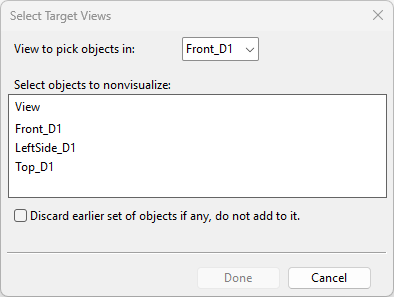
In this dialog, specify how to define the object set and click Done. The drawing view you chose to use to use for picking opens. When you have picked the required objects, press Enter to confirm the selection.
|
Control |
Description |
|---|---|
|
Select the view to use for picking the objects whose visibility you want to change. |
|
|
Select the drawing views to which to apply the visibility change. |
|
|
Select this option, which is available only when adding objects to the Nonvisualized or Transparent category, to replace the existing set of objects with the new set. If this option is not selected, the new objects are added to the existing set. |