Active Objects
In CADMATIC, the term "active object" refers to a property of model objects that defines whether an object can be shown in the views of the active design area. Users can temporarily hide objects by setting them as inactive.
Objects that are marked as inactive have the following properties:
-
Inactive objects are not visible in any views.
-
Users cannot pick inactive objects with Define Set commands.
-
Inactive objects are temporarily removed from the local area model.
Note: This functionality is based on Plant Modeller objects having a 'Visibility level' attribute that controls their visibility in views—setting an object as inactive assigns it a visibility level of 7. If the visibility level is between 0 and 6, view-specific settings define whether the object is shown or hidden in the view, as described in Filtering views by object visibility level.
This property can be set even if objects are not checked out, because visibility is a local setting applied only to the active design area. During a normal area update, this property is not transmitted. If the user checks out an object, sets it as inactive, and saves the object into COS, the visibility setting is also saved, and other design areas that load the object from COS are notified that they are receiving inactive objects.
Inactivity filter
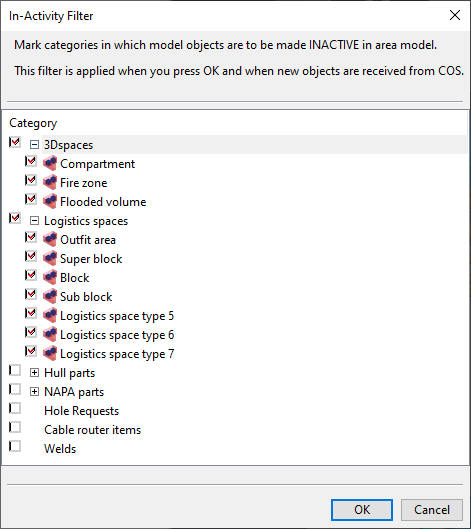
You can specify which 3D Spaces and some other entity types should be made inactive (hidden) in your design area.
The inactivity filter settings affect all work views, both shaded views and wireframe views, and they are also applied to new objects that are received from COS via area update.
Do the following:
-
Select the Model tab > Tools group > Active Objects > Inactivity filter. The Inactivity Filter dialog opens.
-
Select the entities that should be visible in your design area, and clear the ones that should not be.
-
Click OK. The visibility settings are applied to the model.

Make objects inactive
You can set objects to be inactive to hide those objects in all views.
Do the following:
-
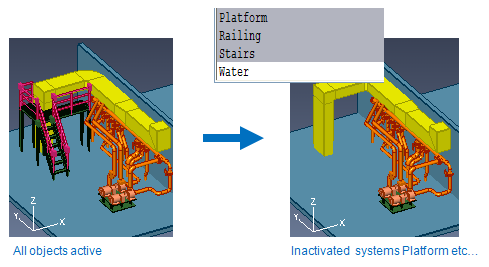
Select the Model tab > Tools group > Active Objects > Make objects inactive, pick the objects to be hidden or use a suitable Define Set command from the context menu to select multiple objects, and press Enter.
For example, you can use the Define Set command Select by system to select objects whose system is either Platform, Railing, or Stairs.

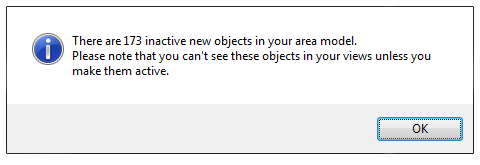
In the status bar, you can see how many objects are currently inactive in your design area.

Saving an inactive model object saves the inactive status in the COS database. When new inactive objects are loaded into another design area, its users are notified.
Make objects active
You can activate specific objects that are currently inactive.
Do the following:
-
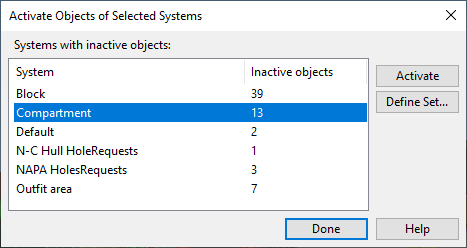
Select the Model tab > Tools group > Active Objects > Make objects active. If any inactive objects exist, the Activate Objects of Selected Systems dialog opens.
-
Select one or more systems from the list, and then do one of the following:
- Click Activate to activate all inactive objects of the selected systems.
- Click Define Set to pick which of the inactive objects of the selected systems to activate.
-
Click Done.
Make all objects active
You can activate all objects that are currently inactive.
Do the following:
-
Select the Model tab > Tools group > Active Objects > Make all objects active.
Tip: This command also activates objects that have been inactivated using the inactivity filter, as described in Inactivity filter, but it does not change your filter selections. Therefore, if you just open the Inactivity Filter dialog and click OK, your existing filter selections are re-applied to the model.