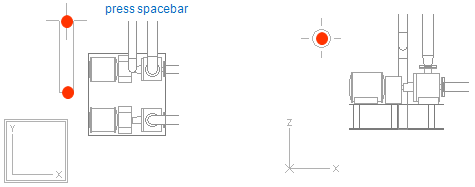
Navigation example 2
In this example pipe is routed parallel to XY plane and Y axis, which means that the end point has same X and Z coordinates with the start point. Y coordinate is located 500 from the vertex of pump foundation. You can use Training Project to carry out this example.
You are supposed to work in XY view during the example but however, it’s recommended to follow the routing in XZ view to ensure that pipe is routed right.
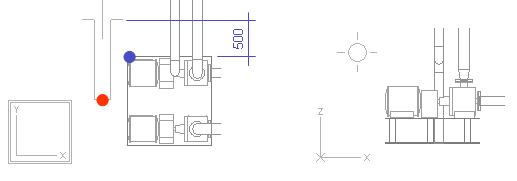
Note: During navigation you can use 2D hit property to improve snapping geometric entities. See 2D navigation commands.
Step 1:
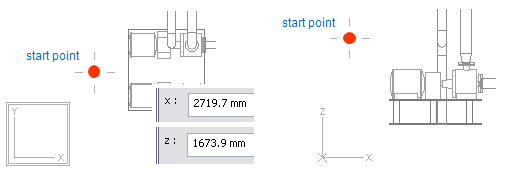
Start routing and click the start point leftward from the pump foundation. In the XZ view you can move cursor aside pump foundation. Change the controlling view pressing Tab or 4.
After clicking the start point, save X and Z coordinates of the start point. It’s important not to move cursor from the start point. If cursor moves aside by accident, restore it back to original location pressing Shift+R.
Press shortcut key X and click OK to save X coordinate of start point. To save also Z coordinate of start point, press Z and OK.
Step 2:
Y coordinate for end point locates 500 from vertex of the pump foundation. First you have to lock cursor to the vertex. To ensure that software can find that vertex in XY view, enable 2D hit pressing Ctrl+2. Now nearby evaluation during navigation is performed in the active view ignoring the depth coordinate. When 2D hit mode is enabled there is a double frame drawn around the coordinate axis marker in the active view. Otherwise there is only single frame.
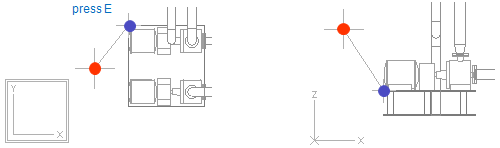
Move cursor near the vertex of pump foundation and press E to lock cursor to that vertex. Take a look at the XZ view to notice that cursor moves also along Z axis. Still Z coordinate is set according to start point (saved in step 1).
If you have locked cursor to wrong vertex, unlock cursor from current location pressing shortcut keys 5 and 6 and lock cursor to vertex again pressing E.
Step 3:
To define the next point relative to vertex point (current cursor location), press D (query delta) and set dy=500 from vertex. Press OK to accept coordinates. If you have set wrong value for dy, unlock cursor from current location pressing shortcut keys 5 and 6 and lock cursor to vertex again pressing E.
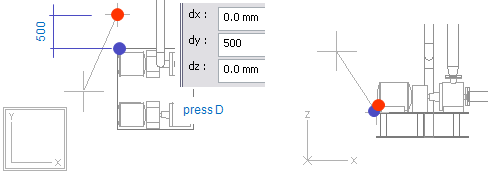
Step 4:
Accept the location of cursor as next system point pressing Space. Y coordinate gets value from current cursor location, values for X and Z coordinates were saved in step1. If the result is wrong, press shortcut key U to undo previous component (straight pipe part) and start again from the start point. You have to save X and Z coordinates once again.