Welding Book Link
You can generate data files for the Welding Book weld management application, originally developed by Computer Line Associates (CLA) and now part of CADMATIC Construction. The export generates a Microsoft Excel file that lists the pipe welds of an isometric drawing in a readable format. This format can also be used for data exchange and material management.
About Welding Book material classes
In the Welding Book application, piping materials are organized into material classes, such as:
- CS – Carbon Steel
- SS – Stainless Steel
- AS – Alloy Steel
- CU – Copper
- PVC – Polyvinyl Chloride
- HDPE – High-Density Polyethylene
A Welding Book material class groups several compatible materials under a single category, enabling proper welding documentation and traceability. However, Plant/Outfitting does not use the same kind of categorization, and therefore each pipe material in a piping specification must be mapped to a material class (MAT_SUBTYPE_DESC) that exists in the Welding Book database's MATERIAL_SUBTYPE table.
Important: Make sure that each piping specification only contains pipe materials from a single Welding Book material class. This ensures consistency and correct mapping in the Welding Book application.
The material class mappings are managed during Welding Book export and stored in the project environment as User Data objects. When the Welding Book export is first launched, the following User Data objects that include template materials and material classes are automatically added to [project] > Resources > User data:
-
Cadmatic Weld Book MATERIALS – This object defines materials using a combination of a material code ("C0000001"), material description ("ASTM A106 Gr. A"), and material subtype code ("C").
-
Cadmatic Weld Book MATERIAL_TYPES – This object defines material types using a combination of a material type code ("C") and material type description ("C.S.").
-
Cadmatic Weld Book MATERIAL_SUBTYPES – This object defines material subtypes using a combination of a material subtype code ("C"), material subtype description ("Carbon Steel"), and material type code ("C").
-
Cadmatic Weld Book JOINT_TYPES – This object defines weldable joint types using a combination of a joint type code ("SW") and joint type description ("Socket Welding").
Important: Do not modify the User Data objects manually, as this can break synchronization and lead to mapping errors. Use only the mapping tools provided during Welding Book export.
Preparing dimension tables
Follow these guidelines to ensure that the dimensions of piping parts are compatible with Welding Book export.
-
Socket weld parts must have their 1st diameter according to the pipe diameter that fits to the socket.
-
Collars of loose flanges must have their 1st diameter according to the connected pipe.
-
NS dimension types must be accompanied by a same amount of Diam and Wallt dimension types. For example, a T-piece with two nominal sizes must have two outer diameter and two wall thickness dimensions.
-
Socket weld type connections must get their outer diameter from a dimension parameter named SocketDiam1, SocketDiam2, SocketDiam3, SocketDiam4, or SocketDiam5, where the number indicates the number of NS dimensions. If the named parameter is not defined, then use the pipe diameter from the standards ASME B36.10, EN 10220, or EN ISO 1127 (typical pipe sizes).
Preparing piping specifications
Follow these guidelines to ensure that piping specifications are compatible with Welding Book export.
-
All pipe sizes are based on the outer diameter (OD) of the pipes. Using inner diameter (ID) series pipes can result in incorrect data. Note the following:
-
The unit of pipe size is determined by the format string of the first diameter parameter: if the format string is from 'a' to 'd', then SI units are used; otherwise, Imperial units are used.
-
The unit of wall thickness is determined by the format string of the first thickness parameter.
For general information on units and format strings, see Quantity definitions and their units of measure.
-
-
Each piping specification uses a single wall thickness per nominal size. This applies to all butt-welded ends.
Welded flanges and socket-welded fittings inherit wall thickness from the pipe in the piping specification.
-
All piping components, such as elbows, tees, and reducers, use the same wall thickness as the pipe.
-
Each piping specification only uses materials from a single Welding Book material class.
Preparing ICGDs
The isometric drawing's ICGD must contain the bmx-table shown below. The drawing sheet does not need to refer to this table.
bmx; ; ; ;
                    /* fields from corporate catalog.*/
                    sor;
                    DE;
                    DD;
                    ST;
                    MC;
                    D61;
                    DC1;
                    D31;
                    are;
                    MAS;
                    U2a;;
                    ;   /* end of print header fields */

                    ptn; 0; zzzzz; /**/
                    spn; 0; zzzzzz;
                    sor; !1000; 9999; /*  */
                    wID; !$*; zzzzzzzz;
                    mth; !$A*; zzzzzzzz;
                    ; /* end of selection rules */

                    ptn; 0; /* sort according to partnumber into ascending order */
                    spn; 0;
                    ; /* end of sorting rules */

                    ptn; /* sum entries where the partnumber is equal */
                    spn;
                    ; /* end of summing rules */

                ;; /* no paragraph title.*/
Adding the Welding Book Excel template to project database
Welding Book exports require a Microsoft Excel template file to be available in the library or project database.
Do the following:
-
In Plant Modeller, select File > Environment > All Library and Project.
-
In the Project Environment dialog, browse to [library or project] > Document Production > Excel Template.
-
Select New > Excel Template, select the file %PMS_HOME%/pi/templates/WeldBookTemplate.xlsx (or your own template file), and click Open.
Note: Do not select the 'WeldBookTemplateWithCadmaticMaterials.xlsx' template file.
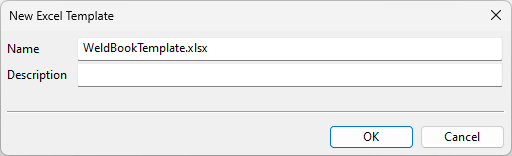
The New Excel Template dialog opens.
-
Enter a name and description. The name can be anything, as it will be replaced during file generation; however, make sure it includes the correct file name extension for a Microsoft Excel file. Then click OK.

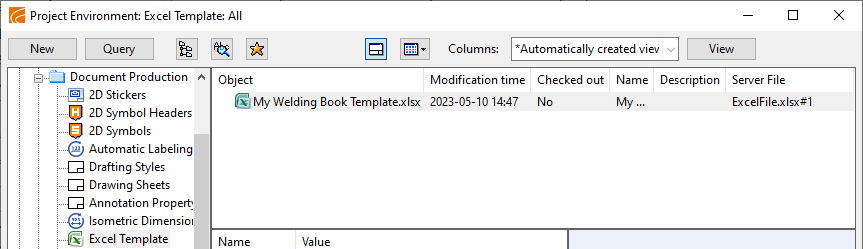
Next, add the template to export settings.
Defining Welding Book export settings
Welding Book exports require settings that define the Microsoft Excel template file to use and the export folder.
Prerequisites
Do the following:
-
Select File > Options > Shared Settings > Documents > Isometric Drawing > Miscellaneous. The Miscellaneous Settings dialog opens.
-
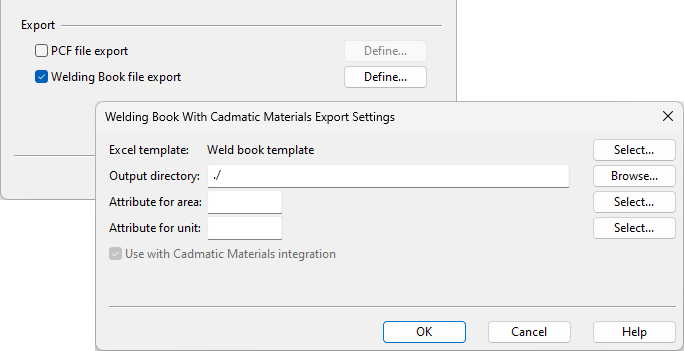
Select the Welding Book link option, and click Define. The Welding Book Export Settings dialog opens.
-
Define the following settings.
-
Excel template – Click Select, select the Excel template to use, and click OK.
-
Output directory – Click Browse, select the target folder, and click Select Folder.
-
Attribute for area – Click Select, select the attribute whose value to use for the Welding Book AREA attribute, and click OK.
-
Attribute for unit – Click Select, select the attribute whose value to use for the Welding Book UNIT attribute, and click OK.
Then click OK.
-
-
Close the Miscellaneous Settings and Settings dialogs.
Welding Book files can now be exported with the given settings.
Exporting Welding Book files
You can export weld information from isometric drawings to Welding Book files. If a file with the same name already exists, the export process will overwrite the existing file.
Prerequisites
-
The administrative actions described above have been completed.
-
Pipes have been assigned to pipe spools, and welds have been added in the isometric drawing containing those pipe spools.
Do the following:
-
Do one of the following:
-
On the Documents tab, click Piping Isometric Documents.
-
On the Piping Isometric tab, click Manage.
The Manage Piping Isometric Drawings dialog opens.
-
-
Select one or more isometric drawings that contain pipes with welds, right-click the selection, and select Export > Welding Book link.
-
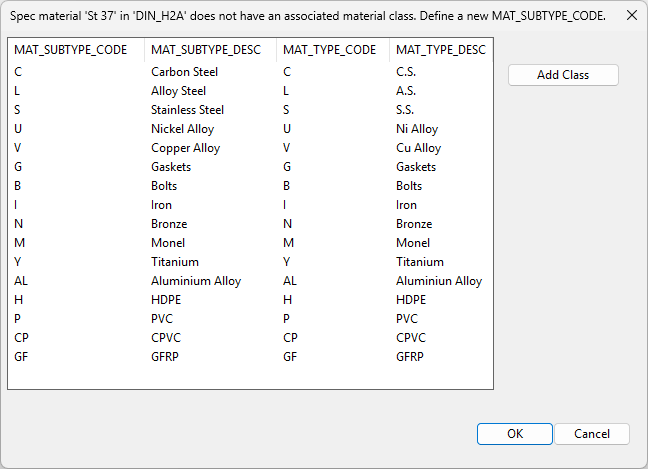
If piping specification's Material field specifies a material that does not match any known Welding Book material class, you are prompted that this needs to be handled, and then the mapping dialog opens.
You can either cancel this dialog and modify the piping specification or create a new material class as follows:
-
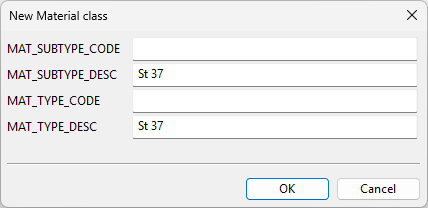
Click Add Class. The New Material Class dialog opens.
-
Enter values for the subtype code, subtype description (matching the Material value in the specification), material type code, and material type description.
-
Select the new material class, and click OK.
-
-
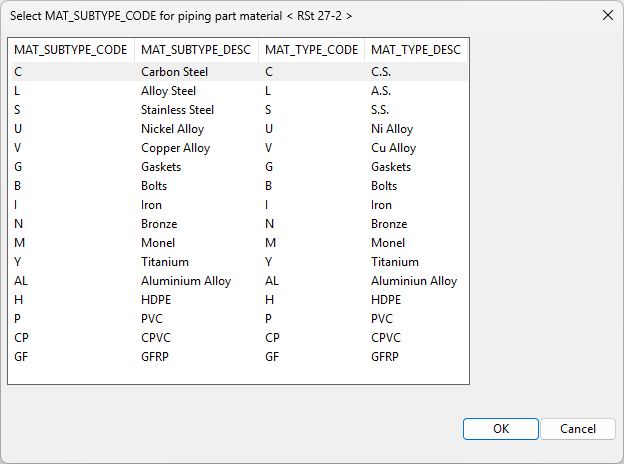
If a pipe in the piping specification uses a catalog part whose Material ('MC') attribute does not match any known Welding Book material class, a dialog opens for mapping the material class. In each such case, select the material class to use, and click OK.
-
If this is your first export, you are prompted that the User Data objects are now created. Click OK to continue.
The export is completed.