Parametric images

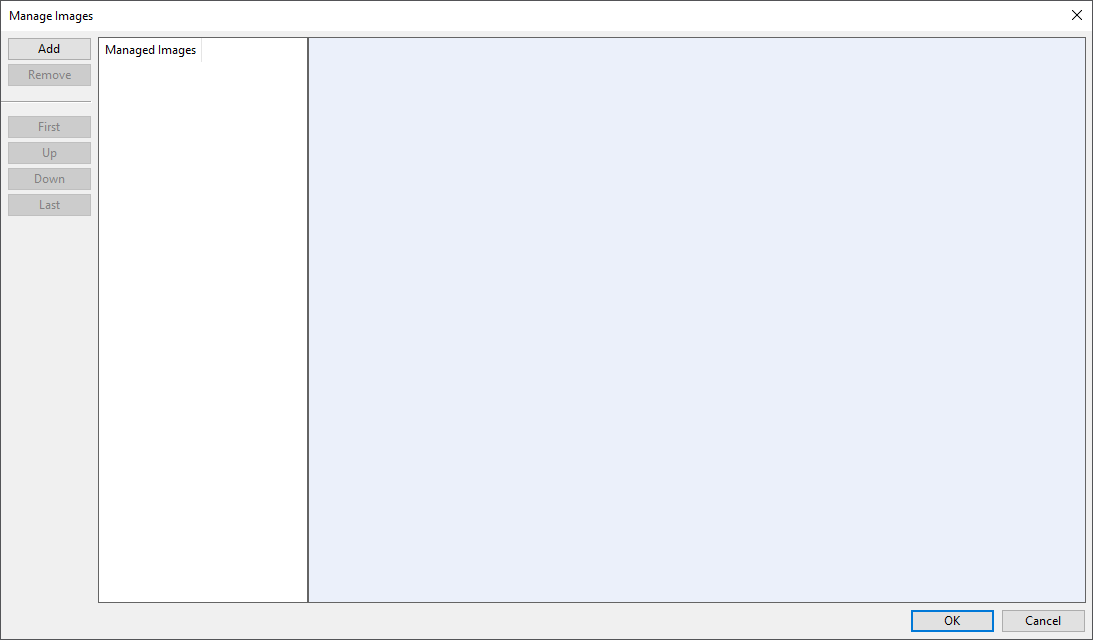
On the Component Modeller tab, in the Component model group, selecting Parametric images opens the Manage Images dialog, where you can add and remove reference images that illustrate the purpose of some parameters in the component model. You can browse the imported images in the Images section of the Parameters pane, and you can attach a particular image to a particular parameter when creating or modifying the parameter.

-
Add – Opens a dialog for importing an image file (.png) and then prompts you to enter a name for the imported image.
Important: Do not import large images. The imported images are stored as a GDL comment and therefore increase the total size of the component model. Saving the component model displays a warning if the size exceeds 10 MB.
-
Remove – Removes the selected image.
-
First, Up, Down, Last – Moves the selected image up or down in the list. This specifies the order in which the images are shown in the Parameters pane.