Advanced query example: material list
In this example, we create a material list using a dynamic query that selects objects which fulfill the following requirements:
-
Object type is Piping or Standard Component.
-
Object is inside a given bounding box.
-
Object is assigned to a specific system.
-
Object has been modified during the last two weeks.
Do the following:
-
On the Documents tab, select Listing > Materials. The Listing dialog opens.
-
Click Generate.
-
Specify the report name, select the ICGD to use, and click OK.
-
Create a new query:
-
Right-click the work view and select Queries > Project query. The Select and Manage Stored Queries for Define-Set dialog opens.
-
Right-click the query list and select New > Model Query. The Edit Query dialog opens.
-
-
In the Object types section, select Piping and Standard comp. as the object types to be included in the material list.
-
In the Bounding box section, select Inside and define the area that contains the objects to be included in the material list.
-
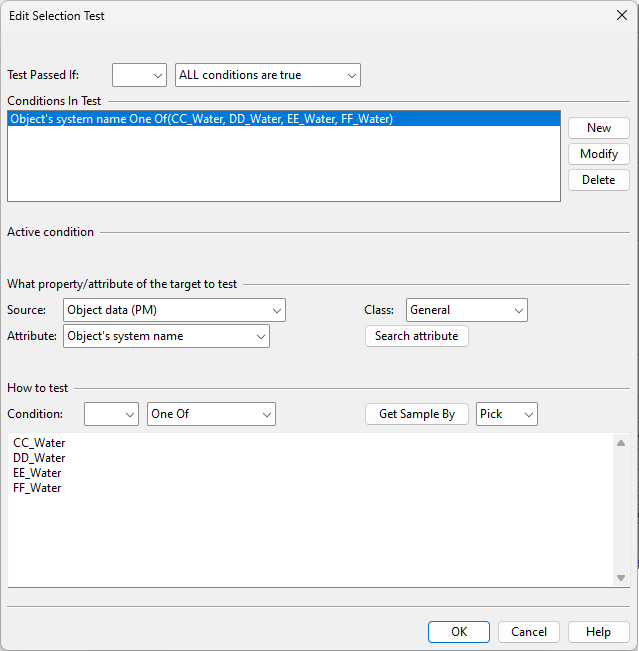
In the Rules section, click New. The Edit Selection Test dialog opens.
-
Set Test Passed If to "ALL conditions are true".
-
Create a rule for the system of the object:
-
Set Source to 'Object data (PM)'.
-
Set Class to 'General'.
-
Set Attribute to 'Object's system name'.
-
Set Condition to 'One of'.
-
Set Get Sample By to 'Select'.
-
Click Get Sample By, select the required systems, and click OK.
-
Click New.
The first rule is now ready.
-
-
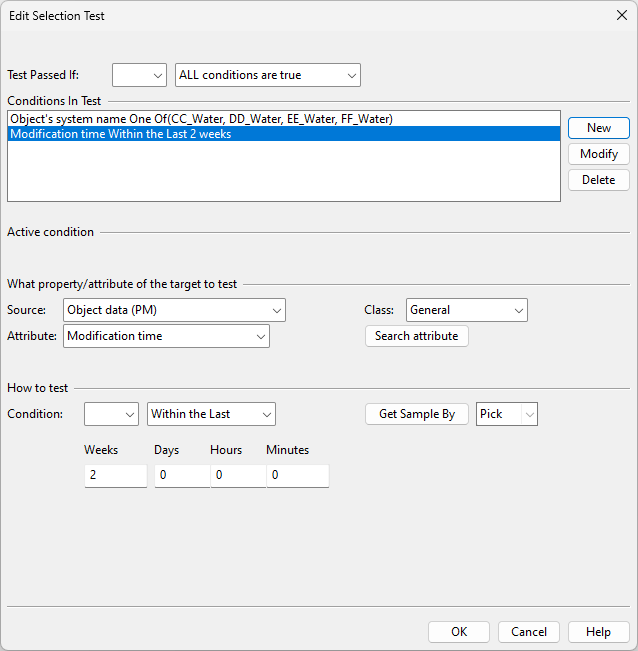
Create a rule for the modification time of the object:
-
Set Source to 'Object data (PM)'.
-
Set Class to 'General'.
-
Set Data to 'Modification time'.
-
Set Condition to 'Within the Last' and type '2' in the Weeks field.
-
Click New.
The second rule is now ready.
-
-
Click OK. The Edit Selection Test dialog is closed.
-
Click Save As, enter a descriptive name for the material list query, and click OK.
-
Click OK to close the Edit Query dialog.
-
In the Select and Manage Stored Queries dialog, select the material list query and click OK.
-
In the work view, press Enter to accept the objects that the query has selected.
The material list is generated.
-
Click Close to close the Listing dialog.



Tip: As the query is now stored in the project database, you can use it for any query-based operations where you want to select the same set of objects that you selected for the material list.