Location binding to compartment
On the Layout tab, in the Location binding to compartment group, you can manage whether equipment is bound to location in a compartment, if the project administrator has enabled this feature in the Layout settings.
Note: To use these tools, Compartments must be published in your local Plant Modeller area. If the administrator has not enforced publishing, you can publish Compartments manually, as described in Publishing containment.
Bind

You can bind objects of type Equipment to the compartment where the object is located. This allows potential location changes to be detected and visualized, so that the objects can be returned to their bound location again.
Do the following:
-
Select Layout tab > Location binding to compartment group > Bind.
-
Select the equipment to be bound to their compartment, and press Enter to confirm the selection.
-
In the Set Compartment Location dialog, specify which points of the compartment and the object to use for storing the location.
-
Compartment – Select whether to use the minimum or maximum extents of the compartment for the coordinate references.
-
Object – Select whether to use the origin point or the minimum or maximum extents of the object for the coordinate references.
-
Absolute – Select this option to store the location as an absolute offset from the specified compartment extents. If cleared, the location is stored relative to the minimum and maximum extents of the compartment.
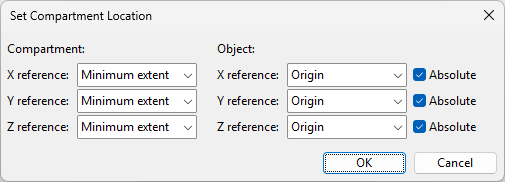
Then click OK.
The project now contains information about how the specified objects are located in relation to compartments, and if color-coding is enabled, the color of the objects indicates whether they are correctly positioned. If color-coding shows that objects are no longer in their accepted location, you can use the Update location tool to move the objects to the accepted position.
-
Clear

You can release the compartment binding of objects.
Do the following:
- Select Layout tab > Location binding to compartment group > Clear.
- Select the objects to be released, and press Enter to confirm the selection.
Update location

You can move objects to their bound location in a compartment if either the compartment or the object has been moved from the bound coordinates.
Do the following:
- Select Layout tab > Location binding to compartment group > Update location.
- Select the objects to be moved, and press Enter to confirm the selection.
Color by status

You can select which views use color to indicate whether objects of type Equipment are bound to a compartment, and whether their current location matches the bound coordinates.
Do the following:
-
Select Layout tab > Location binding to compartment group > Color by status.
-
In the Select Views to Show Compartment Status Colors dialog, select the views where objects should be colored according to their binding status.
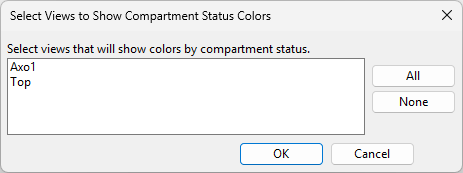
Then click OK. The selected views display objects in different colors as follows:
Color
Meaning
Green
Object is in the correct compartment and location.
Brown
Object is in the correct compartment but not in the bound location.
Red
Object is in the wrong compartment.
Yellow
Object is not bound to a compartment.
Magenta
Object is outside the compartments.
Gray
Object does not support binding to compartment, or compartments have not been published.
Example:
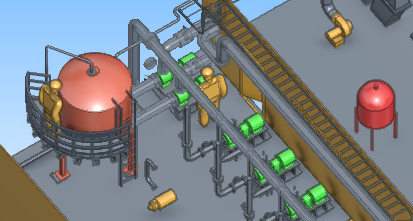
Tip: You can change the colors by selecting Home > Visualization Control > Change color style and editing the 'ColorByCompartmentLocationStatus' surface shading style.