Active objects

You can set model objects as inactive to control their visibility and availability in Plant Modeller work views.
Inactive objects are not visible in any shaded or wireframe views, and they cannot be selected through Define Set commands, except when they are dependent objects of other objects selected using Include in selection… Dependent (Alt+Space) or Include in selection… Others in spool (Alt+S).
You do not need to check out an object to define it as inactive. Object visibility is a local setting that applies only to the active design area and is not transmitted to other areas through area updates.
You can use the inactivity filter to set entire object categories as inactive. This is a more persistent method than manual inactivation of individual objects.
Technically, the inactive status is stored in the 'Visibility level' (.qx) attribute. When the visibility level is 7, the object is inactive. When the visibility level is between 0 and 6, object visibility is defined per work view. For more details, see Filtering views by object visibility level.
Inactivity filter
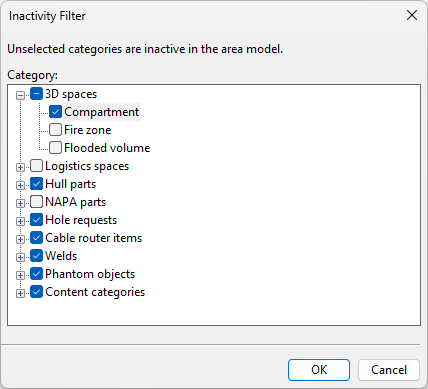
You can hide entire object categories, such as '3D spaces' or 'Welds', by designating them as inactive in your design area.
The inactivity filter is also applied to new objects received through area updates and automatically reapplied if you clear the design area with Clear model and save and then reload the model from COS.
Do the following:
-
Select Model tab > Manage group > Active objects > Inactivity filter. The Inactivity Filter dialog opens.
-
Select the entities that should be visible in your design area.
-
Clear the entities that should be hidden in your design area.
-
Click OK. The visibility settings are applied to the model and the status bar displays the number of inactive objects in your design area:
 .
.

Make objects inactive
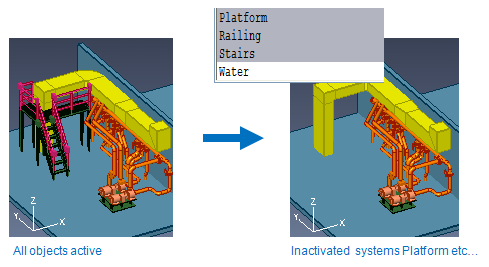
You can hide specific objects by setting them as inactive in your design area.
Do the following:
-
Select Model tab > Manage group > Active objects > Make objects inactive.
-
Select the objects to hide, using picking or a suitable Define Set command from the context menu.
You can, for example, use Select by… System (M) to select all objects assigned to specific systems.

-
Press Enter to confirm the action. The status bar displays the number of inactive objects in your design area:
.
Make objects active
You can activate specific objects that are currently inactive.
Do the following:
-
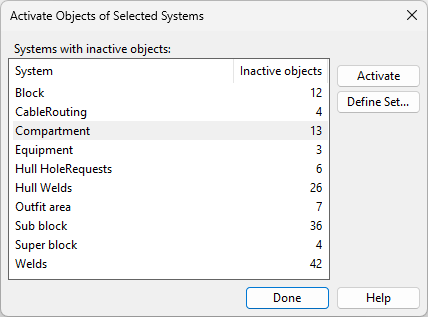
Select Model tab > Manage group > Active objects > Make objects active. If inactive objects exist, the Activate Objects of Selected Systems dialog opens.
-
Select one or more systems from the list, and then do one of the following:
- Click Activate to activate all inactive objects of the selected systems.
- Click Define Set to pick which inactive objects of the selected systems to activate.
-
Click Done.
Make all objects active
You can activate all objects that are currently inactive.
Although this activates both manually inactivated objects and those inactivated through the Inactivity filter, it does not modify the inactivity filter settings so the filter can easily be reapplied to the model.
Do the following:
-
Select Model tab > Manage group > Active objects > Make all objects active.