Saving the area model
Perform the following to save the area model, to check in objects if you no longer work with them, and to load new work requests.
Do the following:
-
Select File > Save (Ctrl+S) or click the Save button
 in the quick access toolbar.
 -
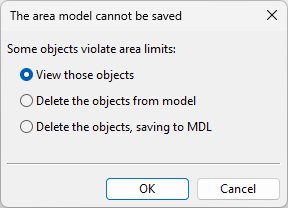
You are prompted if any model objects are outside the area limits.
Select how to proceed:
-
View those objects – Select this option and click OK to show the problematic objects, and then decide how to fix the model so that saving becomes possible.
-
Delete the objects from model – Select this option and click OK to allow the program to delete the problematic objects and continue to the Save dialog.
-
Delete the objects, saving to MDL – Select this option and click OK to save the problematic objects as MDL. Saving the *.mdl file allows the program to delete the problematic objects and continue to the Save dialog.
-
-
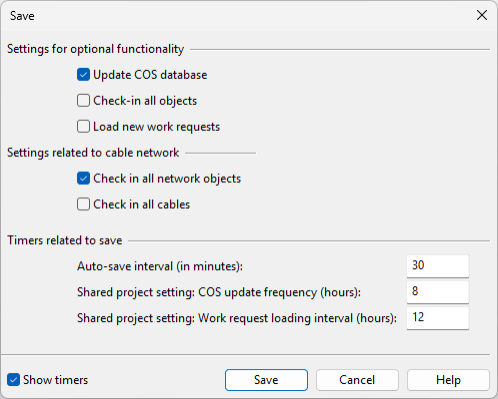
The Save dialog opens.
Settings for optional functionality
-
Update COS database – Select this option to save your changes to COS so they become available to other designers. If not selected, Save only stores changes locally.
-
Check-in all objects – Select this option to check in all objects you currently own.
-
Load new work requests – Select this option to load new work requests into your model area.
-
Show timers – Select this option to display Timers related to save.
Settings related to cable network
These options are available when Area properties are set to include cables in the area and there are cable network parts (nodes, segments) or cables to check in.
-
Check in all network objects – Select this option to check in all cable network parts.
-
Relinquish all network objects – Select this option to relinquish the ownership of all cable network parts from the replica server to the master server.
-
Check in all cables – Select this option to check in all 3D cables.
-
Auto-save interval (in minutes) – Specify how often the Save dialog opens automatically. If set to 0, the feature is disabled.
-
COS update frequency (hours) – For administrators: specify how often the Update COS database option is automatically selected for users in this project. If set to 0, the feature is disabled.
Note: We recommended that you require designers to update to COS at least once per day.
-
Work request loading interval (hours) – For administrators: specify how often the Load new work requests option is automatically selected for users in this project. If set to 0, the feature is disabled.
Select the appropriate options, and click Save to save your work.
-
-
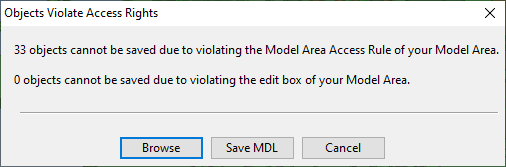
You are prompted if any model objects violate the access rights of the model area.
Select how to proceed:
- Browse – Shows the problematic objects in a separate Objects Violating Access Rights view.
- Save MDL – Allows saving the problematic objects in an *.mdl file.
- Cancel – Cancel the save operation.