Move to nearest geometry point (W)
This command, which is affected by the options defined in File > Settings > User Settings > User Interface > Assistance geometry, moves the digitized point to the nearest geometry point.
The geometry point can be an endpoint, midpoint, branch point, weld point, or auxiliary point, belonging to an air duct, beam, cable tray, equipment, standard component, structural component, or pipe.
In pipes, the geometry point can be a pipe endpoint; the midpoint on the pipe's centerline; the intersection of centerlines within an elbow (as shown below); or one of the quadrant points on the pipe's circumference, for example. In Component Modeller, only cylinders, cones, and eccentric cones have a centerline midpoint.
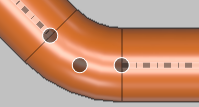
You can also use this command for the following:
-
Move to a geometry point that relates to a branch pipe. The command can snap to the intersection point of the centerlines of the branch pipe and the main run, as in example A below. If the branch is eccentric (that is, if the centerlines do not intersect), then the point is located along the main run, closest to the branch centerline.
-
Move to the centerline of the main run at a point that is directly opposite to the branch point on the surface of the main run, as in example B below.
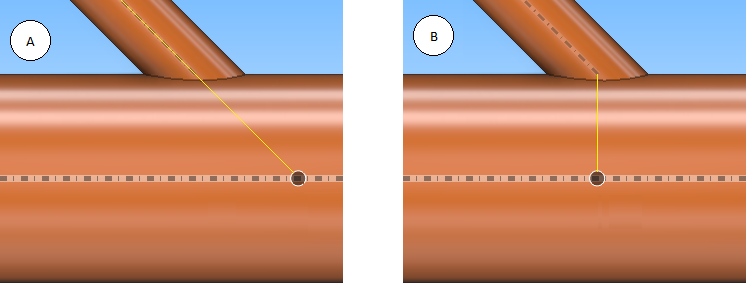
Routing Example
In this routing example the goal is to have a pipe with an elbow parallel to the existing (blue) pipe.
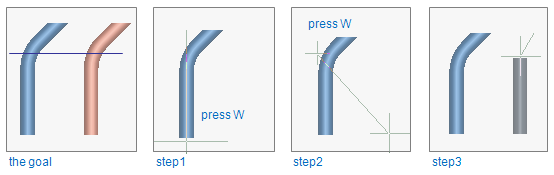
-
Step 1: navigate to the start point at the end of the existing pipe by pressing W, then press D and set dx = 500.
-
Step 2: move the cursor near the middlemost geometry point of the elbow and press W to snap to it, then press D and set dx = 500.
-
Step 3: continue routing the pipe parallel to the existing one, using a Lock cursor to line/circle navigation command.