Show routing hints
During pipe routing, you can enable Show routing hints from the context menu to perform Join (J) and Connect (P) commands with the left mouse button. You can use this to continue routing from an existing pipe or to connect the pipe being routed to another pipe by clicking the connection point at the pipe's end.
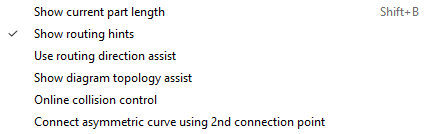
When routing hints are enabled and the pipe routing tool is active, the following occurs:
-
Moving the cursor near the connection point of a pipe end displays a visual cue (interlinked chains) and an on-screen hint indicating that clicking will perform a Join. If it is not an open pipe end—for example, if there is a flange at the end—the suggested action is Connect.
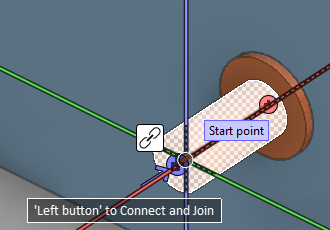
-
Moving the cursor near the centerline of a straight pipe displays a visual cue (branched pipe) and on-screen help text indicating that pressing T will create a branch to the target pipe.
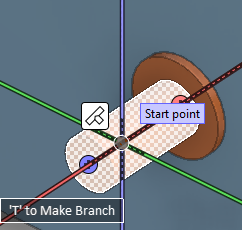
If routing hints are enabled but the visual indicators are not shown, try moving your viewpoint closer to the target pipe.