Panes

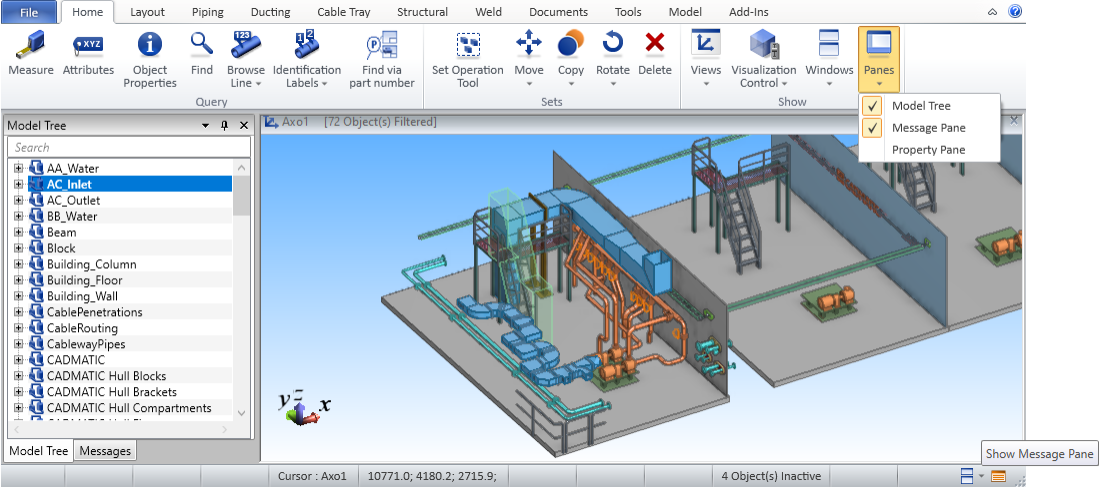
On the Home tab, in the Show group, the Panes menu includes commands for showing or hiding panes. The Message Pane can also be shown or hidden with a status bar button.

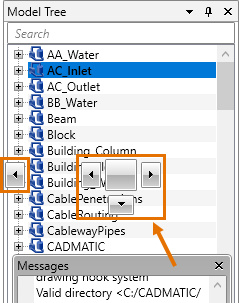
You can drag a pane by its title bar and then either allow the pane to float or dock the pane to the side or the bottom of the application window. When another pane already occupies the same place, you can dock the panes side by side or show them as tabs—also when they are floating. On-screen indicators show where the pane you are dragging can be docked.
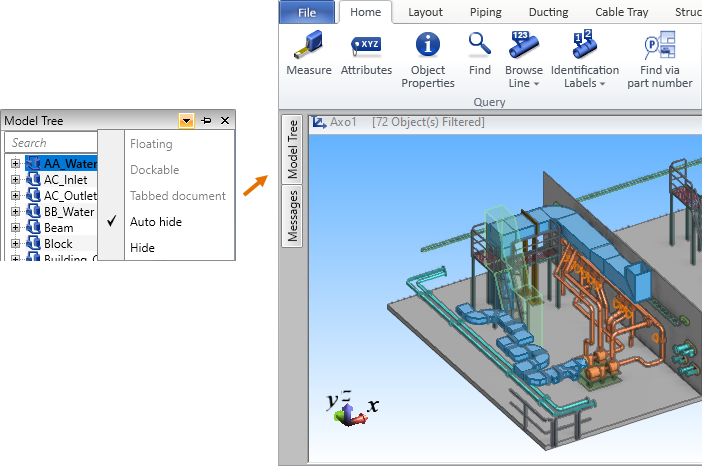
To maximize the working area, you can set a pane to be automatically minimized when the focus is not in the pane. Note that you cannot drag a pane when auto-hiding is enabled.
Model Tree
Select Home tab > Show group > Panes > Model Tree to open or close the Model Tree pane.
Message Pane
Select Home tab > Show group > Panes > Message Pane to open or close the Messages pane.
Property Pane
Select Home tab > Show group > Panes > Property Pane to open or close the Properties pane.