Finding an object or group of objects

Note: This tool is only available in the licensed version of eBrowser.
You can use the Find object field to find an object or a group of objects such as a system or a pipeline.
To search, enter the position id (or a part of it) of an object, or the name (or a part of it) of an object group, and either press Enter or click the magnifier glass button.
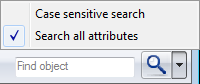
If you want search to be case-sensitive, or if you want to extend the search to all attributes, click the arrow button and enable the required options.
When the search is completed, if only one object or object group is found to match, it is immediately displayed in examine mode. If multiple matches are found, a list of all matching objects and/or object groups is displayed.
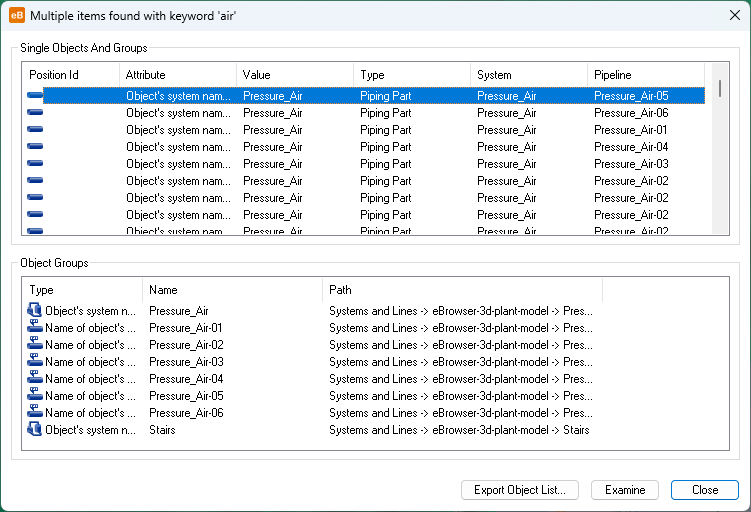
In the Multiple items found with keyword ‘<your search string>’ dialog, you can double-click an item, or select an item and click Examine, to display the 3D object or object group in examine mode. You can also export the list into a CSV file, using one of the following as the separator character: comma, semicolon, or the default list separator character defined in the computer’s language settings.
Instead of using the search as described above, you can also locate and examine objects by browsing the model tree in the sidebar and then either double-clicking a single item or selecting Examine from the right-click menu when one or more entities are selected in the tree. Or, you can right-click an object in 3D view and select Locate in Tree to see where that object is located in the model tree.