ICGD and Microsoft Excel
Data provided by ICGDs can be output to Microsoft Excel files by using specifically formatted Microsoft Excel templates. An Excel template can be mapped to ICGD data by defining cell comments that have a predefined syntax. The template file itself can contain any formatting or data processing functions or scripts; ICGDs just require valid cell comments to exist in the file.
First, create the Excel file to use as a template. The system supports file formats that the installed Excel application can open and whose file name extension matches the filter *.xl*. Then set up the system as described below.
Note: Microsoft Excel must be installed in the computer that will be processing the ICGD.
Mapping Excel cells to ICGD metadata
ICGD data can be mapped to Excel output by defining cell comments that have a specific syntax.
An ICGD mapping in a cell comment must be enclosed in curly brackets {…}. The comments can also contain other text, as the system only considers information that is inside the braces.
The mapping values inside the braces must be separated with comma characters ",". Additional space characters can be used to enhance readability.
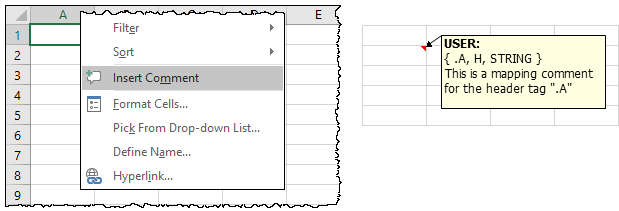
ICGD mapping supports three types of content cells: header cells, data cells, and image cells.
-
Header elements consist of just one cell.
-
Data elements can consist of one row or multiple rows that start from the cell with the comment and end after a specified row count.
-
Image cell defines the corner position of the mapped image.
Note: When mapping a header or data cell to a numerical value, it is recommended to set the format of the cell to match the type of content.
In addition, ICGD mapping supports defining the printable page area.
Use the correct syntax when defining an ICGD mapping in a cell comment.
Syntax for header cell mapping | Syntax for data cell mapping | Syntax for image cell mapping | Syntax for print page size definition
Syntax for header cell mapping
The syntax for header cell mapping is {TAG, CELL_TYPE, DATA_TYPE}
where
TAG is a valid Plant Modeller tag that consists of 1–3 printable ASCII characters.
CELL_TYPE is uppercase or lowercase character "H".
DATA_TYPE (optional) is uppercase or lowercase character string "STRING" (default), "INT" or "DOUBLE".
Example comment containing a header cell mapping that uses the default data type:

Syntax for data cell mapping
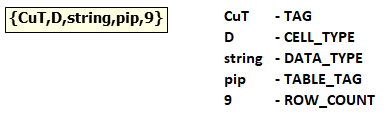
The syntax for data cell mapping is {TAG, CELL_TYPE, DATA_TYPE, TABLE_TAG, ROW_COUNT}
where
TAG is a valid Plant Modeller tag that consists of 1–3 printable ASCII characters.
CELL_TYPE is uppercase or lowercase character "D".
DATA_TYPE (optional) is uppercase or lowercase character string "STRING" (default), "INT" or "DOUBLE".
TABLE_TAG (optional), if given, defines that only data tables with this extension are mapped here.
ROW_COUNT (optional) defines the maximum number of rows for the table. If the source data has more rows, the printable page is copied according to the PAGE setting (see Syntax for print page size definition) and the table is continued on the next page. This row count can be defined for any of the columns of the table; should the values for different columns differ, the smallest value is used for the whole table.
Example comment containing a data cell mapping:
Syntax for image cell mapping
The syntax for image cell mapping is {EXT, CELL_TYPE, WIDTH, HEIGHT}
where
EXT is the image file name extension to map to the given mapping. This can be the single extension of a file, such as “jpg” in the file name view.jpg. If file name has several extensions, the mapping is to the second-to-last extension, such as "im1" in the file name spool.001.im1.jpg.
CELL_TYPE is uppercase or lowercase character "I".
WIDTH and HEIGHT define the image size in pixels.
Note: Image cell mapping defines the top-left corner position of the image. As Excel does not store images inside the cells, the mapped image will float on the worksheet at the specified location.
Syntax for print page size definition
The syntax for print page size definition is: {PAGE:COLUMN, ROW}
where
PAGE specifies that this cell is the top-left corner of a printable page.
COLUMN, ROW specify the lower-right corner of the printable page.
Adding a new Excel template
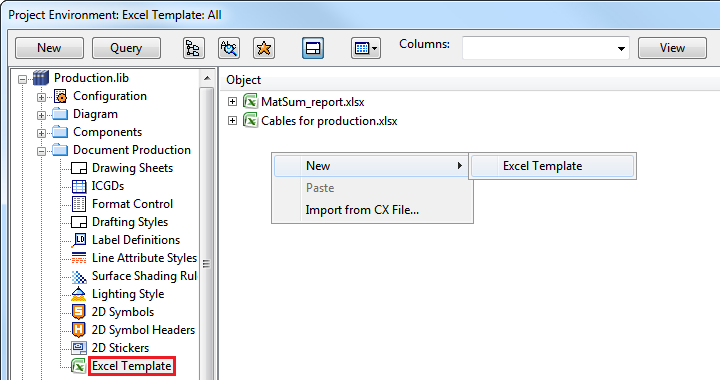
When you have a Microsoft Excel file that contains the required ICGD cell comment mappings, you can add it to the system as an ICGD Excel template via the Project Environment dialog, from Document Production > Excel Template > New > Excel Template.
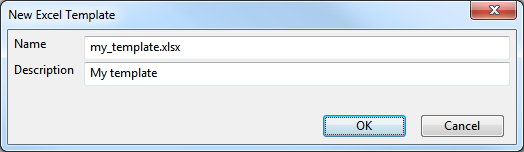
After selecting the Excel file, you are prompted to enter a name and description for the template.
Editing an Excel template
You can open an existing Excel for editing via the Project Environment dialog, from Document Production > Excel Template. Double-click the file to edit, or right-click the file and select Edit from the context menu. The template is checked out to you and opened in Microsoft Excel.
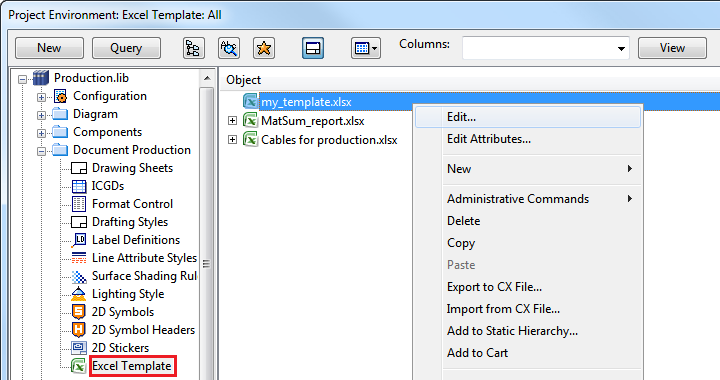
After editing the template, remember to save it and check it in.
Linking ICGDs to Excel templates
When you have an ICGD Excel template in the library, you can link ICGDs to the template in the control block of an ICGD data table. There can be multiple data tables in one ICGD. This means that one ICGD can output to multiple sheets of a single Excel file, to multiple Excel files, and to multiple folder locations.
Example ICGD control block that links to template.xlsx, to its first sheet:
/* Control block, format is c1;c2;c3;c4 */
xl1; /*c1, extension of the metadata files (h- and m-file) */
; /*c2, no name of the drawing sheet */
../xlspool/; /*c3, output folder for the generated Excel document */
template.xlsx:1; /*c4, name of the Excel Template and sheet number */
Writing to multiple Excel sheets
Excel ICGD can output to multiple Excel sheets by defining multiple data tables which contain different sheet numbers in their control blocks. If sheet number is not defined, the default (first) sheet is used.
Example ICGD control block that links to one Excel template and outputs to sheets one and two:
/* First control block, format is c1;c2;c3;c4 */
xl1; /*c1, extension of the metadata files (h- and m-file) */
; /*c2, no name of the drawing sheet */
../xlspool/; /*c3, output folder for the generated Excel document */
template.xlsx; /*c4, name of the Excel Template and sheet number */
/* Second control block, format is c1;c2;c3;c4 */
xl2; /*c1, extension of the metadata files (h- and m-file) */
; /*c2, no name of the drawing sheet */
../xlspool/; /*c3, output folder for the generated Excel document */
template.xlsx:2; /*c4, name of the Excel Template and sheet number */
Writing to multiple Excel files
Excel ICGD can output to multiple Excel files by defining multiple data tables which contain different Excel templates in their control blocks.
Example ICGD control block that links to two Excel templates:
/* First control block, format is c1;c2;c3;c4 */
xl1; /*c1, extension of the metadata files (h- and m-file) */
; /*c2, no name of the drawing sheet */
../xlspool/; /*c3, output folder for the generated Excel document */
first_template.xlsx; /*c4, name of the Excel Template and sheet number */
/* Second control block, format is c1;c2;c3;c4 */
xl2; /*c1, extension of the metadata files (h- and m-file) */
; /*c2, no name of the drawing sheet */
../xlspool/; /*c3, output folder for the generated Excel document */
second_template.xlsx:2; /*c4, name of the Excel Template and sheet number */