List

On the Home tab, the List group includes the following tools.
Create
You can add various lists to the active sheet or to generate a Microsoft Excel file that lists the valves found in the active diagram.
Tip: After placing a list on the active sheet, you can use the tools on the Drafting tab to move the list to a different location.
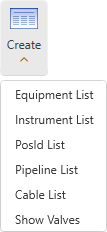
Equipment List | Instrument List | PosId List | Pipeline List | Cable List | Show Valves
Equipment List
You can insert an equipment list to the diagram.
Do the following:
-
Select Home tab > List group > Create > Equipment List.
-
Click the position where you want to place the list.
Instrument List
You can insert an instrument list to the diagram.
Do the following:
-
Select Home tab > List group > Create > Instrument List.
-
Click the position where you want to place the list.
PosId List
You can insert a position ID list to the diagram.
Do the following:
-
Select Home tab > List group > Create > PosId List.
-
Click the position where you want to place the list.
Pipeline List
You can insert a pipeline list to the diagram.
Do the following:
-
Select Home tab > List group > Create > Pipeline List.
-
Click the position where you want to place the list.
Cable List
You can insert a cable list to the diagram.
Do the following:
-
Select Home tab > List group > Create > Cable List.
-
Click the position where you want to place the list.
Show Valves
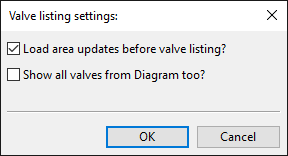
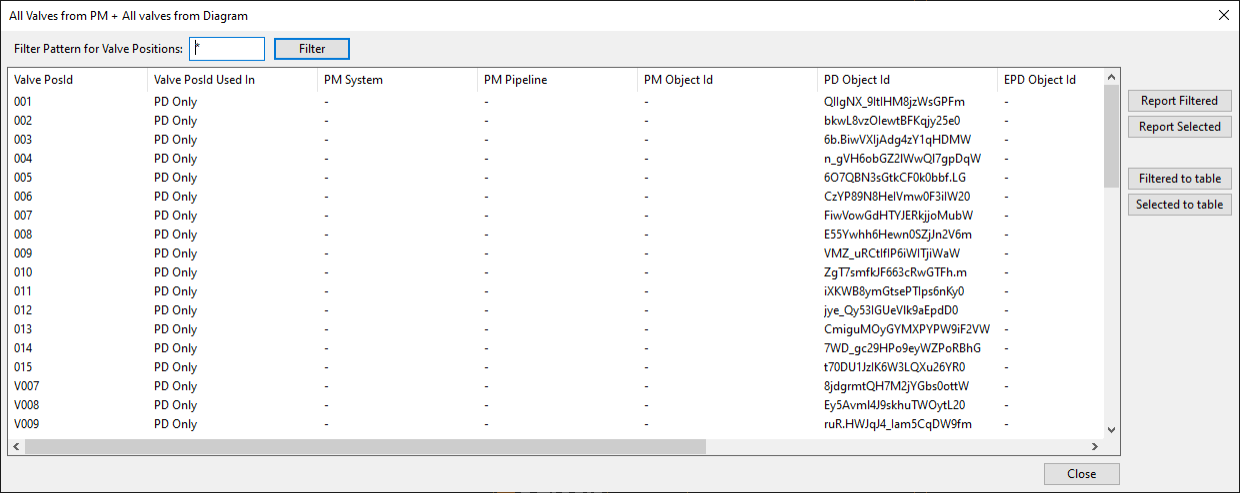
You can generate a Microsoft Excel file that lists the valves found in Plant Modeller and/or in P&ID.
Prerequisites
-
This template file must exist: [project] > Site > pd > ExcelTemplates > ValvesFromPMAndDiagram.xlsx
Do the following: