User interface
This section provides an overview of the user interface of CADMATIC Viewer.
Main elements
The main elements of the CADMATIC Viewer user interface are:
-
Quick access toolbar

-
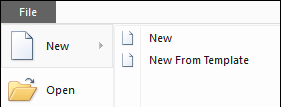
File menu
-
Tabs: Home, Tools, Insert, Styles, View

-
Additional toolbar above the tabs

- Close BE – Closes the Block Editor tool.
- Edit current layer – Opens the Edit Layer dialog.
- Layer drop-down menu.
- Linestyle drop-down menu.
- Lineweight drop-down menu.
- Edit current textstyle – Opens the Text Styles dialog. See Textstyle.
- Textstyle drop-down menu.
- Edit current dimension style – Opens the Dimension Style dialog. See Dimension style.
- Dimension style drop-down menu.
- Color drop-down menu.
- Drawing area
- Property pane is displayed on the left side of the drawing area, when relevant
Context menu
Some options and commands that the user can select from the tabs of the ribbon are also available via the context menu. The availability of specific menu items depends on what objects are currently selected. Some commands might function differently when they are selected from the context menu instead of selecting them from the tabs.
|
Menu Item |
Key |
Description |
|---|---|---|
|
Move |
Allows moving the selected objects. After selecting this tool, you can also do the following:
|
|
|
Cut |
Ctrl+X |
Cuts the selected objects to the clipboard. Cursor position will be used as the reference point when pasting the objects. |
|
Copy |
Ctrl+C |
Copies the selected objects to the clipboard. Cursor position will be used as the reference point when pasting the objects. |
|
Copy from Point |
|
Copies the selected objects and displays a reference line from the copying point to the cursor. |
|
Paste |
Ctrl+V |
Paste selection to current position as a new block, to an external file, or paste data from the clipboard. Supported clipboard data type is text which will be pasted as text, or image or bitmap type which will be pasted as embedded OLE object. |
|
Deselect All |
Esc Mouse middle button |
Clears the current selection. Note that double pressing the mouse middle button will zoom the drawing to its original view. |
|
Visibility |
|
Allows hiding the selected objects or all but the selected objects, and managing invisible objects. |
|
Explode |
|
Explode the selected objects. |
|
Burst |
|
Use the burst command on the selected objects. |
|
Erase |
Delete |
Deletes the selected objects. |
|
|
Export block to a 2D symbol source file (*.asy), to DXF/DWG file, or extract attributes from block to a CSV-formatted file. |
|
|
Create Block From Selection |
|
Create a new block record from selected objects. |
|
Create Group From Selection |
|
Create a new group from selected objects. |
|
Create Pattern From Selection |
|
Create a new pattern from selected objects. |
|
General Properties |
|
Opens the General Properties dialog for the selected objects. |
|
Dxf Codes |
|
Show/modify the dxf group codes of the selected objects. |
|
Hyperlink |
|
Add, open, copy, add to favorites, or edit the selected object's hyperlink. Hyperlinks can also be opened by holding down Ctrl and picking the object. |
|
Draw Order |
|
Change the drawing order of the selected objects. |
|
Undo, Redo |
|
Allows undoing or redoing previous actions. |
|
Rescale |
|
Opens rescale panel for rescaling the selected objects. Base point will be by default the current mouse cursor position. |
|
Rotate |
|
Opens rotate panel for rotating selected objects around selected axis. Base point will be by default the current mouse cursor position. |
|
Properties |
|
Select object(s), press this command to open property window to see or modify object properties. |