Simple object browser queries
You can use a simple query to quickly filter the list of objects in an object browser dialog.
Do the following:
-
In the object browser, select Query > Simple. The Attributes Involved in Query dialog opens.
-
Select the object attributes to include in the query, and click OK. The Ad Hoc Query dialog opens.
-
Specify the values to look for in each attribute.
 Show/hide details
-
Numeric fields (integer, float) support an empty value or an exact value. Wildcards and min–max ranges are not supported.
-
An empty value searches for the value 0.
-
An entered value searches for an exact match.
For example, searching for 10 does not find the value 10.1 or 100.
-
-
String fields support an empty value, exact value, or partial value with asterisk (*) or question mark (?).
-
An empty value searches for unassigned values.
-
An asterisk represents any sequence of characters.
For example, searching for *_coord finds the values z_coord and xyz_coord.
-
A question mark represents any single character.
For example, searching for ?_coord finds the value z_coord but not the value xyz_coord.
-
-
Enumerated fields require a specific value.
-
-
Click OK to apply the query. The object list is refreshed to show only objects that match the query.
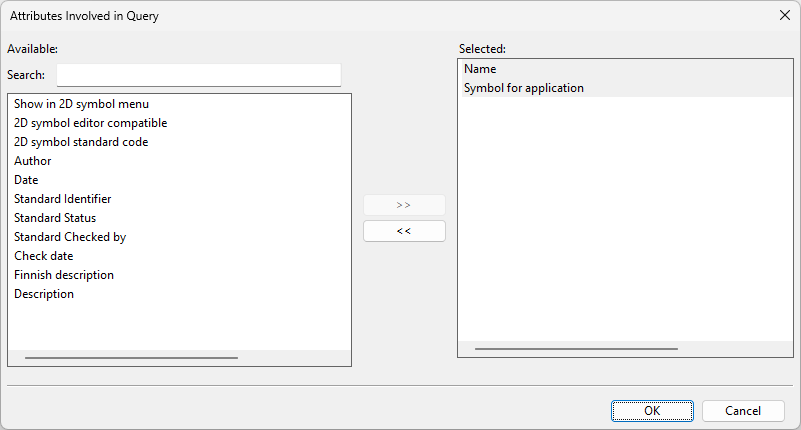
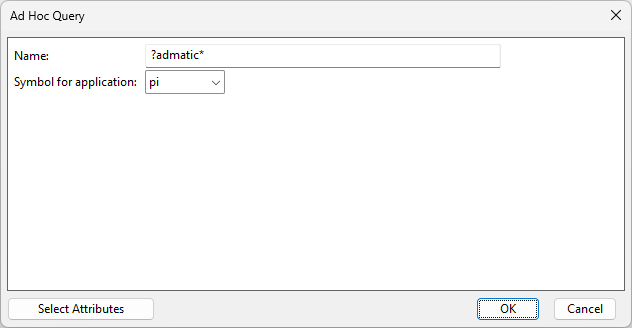
Example: a simple query for piping 2D symbols whose name starts with "text".
-
In Plant Modeller, select File > Environment > All Library and Project.
-
Browse to [library] > Document Production > 2D Symbols.
-
In the Hierarchy pane, select the 'pi' application hierarchy to list all objects in this hierarchy.
-
Select Query > Simple.
-
In the Attributes Involved in Query dialog, select to use the attributes 'Name' and 'Symbol for application', and click OK.
-
In the Ad Hoc Query dialog, enter text* in the Name field, set Symbol for application to 'pi', and click OK.
The object browser lists all piping-related 2D symbols whose name starts with "text".
