Edit branch

On the Piping tab, in the Pipe group, the Edit branch menu includes the following tools.
Slide branch
You can slide a branch created with a straight piping part or a piping part component along the main pipe. If the other end of the branch part is connected to a piping part, the connection breaks and that other part does not move along to the new position.
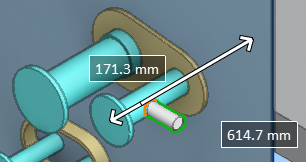
Do the following:
-
Select Piping tab > Pipe group > Edit branch > Slide branch.
-
Pick the branch part, and press Enter.
-
Slide the part to the intended location.
-
Click or press Space to accept the move.
Rotate branch
You can rotate a branch around the centerline of the main pipe. If the other end of the branch part is connected to a piping part, the connection breaks and that other part does not move along to the new position.
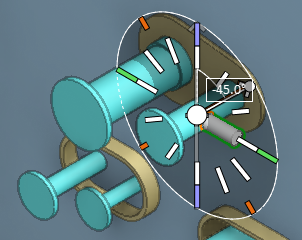
Do the following:
-
Select Piping tab > Pipe group > Edit branch > Rotate branch.
-
Pick the branch part, and press Enter.
-
Use the on-screen tool or the Enter rotation angle (Alt+R) command to define the new rotation value.
-
Click or press Space to accept the rotation value.
-
Press Enter to accept the move.