Copy
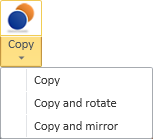
On the Structural tab, in the Edit group, the Copy tools allow you to copy, copy and rotate, or copy and mirror a single structural component or beam.
Note: You cannot use these commands to copy equipment, structural units, or multiple structural components. For those cases, use Home > Copy instead.
Copy
You can create copies of an existing model object.
Do the following:
-
On the Structural tab, in the Edit group, click the Copy button or select Copy > Copy.
-
Select the object to be copied, and press Enter.
-
Pick a base point for the copying, and then start moving the object.
Tip: You can enable Ortho (F8) to restrict the movement to horizontal and vertical directions.
-
To create more than one copy, select the command Number of copies (N) and specify how many copies to create.
-
Pick a new location for the base point.
-
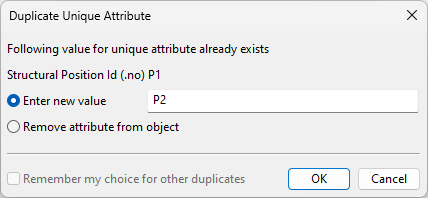
If the copied object has attributes that must have a unique value, the Duplicate Unique Attribute dialog opens. Select how to proceed.
 Show/hide details
-
To assign this attribute to the new object, enter a unique attribute value and click OK. The dialog re-opens for each additional attribute assignment.
-
To not assign this attribute to the new object, select Remove attribute from object and click OK.
-
To not assign this or any other attribute that still requires a unique value, select both Remove attribute from object and Remember my choice for other duplicates and click OK.
-
To cancel the copy operation, click Cancel.
-
Copy and rotate
You can create rotated copies of an existing model object.
Do the following:
-
On the Structural tab, in the Edit group, select Copy > Copy and rotate.
-
Select the object to be copied and rotated, and press Enter.
-
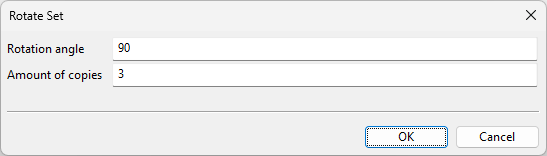
Pick the point around which to rotate the object. The Rotate Set dialog opens.
-
Specify the rotation angle and the number of copies to be created, and click OK.
-
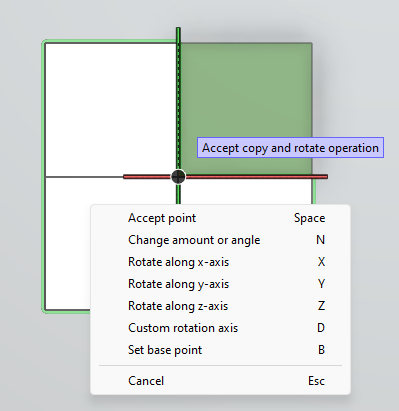
Define the rotation axis. For example:
-
Select a main axis by pressing X, Y or Z.
-
Define a custom axis by selecting the command Custom rotation axis (D) and using the on-screen tool and context-menu commands.
Then press Enter to accept the rotation.
-
-
If the copied object has attributes that must have a unique value, the Duplicate Unique Attribute dialog opens. Select how to proceed.
Show/hide details
-
To assign this attribute to the new object, enter a unique attribute value and click OK. The dialog re-opens for each additional attribute assignment.
-
To not assign this attribute to the new object, select Remove attribute from object and click OK.
-
To not assign this or any other attribute that still requires a unique value, select both Remove attribute from object and Remember my choice for other duplicates and click OK.
-
To cancel the copy operation, click Cancel.
-
Copy and mirror
You can create mirrored copies of existing model objects.
Prerequisites
-
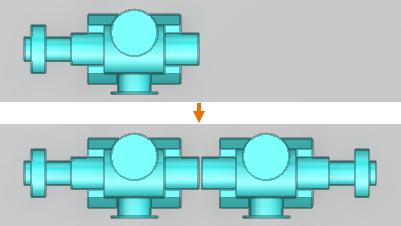
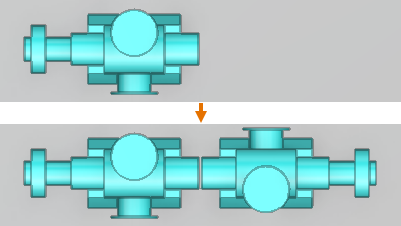
To mirror both the position and the geometry of a structural component, the component model (GDL) must have the attribute "Allow mirror copies to database" set to "Yes". If the GDL has parametric models, then the attribute must be in the parametric model that the model object is using.
If the attribute is missing or its value is "No", then this command only mirrors the position of the object but not its geometry, because mirroring the geometry would also require the component model to be copied and mirrored.
Note: You do not need to add the attribute to components that are symmetric along their axis.
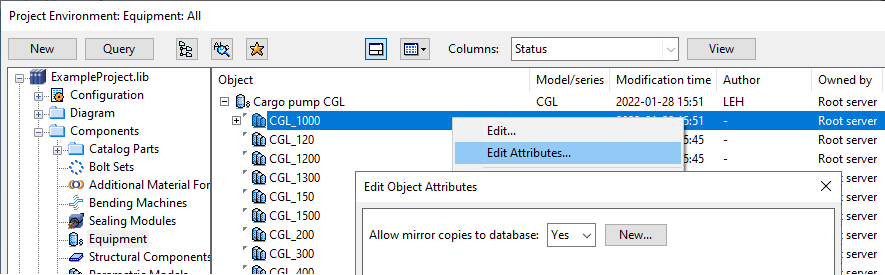
Do the following:
-
On the Structural tab, in the Edit group, select Copy > Copy and mirror.
-
Select the object to be copied and mirrored, and press Enter.
-
Pick a point for the mirror plane.
-
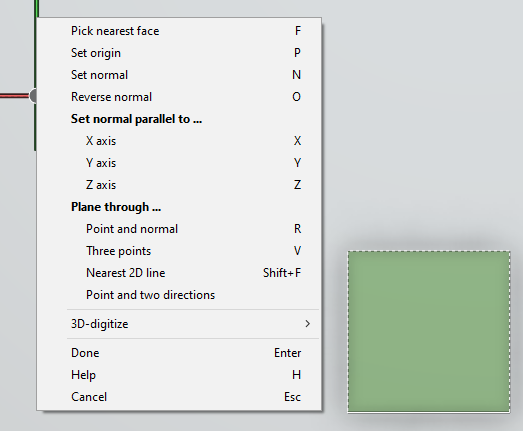
Define the direction of the mirror plane. For example:
-
Select a main axis for rotation by pressing X, Y or Z.
-
Define a custom axis by selecting the command Set normal (N) and defining the plane direction using the on-screen tool and context-menu commands.
Then press Enter to accept the direction.
-
-
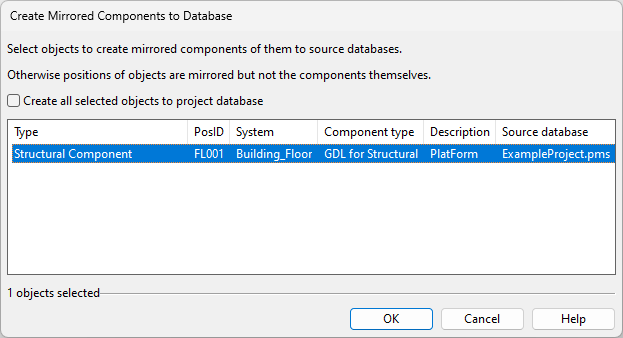
If you are copying a structural component whose component model has the attribute 'Allow mirror copies to database' set to 'Yes', the Create Mirrored Components to Database dialog opens.
Select how to proceed:
-
If you select the object from the list, both the position and the geometry are mirrored. This also copies and mirrors the component model, and the new object is linked to the new, mirrored component model.
The new component model is saved in the same database as the original component model (library or project), unless you select Create all selected objects to project database to add the new component model to the project database.
-
If you do not select the object from the list, only the position is mirrored, and both the old object and the new object are linked to the same component model.
Then click OK.
-
-
If the copied object has attributes that must have a unique value, the Duplicate Unique Attribute dialog opens. Select how to proceed.
Show/hide details
-
To assign this attribute to the new object, enter a unique attribute value and click OK. The dialog re-opens for each additional attribute assignment.
-
To not assign this attribute to the new object, select Remove attribute from object and click OK.
-
To not assign this or any other attribute that still requires a unique value, select both Remove attribute from object and Remember my choice for other duplicates and click OK.
-
To cancel the copy operation, click Cancel.
-