Browsing work requests
You can browse existing work requests and information attached to the requests.
Do the following:
-
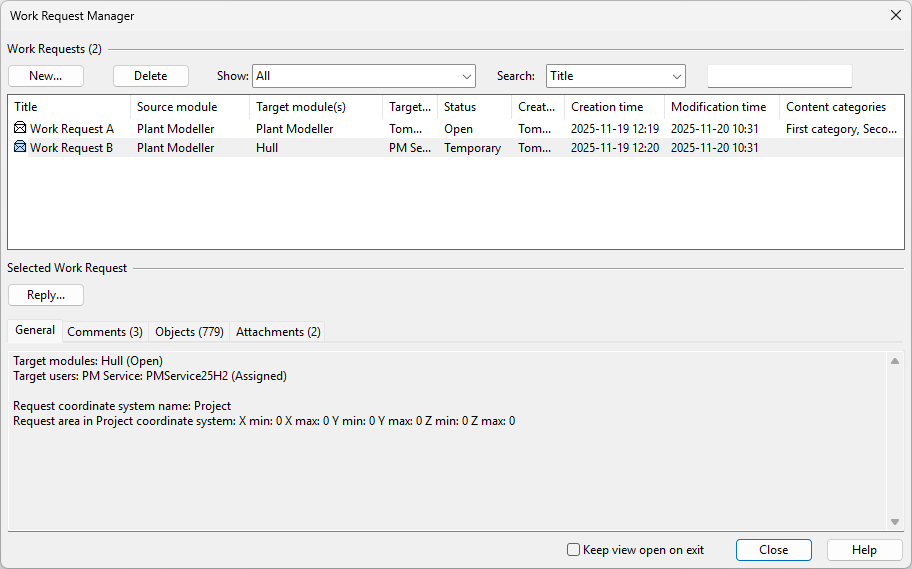
Select Tools tab > Manage group > Work requests. The Work Request Manager dialog opens.
-
Use the filtering tools to locate specific work requests.
You can filter the work request list using the following criteria:
-
All – Displays all work requests.
-
Assigned to me – Displays work requests assigned to the current user.
-
Request area intersecting my area – Displays work requests whose Request area intersects with the current user's work area.
-
Containing objects checked out to me – Displays work requests that include objects checked out to the current user.
-
Containing objects in my area – Displays work requests that include objects located in the current user's work area (but not necessarily in the Request area).
You can search for a specific work request by selecting the property (column) to filter by and typing in the empty search field.
-
-
Select a work request from the list to view information about it, to create a reply as described in Replying to work requests, or to delete the request.
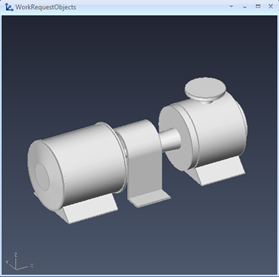
In Plant Modeller, selecting a work request displays the attached objects in a separate view. You can set this view to remain open even though the Work Request Manager is closed.
-
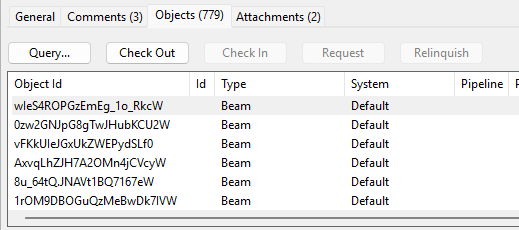
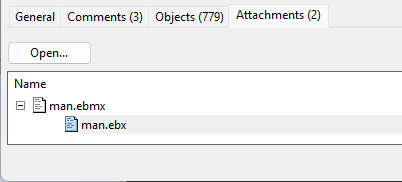
Use the tabs to view information about the selected work request.
-
To exit the Work Request Manager, click Close.