Create shaded orthogonal views
While working on a design project using point clouds, you probably want to have some shaded views which show point clouds and some which do not clutter the view with points. The same applies to seeing the scanner balls.
Do the following:
-
Select Views > New > Point Cloud Views > Shaded Orthogonal to create a default shaded orthogonal view which shows point cloud points.
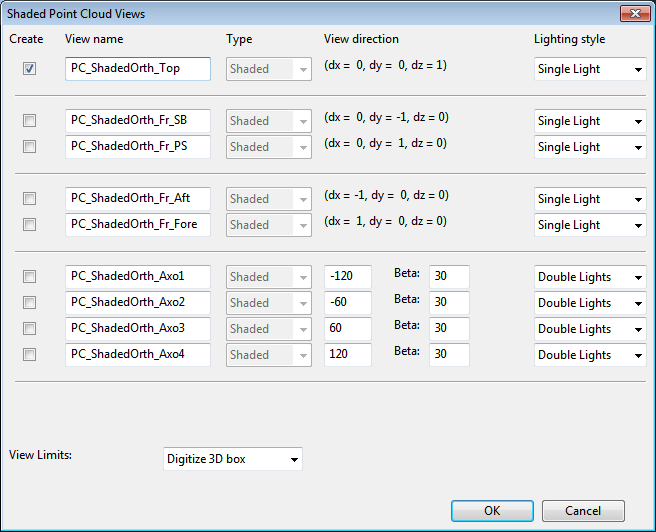
Shaded orthogonal views have some limitations with point clouds. The most important is that due to combining points from many scanners, what you see is not necessarily as realistic as with bubble views. Also, using large shaded views with point clouds may challenge run time performance.
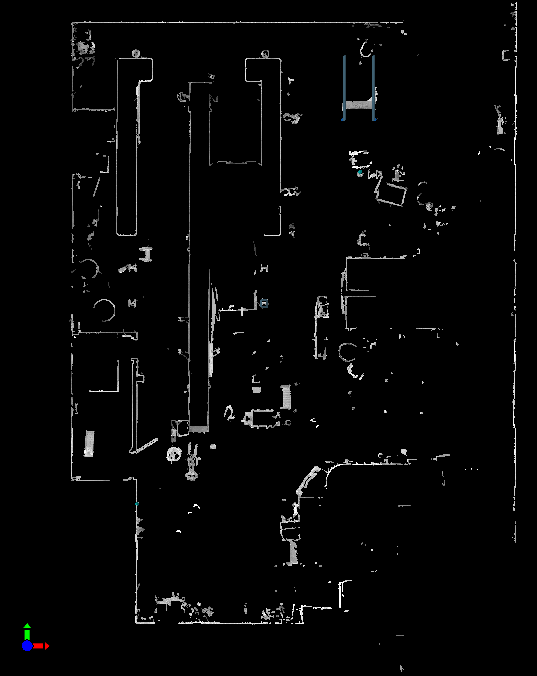
One use case of utilizing shaded orthogonal views with point clouds is to visualize the wall lines of the plant to get a general overview of the layout on a certain elevation. Then, you can make a large (X, Y) but thin (Z = 100 mm) shaded orthogonal view and use the Point Cloud Manager to activate the scanners that show the points on this elevation (and possibly deactivate the others).
A shaded orthogonal view looks something like this: