Pipeline 12
This pipeline starts with a branch from run pipe and is routed parallel to the YZ plane. The first segment is routed parallel to the Z axis. Then, use the method Create Offset Using Two Curves. Offset is the distance between the straight pipe segments. The pipe ends at the tank top.
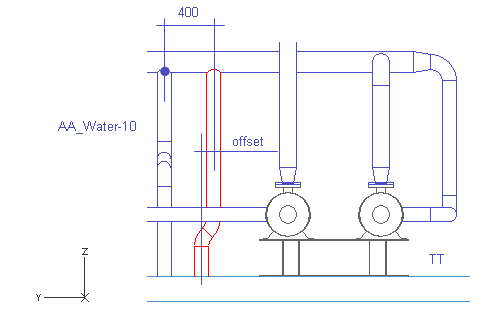
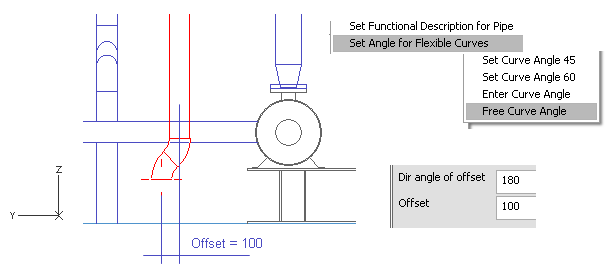
Note: During Create Offset Using Two Curves method, you have to use option Free Curve Angle with the command Set Angle for Flexible Curves. Otherwise, the program does not ask the value for offset (distance between centerlines) because the distance will be evaluated according to the angle.
Do the following:
-
Select Piping > Route pipe.
-
Move the cursor near the branch of the pipeline AA_Water-10.
-
Press Q.
-
Press D.
-
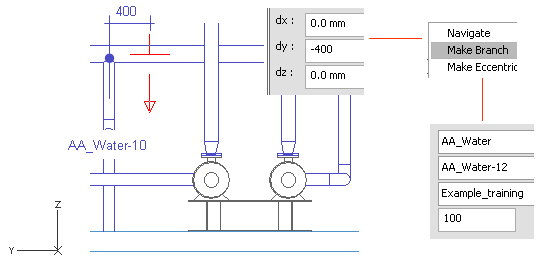
For dy, enter -400 as the value.
-
Click OK.
Do not accept the point.
-
Right-click, and select Create branch.
-
Press Enter to select the run pipe when it is highlighted.
-
For System, select AA_Water.
-
For Line, select AA_Water-12.
-
For Nominal Size, enter 100 as the value.
-
Click Done.
-
Press Alt+Ctrl+Z.
-
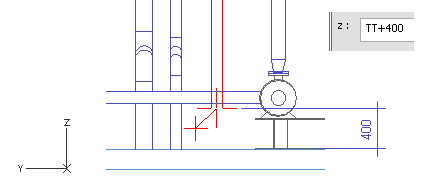
For z, enter TT+400 as the value.
-
Click OK.
-
Press Space.
-
Right-click, and select Angle for flexible curves > Not fixed.
-
Move the cursor to the approximate place where the you want the curve to be.
-
Press O to offset using two curves.
-
For Dir angle of offset, enter 180 as the value.
-
For Offset, enter 100 as the value to define the distance of the centerlines between straight pipes.
-
Click OK.
-
Move the cursor near the tank top.
-
Press F to lock the cursor to the face.
-
Press Space.
-
Press Enter.
-
Click Yes.
You have now routed a pipe that has an offset that uses two curves.