eShare documents
 In the eShare Documents view, you can see the project document list retrieved from CADMATIC eShare during the last synchronization, select which documents to make available for offline viewing, and open directly supported documents using either a built-in document viewer or the default viewer of the tablet device, as specified in Global settings. If the document has links to 3D model objects and the linked objects are present in the eGo model, selecting such link opens the associated object in the 3D view.
Using the document list
As eShare can get documents from various sources, the document list is arranged by source. For example, documents that CADMATIC Plant Modeller has sent to eShare are in a different node than documents that eShare has retrieved from the file system. There might also be image files as well as file types that eGo cannot open. You can open the unsupported files in the associated application or download the files to your device.
Some branches of the document list hierarchy are not retrieved until the user opens them, if the data sources have been configured dynamic by administrator in eShare. To enable the dynamic loading,eGo must have a connection to eShare.
eGo's internal document viewer converts multi-page documents one page at a time. If you have opened the page earlier and it is up-to-date, eGo shows the page from the cache.

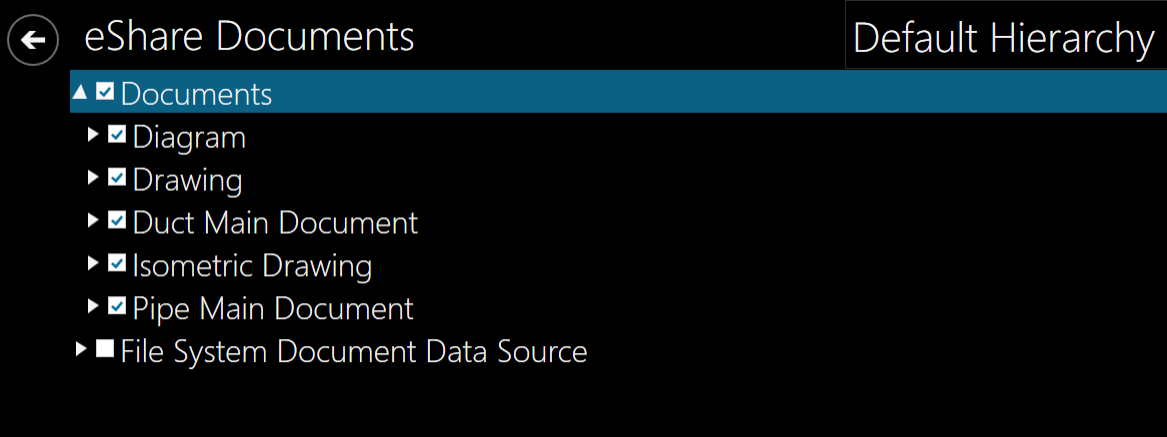
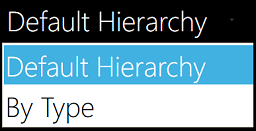
If additional document hierarchies have been defined in eShare, you can select the hierarchy to use from the drop-down menu in the upper right corner.
Opening a document
You can open a document in the following ways:
-
Click a document link in the properties pane of the 3D view.
-
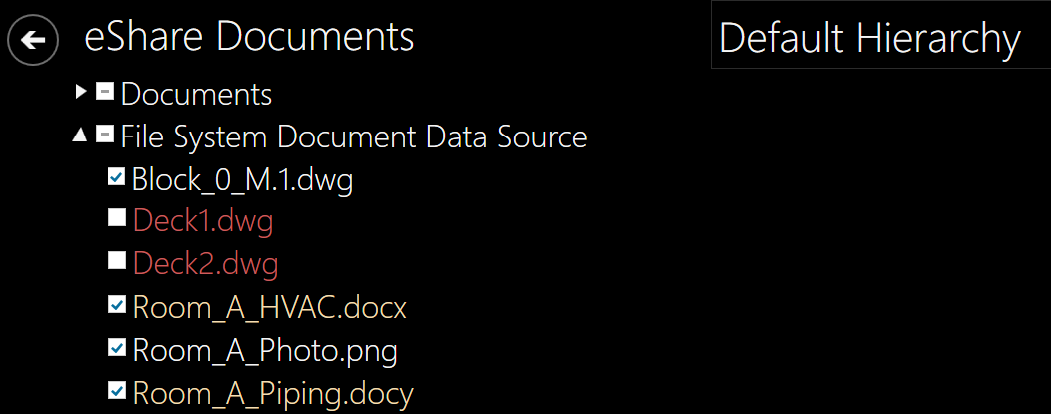
Double-click or double-tap a document name or branch name in the eShare Documents view. The color indicates availability:
-
White name indicates that the document or branch is available and eGo can open it.
-
Yellow document name indicates that the document is available but it uses a file type that eGo cannot open. If you select to open such document, you are prompted whether to try to open the document in another application (select Yes) or copy the document's URL to the clipboard (select No). If you try to open the document and its file type is not associated with any application, eGo displays a message that the document could not be opened.
-
Red name indicates that the file or branch is not available—eGo is not connected to eShare and you have not selected the document to be available offline or eShare administrator has configured the branch as dynamic. If you try to open the document, eGo displays a message that the document could not be opened.
-
Note: If eGo is configured to use the default third-party document viewer installed in the tablet device, the document viewer opens outside the eGo user interface.
Making documents available offline
You can make documents to be available also when eGo is not connected to eShare.
Make all documents available offline
-
Go to Global Settings, and in the Synchronization section set Synchronize Documents by Default to "Yes", as described in Global settings.
Make selected documents available offline
- In the eShare Documents view, select the check box of the documents you want to access offline.
Synchronize offline documents
- Go to the Models view and select
 . eGo downloads the documents you have selected for offline use and removes the offline copy of the documents whose check box you have cleared. See Synchronizing eShare models.
Built-in document viewer
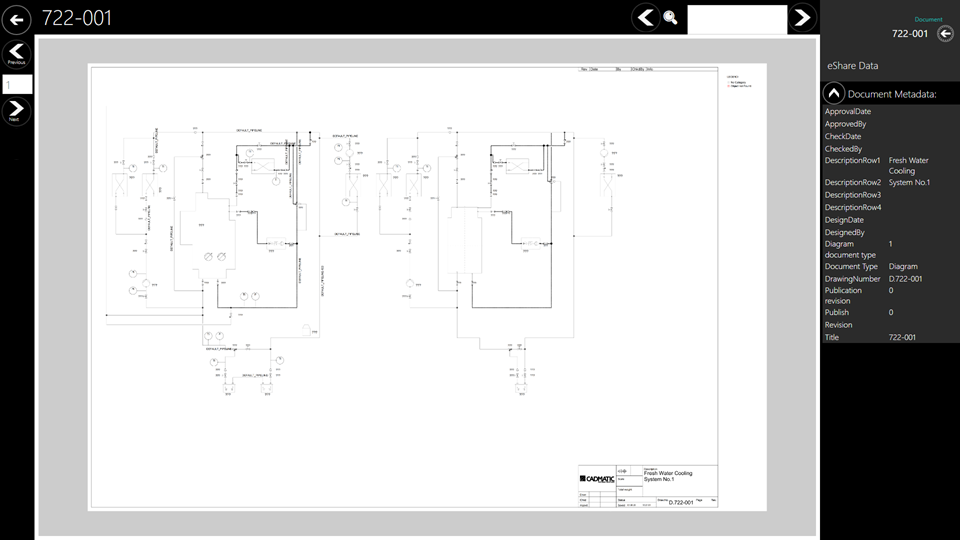
When you open an eShare document and eGo is configured to use the built-in viewer, opening a document from a link in the 3D view automatically zooms to the right object and you can use the search tool to find text from the hyperlinks in the document. When eGo is connected to eShare, the properties pane displays document metadata from eShare. The document can also contain links to other documents, or Smart Points. Click on the link to open the linked document, or Smart Point. If the link contains links to multiple objects, Smart Points, or documents, select the correct one from the list.
Find text from links
The built-in document viewer displays a search box for finding a text string from object links (not from object labels) in the currently displayed document.
As you start typing the text string into the search field, the document automatically zooms to the first instance of the text string it finds from the document, and you can use the navigation buttons around the search box to jump to another instance.

Zoom
 — Use the +/- buttons of the on-screen toolbar or the mouse wheel to zoom in/out.
Previous/next
 — Use the Previous and Next arrow buttons of the on-screen toolbar to move to another page in the document. You can also enter a page number in the field to go directly to that page.
Keyboard
If your tablet has a keyboard, you can use the following keys to navigate in the document viewer:
- Arrow keys – Move left, right, up or down in the current page.
Mouse
If your tablet has a mouse, you can use the mouse wheel to zoom in and out.