The I/O cards included in the standard database are product models that you can add to your projects in product model management. For these cards, you can also define other product model properties, such as symbols and additional information.
If you add or edit product models, they are not saved to the standard database. Instead, they are saved to the shared database.
Open product model editing from the Product models project tree by right-clicking the product model and selecting Edit.
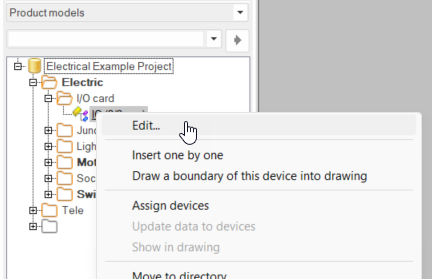
The Product model dialog opens. When the device type is I/O card, you can add channels on the I/O channels tab.
Do the following:
-
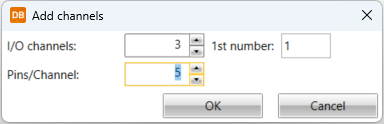
Click Add channels. The Add channels dialog opens.
-
Define channel information: the number of channels to create, the number of pins per channel, and the number of the first channel (a sequential number depending on the number of channels).
-
Click OK.
-
Define other information in the grid, for example:
-
Bit address – This value is added at the end of the address separated with a period. This is used in some address creation rules.
-
Word change – This value is added to the channel's start address. The start address value is defined in I/O card properties.
-
Address Prefix – This value is added to the beginning of the address. For some manufacturers, this is standard even if it is not shown in the respective field on standard I/O cards. Siemens' I/O cards, for example, always have the prefix E. You can add the desired address creation rule for this field.
-
-
Save product model changes by clicking OK.
For more information on the dialog, see Create, copy and edit product models.