Manage and insert symbols

|
Single-line tab > Devices group > Symbols |
With this function, you can open the Symbols window. The window offers an easy way to view symbols and insert them into the drawing; the insertion functions are available in the same user interface. You can dock the window anywhere on the screen, and keep it open while working.
Learn more:
View symbols
At the top of the Symbols window, you can select the symbols you want to view as follows:
|
|
Electrical symbols – This tab shows you all the Electrical symbols available. |
|
|
User's symbols – This tab shows you the symbols you have saved with the Save user symbol function or imported from the user icon menus. For more information, see Manage your own symbols |
|
|
Favorite symbols – This tab shows you the symbols you have defined as your favorites, either in the Symbols window or the Symbol selection dialog (see Symbol selection). You can select symbols from the current drawing or project as well as Electrical symbols or your own symbols and then define them as your favorites by right-clicking the desired symbol and selecting Add to favorites. If necessary, you can remove symbols from favorites by right-clicking them and selecting Remove from favorites. |
|
|
Symbols in current project – This tab shows you all the symbols in the project. |
|
|
Symbols in current drawing – This tab shows you the symbols that have been inserted in the active drawing. |
|
|
Symbols in another drawing – This tab allows you to select symbols from another (closed) drawing. However, the symbol definition needs to be found in the symbol directory so that it can be used. The drawing can be located on the company's network drive, for example, allowing all the users access to the same symbols. Click the
|
|
|
Settings – This tab allows you to select another drawing type whose symbols you want to show in the dialog temporarily. In an arrangement drawing, for example, you can select to show multi-line symbols. This setting will be valid for as long as you have the Symbols window open. Once you close the window and open it again, symbols will again be shown based on the current drawing type. |


 (
( (
(

The tree structure language is based on what has been selected from the Language of symbol dialogs and info box header drop-down menu in Electrical settings.
Symbols are shown according to your selection in the Symbols section in the middle of the window. If the active drawing has no drawing type defined or there are no symbols, multi-line diagram symbols will be shown.
If necessary, you can look for a symbol by entering the desired search term (symbol name or description, or a part of them) in the empty field and pressing Enter or clicking the  (Search) button. The symbols matching your search are then highlighted in the Symbols section:
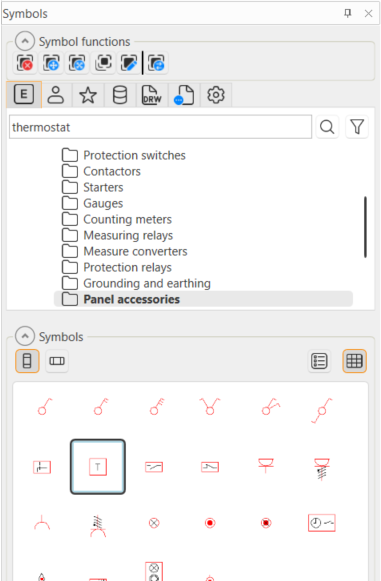
Furthermore, you can click the (Filter) button to filter the search results so that only the symbols matching your search criteria are shown.
 (Vertical symbols) button you can view the vertical symbols and with the
  (Horizontal symbols) button the horizontal ones.
You can view the symbols in list or grid view:
 List view: List view: |
 Grid view: Grid view: |
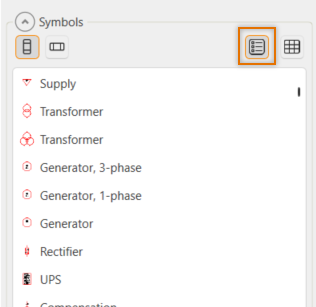
|
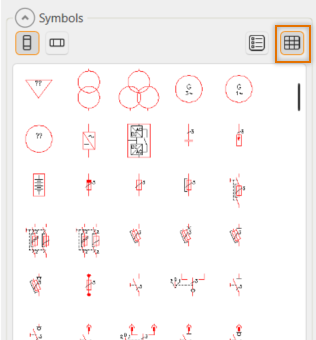
|
When you hover over a symbol, the symbol description is shown. The symbol description language is based on what has been selected from the Language of symbol dialogs and info box header drop-down menu in Electrical settings.
When you select a symbol, its name and description (in the language defined in Electrical settings) are shown in the Symbol information section. You can then add the symbol to your favorites by clicking the  (Add to favorite symbols) button. If necessary, you can remove the symbol from your favorites by clicking the button again.
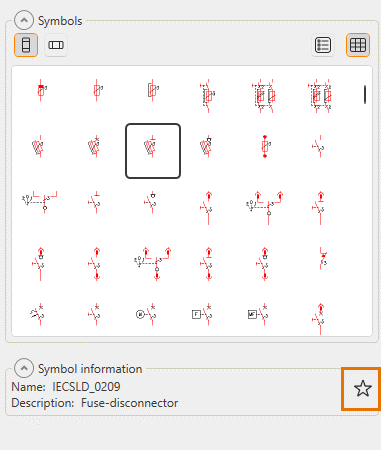
Alternatively, you can right-click the desired symbol and select Add to favorites or Remove from favorites.
Manage symbols
At the top of the window, you can manage the symbols as follows:
|
|
Delete symbol – Delete a symbol from the drawing. The application will also carry out update actions as necessary. |
|
|
Move symbol – Move a symbol in the drawing. The application will also carry out update actions as necessary. |
|
|
Move symbol and stretch wiring – Move a symbol and stretch any wiring attached to it. The application will also carry out update actions as necessary. |
|
|
Copy symbol – Copy a symbol in the drawing. The application will also carry out update actions as necessary. |
|
|
Edit symbol – Edit a symbol you have created with the Save user symbol function. |
|
|
Change symbol – Change a symbol to another by keeping the attribute values. |


Manage your own symbols
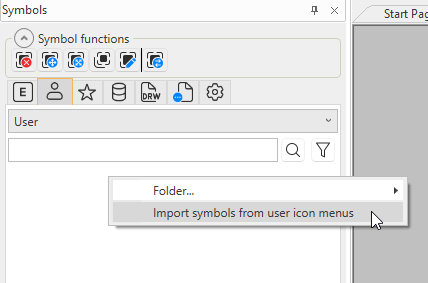
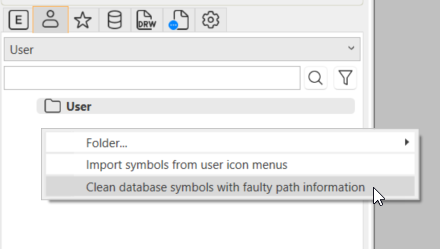
You can save and insert your own symbols via the  (User's symbols) tab. The symbols you create and save with the Save user symbol function are available on this tab, in addition to which you can import your previously created symbols from the icon menus to the Symbols window by right-clicking in the field and selecting Import symbols from user icon menus:
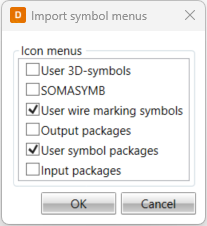
Then select the menus from which you want to import symbols, and click OK.
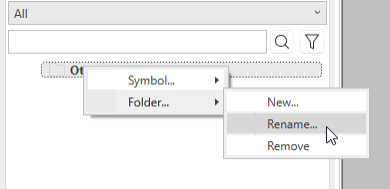
You can define the folder structure yourself, i.e. you can create folders and subfolders and name and rename them as you like.
-
Create folders by right-clicking the empty space below the search field or the folder below which you want to create the new folder, and select Folder > New. Then enter the name for the new folder.
-
Rename folders by right-clicking the desired folder and selecting Folder > Rename. Then enter the new name.
-
Remove folders by right-clicking the desired folder and selecting Folder > Remove. Then confirm the removal by clicking Yes.
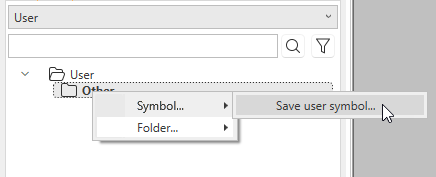
After creating the first folder, you can start the Save user symbol function via the tab by right-clicking and selecting Symbol > Save user symbol:
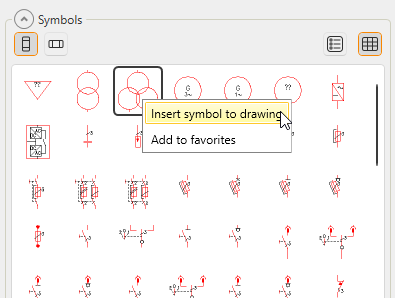
You can insert your symbols as any other symbols by double-clicking the symbol or by right-clicking and selecting Insert symbol to drawing. You can also add symbols to your favorites by right-clicking and selecting Add to favorites.
When there is a conflict which prevents using a symbol although it exists in the application and the database, you can fix the situation by right-clicking and selecting Clean database symbols with faulty path information. The function is only shown when there is such a conflict that can be resolved with this function.
Insert symbols
You can insert a symbol into the drawing via any of the tabs by double-clicking the symbol and indicating the insertion point. Alternatively, you can right-click the symbol and select Insert symbol to drawing:
If you do not find the desired
symbol from the symbol menu, you can create a new symbol with the Save user symbol function. Your own symbols are available on the (User's symbols) tab.
Create product models
In the Symbols section, you can create product models based on the symbols by right-clicking the selected symbol and selecting Create new product model:
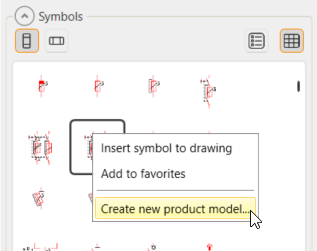
The New product model dialog opens, and you can define the information as for any other product model. The new product model will get the 2D and 3D symbols and the device type from the selected symbol.