The paper size used in printing is selected from the paper sizes defined for the Windows printer drivers. After installation, the most common paper sizes are available for the printer driver. If they do not include the one you want to use, you need to create a paper size of your own. Typically, you would need to create a long paper sheet (914 mm x 2700 mm, for example).
Defining long paper sizes depends on the printer drivers' capabilities. A long paper size needs to be defined as a Custom paper.
Do the following:
-
Select File > Print > Print settings.
-
Select the desired printer, and in the Printer section click Properties. The Modify printing device configuration dialog opens.
-
Click Properties. The property dialog opens. The dialog may look very different in different printer drivers. It is recommended to always use the latest version available on the manufacturer's website.
-
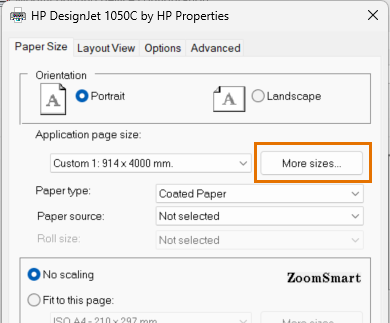
On the Paper Size tab, click More sizes. The following image shows the dialog for the HP DesignJet 1055 CM driver.
-
Edit paper size values, or create new paper sizes. The paper size names are Custom1, Custom2, etc.
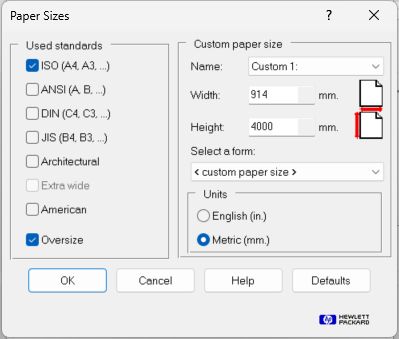
Note: The application will always decrease margins from paper size defined in printer driver settings. This means that the actual printable area could be smaller than defined. The decreased margin size is read from the printer driver (and it could be adjusted in driver settings) so margins may vary depending on the selected printer.
-
After defining the paper sizes close the dialogs by clicking OK.