OCR configuration (beta version)
Optical Character Recognition (OCR) is a technology which converts text in images or scanned documents into machine-readable and searchable text. OCR enables systems to recognize letters, numbers, and symbols within visual content, making it possible to search, copy, edit, and index thr extracted text for further use. OCR can now be used in eShare to extract data from documents.
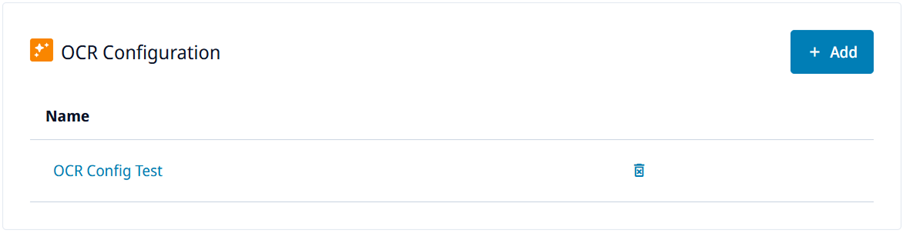
Configuring OCR
Prerequisites
-
OCR is enabled in eShare.
Do the following:
-
Navigate to the project to edit, and then click Project Admin in the main menu. The project administration view opens.
-
Open the Document Handling view.
-
In the OCR Configuration pane, click Add. The OCR Configuration Settings view opens.
-
In the configuration settings, specify the following:
-
Name – Enter a descriptive name for the configuration.
-
Execution – Specifies when OCR is run for documents. To run OCR when document is being opened, select On document open, or to run OCR when indexing is done, select Only on index.
-
On collisions prioritize – Specifies which extraction should be prioritized in scenarios where there are detections from OCR and also in embedded text in the PDF. In this case the user has initially loaded the document without OCR and data on it already exists. If the OCR is ran after this, there could be detections where current data already exists. Select either OCR or Embedded text to set which is prioritized.
-
Prioritize on extract – Specifies which should be prioritized, if the document contains text strings in any format. If you know that the contents contain correct embedded data, select Embedded text, but if the embedded data is incorrect, select OCR.
-
-
Click Save.
Attaching OCR to document handlers
After OCR has been configured, you can select to use OCR when you create a new document handler or edit an existing handler. The option Use OCR is available in the configuration settings. Set the option to Yes and select the OCR configuration on the list. See Defining a document handler.
Using OCR with documents
When OCR has been configured and enabled for a document handler, it will be active the next time you open or index a document based on the configuration. When OCR process is run, a text and a spinner with the CADMATIC AI logo are shown. If the OCR process gets stuck or you want to abort it, click the Cancel button on the document load page. The data from OCR is cached to the document database. This means the OCR process has to be run only once; subsequent requests load the data directly from the database, significantly improving loading performance. OCR processing can be time-consuming, especially for larger documents. It is recommended to run it during indexing.
If text extraction fails and you want to try again, you can clear the cached document data in Project Admin > General for the document data source. See Viewing the indexing status .